




Our friend Carlie wrote us with a problem that was so perplexing (and the solution so vexing and unpleasant) that I must share it with you. She wondered why a placed PDF file — a CMYK image created in Illustrator — was changing its CMYK values upon output. After all, she was using Preserve Numbers in the Export PDF dialog box.
Preserve Numbers, both in the Print and Export PDF dialog box, is supposed to stop InDesign from changing CMYK values when the output (target) destination is different than the document profile. (Yes, I’m talking color management here. Wake up! Don’t glaze over!) However, in at least one instance, Preserve Numbers is ignored and you can get very unexpected results.
There is a very important lesson to be learned here about how InDesign handles color management: The settings in the Edit > Color Settings dialog box when you create an InDesign document affect your document forever, and in some cases it is a royal pain to change those settings later.
Preserve Profiles Defeats Preserve Numbers
I’m not going to go into all the gory details here, but suffice it to say that someone, somewhere, had the CMYK pop-up menu in the Color Management Policies section of the Color Settings dialog box set to Preserve Embedded Profiles instead of Preserve Numbers. This probably seemed like a good idea at the time to that person… You can just hear them thinking, “gosh, let’s be clever and preserve all the profiles!”
Unfortunately, “preserve profiles” is only clever if you control all the pieces of the puzzle, you know exactly what is coming and going in your files, and you’re on top of the printing/exporting process yourself. In this case, that person sent the file off to be worked on and printed elsewhere, and that’s where the problems started.
Because Color Settings were set to Preserve Profiles when the INDD file was first created, InDesign paid attention to the embedded profiles in all images placed in that file. “Paid attention to” is another way of saying, it recognized and honored the embedded profiles.
Technically, “Preserve Numbers” means “preserve the numbers in color swatches and images for which you are not honoring embedded profiles.” The result? Preserve Numbers turns itself off for all the CMYK images that have embedded profiles.
Avoiding the Problem
There are many lessons to be learned here. One is that you should probably just choose General Purpose in the Color Settings dialog box and stop trying to be clever. Notably, this ensures that the CMYK policy is to preserve numbers, not profiles. (See this post for more on why the sRGB setting in General Purpose also makes sense.)
Another solution to this problem is to not embed profiles in the artwork you don’t want changed downstream. In this case, if the PDF or AI file didn’t have an embedded profile, InDesign wouldn’t be able to honor one, and therefore Preserve Numbers would have worked. However, in many cases, this requires you to specifically turn off an “embed profiles” checkbox — or worse, convince an Illustrator or Photoshop user to turn those checkboxes off.
Resetting InDesign’s Color Policies
Okay, so you have an InDesign document created when Color Settings was set to Preserve Profiles. Unfortunately, InDesign doesn’t tell you that anywhere obvious. It took me a half-hour working with Carlie’s file before I figured it out. The only way to find out (that I can think of), and the only way to change it are:
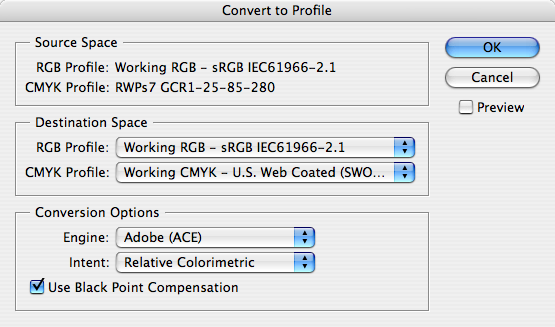
- Open the document and choose Edit > Convert to Profile.
- Note the CMYK Profile setting in the Source Space section. This is the only way you can find out what the current CMYK profile is for this particular document.
- Click Cancel and close the document.
- Now, open Edit > Color Settings
- Turn on the Ask when Opening checkbox in the Profile Mismatches section.
- Make sure the CMYK pop-up menu in the Working Spaces section is set to something other than what the document cmyk is set to (the profile you noted in step 2). Just pick anything else; you can change it later.
- Click OK to close Color Settings, and now open the document again.
- You should see a Profile Mismatch dialog box. Notice that the Policy in the “as is” section is set to Preserve. That’s the only way I know of to see what the current policy is. [Note to Adobe: This is insane.]
- Choose “Adjust the document to match current color settings. (The policy you see should say Preserve Numbers.) If you don’t want your document to have the different profile you chose in step 6, choose a different one here. If you want to ensure that all the placed CMYK images no longer honor their profiles (that is, if you want to ensure Preserve Numbers will work for them all), then choose Disable All Profiles from the Placed Content pop-up menu.
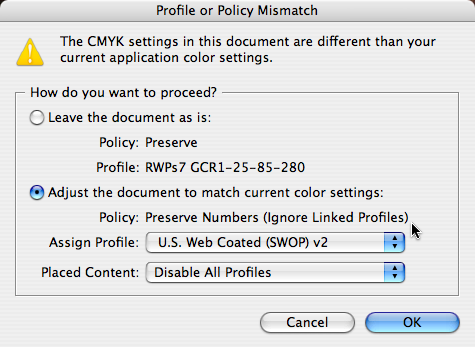
- Click OK.
Now your document’s policy should be set to Preserve Numbers, and you won’t have the color-shifting problem with vector and raster images that have embedded profiles any longer.
This article was last modified on December 18, 2021
This article was first published on March 20, 2008
Commenting is easier and faster when you're logged in!

Recommended for you

Font Bros Typography Supply Company Launches
It is with great pleasure to introduce to you Font Bros Typography Supply Compan...

TypeTalk: The Best of 2013
In the world of fonts, January is a month of lists. Whether they’re called Best...

Hath There E'er Been a Font So Fair?
While the word “Weingut” may not sound particularly lyrical to the e...