




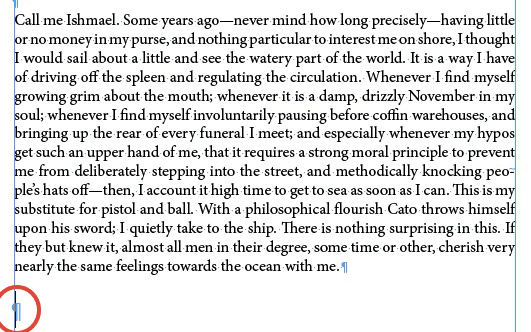
Ever come across a paragraph that looked like this, with the last line looking like it’s started to fall away from the rest of the text?

It’s all too easy to create a situation like this.
For example, say a paragraph of body text is followed by a paragraph with a higher leading value, like a heading.

And in the course of editing text, you select the text of the heading, but not the paragraph return and cut or delete the text.

This leaves you with your cursor directly in front of a rogue paragraph return.
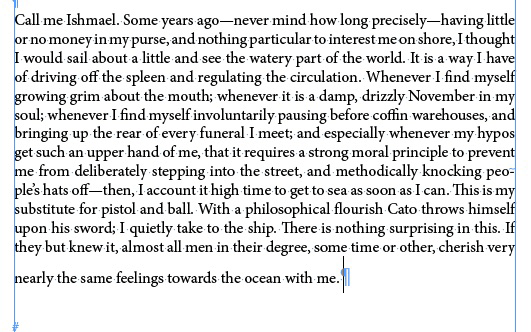
At this point, you might be tempted to do the easiest thing—press Delete to bring that return up to the last line of the preceding paragraph. But when you do so, you’ll (hopefully) notice that the line takes on the higher leading value. Here it’s obvious, but it might not be in other cases when the leading values are closer.
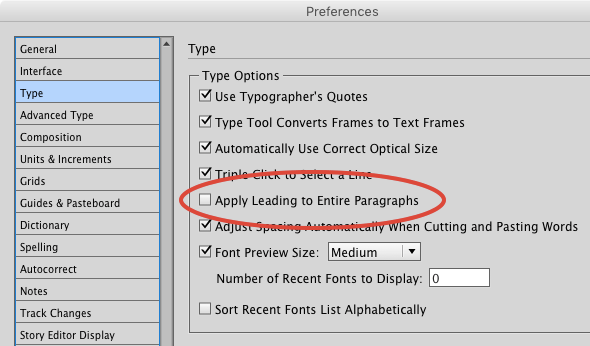
You might think this has something to do with a pesky default setting in InDesign. In Type preferences, Apply Leading to Entire Paragraphs is turned off by default. When it’s on, the highest leading applied to any character (visible or whitespace) in the paragraph is applied to all the lines.
A long time ago, when I used to make math textbooks for a living, I loved this preference being off by default, since it allowed me to insert fractions inline and automatically have the line spacing corrected with a character style. And when the text reflowed due to edits or whatnot, the leading took care of itself. But I doubt many other folks felt the same way about this default. In any case, changing the preference will not solve the problem caused by the rogue return crashing your paragraph party, since a return is not a character. (Just like in GREP searches).
Fixing Inconsistent Leading
So to fix the last line leading problem, you have to remove overrides from the paragraph’s formatting. With your cursor in the paragraph, click the button to Clear Overrides in the Control panel or Paragraph Styles panel.

Or, if you have overrides elsewhere in the paragraph that you want to preserve—perish the thought—select just the return before clicking the Clear Overrides button.
This article was last modified on July 25, 2019
This article was first published on November 10, 2016
Commenting is easier and faster when you're logged in!

Recommended for you

The Zero Leading Solution
Through the use of zero leading, you can make text in separate paragraphs appear...

How to Customize InDesign’s Preferences, Panels, and More
Learn how to customize InDesign preferences, panels, defaults, and workspaces to...

How to Enable Photoshop’s Quiet Mode to Stop “Helpful” Pop-Ups
Turn on Quiet Mode in Photoshop for a more peaceful workflow.