


Web Tips: What You Need to Know About Flash MX

Distorting Graphic Elements
The free-transform tool allows you to distort a graphic element by changing the shape of its bounding box. You can reposition one or more corners of the box individually; you can manipulate paired corner handles simultaneously to turn the rectangular box into a trapezoid; and you can stretch, shrink, and/or skew the box by moving the side handles of the bounding box. The selected element(s) stretch or shrink to fit the new bounding box. Distortion works only on raw shapes, not on grouped elements or symbols.
To distort an element freely:
- Using the free-transform tool, select the element you want to distort.A bounding box with transformational handles appears.
- In the Toolbox, select the Distort modifier (see figure 12).
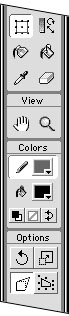
Figure 12
Note that the center point of your selection disappears, indicating that you are in Distort mode.
- Position the pointer over one of the transformational handles.The pointer changes to a hollow arrowhead.
- To change the shape of the bounding box, do one of the following:
- To relocate one corner of the element’s bounding box, position the pointer over one of the corner handles; then click and drag the handle to the desired location. You can position each of the four corner handles independently (see figure 13.)
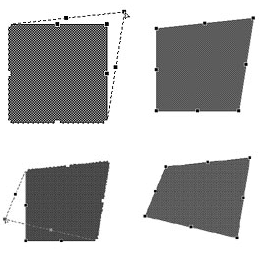
Figure 13
- To skew the element, position the pointer over one of the side handles; then drag the handle to the desired position. The element skews toward the direction you drag.
- To stretch the element as you skew it, move the selected side handle away from the element’s center (see figure 14).
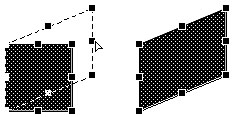
Figure 14
- To shrink the element as you skew it, move the selected side handle toward the element’s center.
- To relocate one corner of the element’s bounding box, position the pointer over one of the corner handles; then click and drag the handle to the desired location. You can position each of the four corner handles independently (see figure 13.)
- Release the mouse button.Flash redraws the selection to fill the new bounding-box shape.
Distorted Perspective
As beginning art students discover, it’s not too hard to add depth to objects made up of rectangular shapes. You simply adjust the appropriate edges to align with imaginary “parallel” lines that converge at a distant point on the horizon-the vanishing point. This creates the illusion that the objects recede into the distance. Adding perspective to nonrectangular shapes takes a bit more experience and the ability to imagine the way that those shapes should look. The Distort modifier of Flash’s free-transform tool helps you because it encloses your selected shape-circle, oval, or squiggle-within a rectangular bounding box. All you need to do is adjust that box as you would a rectangular shape.
Beginning art students learn about 1-point, 2-point, and 3-point perspective. The “points” here refer to the vanishing point-the spot in the distance where parallel lines seem to converge. By selecting elements in your artwork carefully, and by using the distort tools to make the edges of the bounding box seem to line up with those “converging” lines, you can add perspective to objects even if they do not contain the parallel lines that would make it easy for you to fake the depth perception you want.
Tips
- You can use the free-transform tool to distort multiple graphic elements. Select the elements you want to modify. Then, using the Distort modifier of the free-transform tool, redefine the shape of the bounding box that surrounds the set of elements. The elements change as a unit.
- If you want to make multiple changes to distort an element, such as repositioning all the corner handles, you should make those changes one after another without deselecting the element. When you deselect the element, the transformational bounding box that you created disappears. If you select the element again, you get a new, rectangular bounding box that encompasses the distorted shape. If this happens when you don’t intend it, choose Edit > Undo to restore your selection with the modified bounding box; then select the Distort modifier again and continue your changes.
Excerpted from “Macromedia Flash for Windows and Macintosh: Visual QuickStart Guide” (Peachpit Press).

Peachpit Press is offering this book at a discount to creativepro.com readers. Follow this link.
This article was last modified on January 18, 2023
This article was first published on October 16, 2002
Commenting is easier and faster when you're logged in!

Recommended for you

The Art of Business: 'Tis the Season to Give Gifts… Thoughtfully
How fast time flies. It’s that time of year again to find the right gift f...
Scanning Around with Gene: My Woofer is Bigger than Your Woofer
Aside from my sister and me, the possession my mother has held on to the longest...

InCopy CS5 Workflow White Paper Now Available
Have you been to the InCopy product page on Adobe.com lately? If so you’ll...