


Web Tips: What You Need to Know About Flash MX

About the Property Inspector
In Flash 5, you set most properties and attributes of elements and tools (such as fill color, stroke style, and font) in panels. Panels still exist in Flash MX, but one special panel-the Property Inspector-has taken on several tasks formerly carried out by separate panels. The Property Inspector is context-sensitive, and changes constantly to reflect your selections.
To access the Property Inspector:
- From the Window menu, choose Properties (see figure 6).
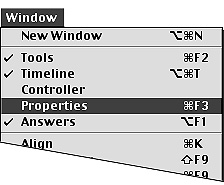
Figure 6: Flash opens the Property Inspector.
In the Windows operating system, the Property Inspector docks to the bottom of the application window by default, but you can make it float as a separate panel.
To create a floating Property Inspector (Windows):
- Click the textured area in the top-left corner of the Property Inspector, and drag the panel away from the edge of the window.
To dock the Property Inspector (Windows):
- When the Property Inspector is floating, click the bar on the left side of the panel, and drag the panel to the top or bottom edge of the application window.Flash snaps the Property Inspector to the edge of the application window.
The Power of the Property Inspector
Think of the Property Inspector as being a context-sensitive superpanel — a panel that changes to reflect whatever item you have selected. It displays information about the active Flash document, a selected tool, a selected graphic element (a shape, grouped shape, or symbol; a text block; a bitmap or video clip), or a selected frame.
The Property Inspector is also the place for setting many tools’ parameters and for changing the attributes of selected elements.
Select the line tool, for example, and the Property Inspector becomes the Line Tool Property Inspector. In this incarnation, the Property Inspector presents all the line tool’s parameters for you to set: color, thickness, and style. Select a line on the Stage, and the Property Inspector becomes the Shape Property Inspector. Because the selected shape is a line, the Property Inspector displays the same parameters as the Line Tool Property Inspector; change the parameters in the Property Inspector, and Flash changes the selected line to match.
Click a blank area of the Stage, and you’ll see the Document Property Inspector, which gives you access to various document settings. Select a symbol instance on the Stage, and the Property Inspector reveals the instance’s heritage (which master symbol it came from), as well as what its height, width, and Stage position are. Change those settings in the Property Inspector, and Flash makes those changes in the selected symbol instance.
Entering Values in the Property Inspector
In many modes, the Property Inspector requires you to enter a value in a field to change a parameter. You can always type a new value. When modifying selected items, you usually must press Enter to apply the new value to selected items.
A small triangle to the right of an entry field indicates the presence of a pop-up slider for entering values quickly. Often, a slider previews new values interactively. The following methods work for most sliders:
Click and drag. Click the small triangle, and hold down the mouse button; you can start dragging the slider’s lever right away. Release the mouse button. Flash enters the current slider value in the field and-in most cases-applies that value to selected objects automatically.
Click and click. Click the small triangle, and release the mouse button right away; the slider pops up and stays open. You can drag the slider’s lever or click various locations on the slider to choose a new value. Flash enters the value in the field. To apply the value to selected items, you must click somewhere off the slider. Click another entry field, click elsewhere on the panel, or click the Stage.
This article was last modified on January 18, 2023
This article was first published on October 16, 2002
Commenting is easier and faster when you're logged in!

Recommended for you

My Grayscale Images and Colors Changed Suddenly
Jim wrote: I played with the Feather effect on one of our documents. When I appl...
Edit a Shape’s Frame
I created a text frame, filled it with text, gave it a fill and stroke... it's p...

The Secrets to Smoother Paths in Illustrator
Don’t let poorly placed points ruin your designs.