




PowerPoint has been on a tear the last few years, using Microsoft’s AI technology to improve slide design (Designer), presentation content (QuickStarter), and accessibility (Live Subtitling). And with the recently released Presenter Coach feature, PowerPoint is now looking to make its users better speakers.
Designed to provide real-time “coaching” and post-rehearsal analysis, Presenter Coach is an in-app assistant that evaluates a number of typical problem areas for speakers and offers gentle guidance for improvement.
The feature is currently available only for the online (web browser) version of PowerPoint, but it should be making its way to desktop versions shortly. If you have an Office 365 subscription, you have access to PowerPoint online including file storage on OneDrive.
To launch Presenter Coach, simply select it from the Slideshow tab and begin rehearsing your presentation.
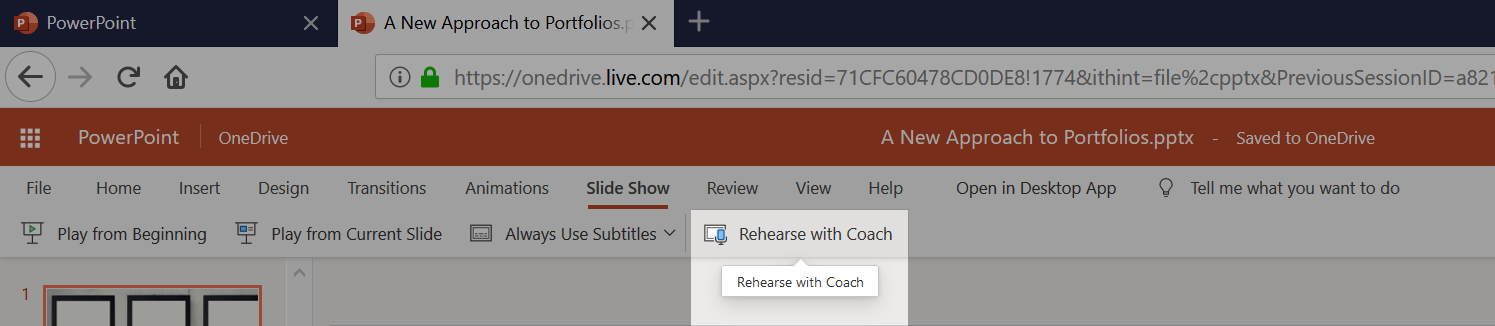
PowerPoint starts listening and will give you live feedback on the following through a chime and popup notification in the bottom right of your screen.
Filler Words
Are you guilty of using too many “Ums” or “Ers”? Every time you do, Presenter Coach is going to give you a real-time alert.

Pacing
If you are prone to speeding through your content, Presenter Coach is going to let you know that you are speaking too fast and that you should slow down.
Culturally Insensitive Language
If you use a racial slur or a sexist term, you’re going to get chided with an admonition that you might want to reconsider. Some language alerts are obvious and to be expected, but the feature will also advise you to use terms like “People with Disabilities” if it hears “Disabled People,” and will suggest that referring to your audience as “Guys,” might not be gender inclusive. Obviously, the rules Microsoft has set up for language can be argued over and will, no doubt, evolve as society does. Remember, this is a coach, not an umpire.
Use Only in Rehearsal
For now, you’ll want to use Presenter Coach only in rehearsal because currently there is no way to disable the automatic pop-ups and alert chimes. Even if you are by yourself, many find the constant intrusions distracting, so the hope is that there will be an option in the future to suppress these live alerts.
Summary Analysis
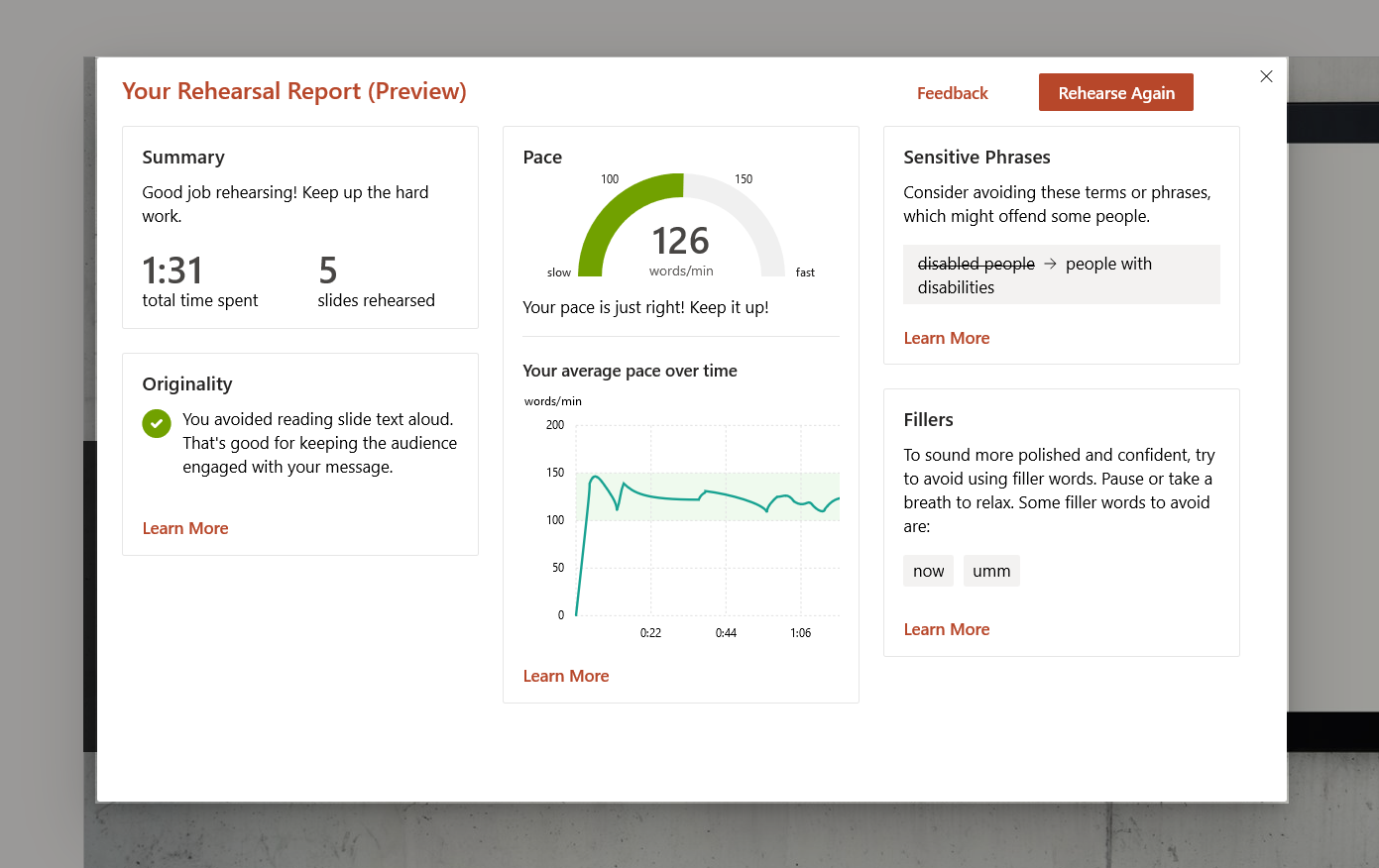
Once you are finished rehearsing, Presenter Coach puts up a summary analysis of your speech that includes the above items it has caught and adds pacing metrics of average words per minute and a line chart indicating average pace over the time of your talk.
Originality
Lastly, this dashboard gives you my favorite feature of Presenter Coach: Originality. At first, this sounds wildly subjective, but what PowerPoint is looking for here is whether you are expanding and expounding upon your slides or just reading text verbatim. If it’s the latter, Presenter Coach is going to call you out as it is definitely not best practice to just read your slides and provide nothing additional.
Security Issues
Presenter Coach requires an internet connection as it is sending your talk track up to the cloud for the AI magic, and then sending back down the guidance. This means, of course, that not only are your spoken words being sent to a server somewhere, but so is the content on your slides. It’s important to know this if security is an issue.
Where it Goes From Here
And, of course, this is just the first generation of Presentation Coach. I have no doubt that Microsoft is actively looking at how users are working with the feature and what can be added to and improved on it. I think it has huge potential, and I’m anxious to see what the future holds for it.
This article was last modified on January 30, 2021
This article was first published on November 19, 2019
Commenting is easier and faster when you're logged in!

Recommended for you

How to Create a Cinematic Focus Shift in PowerPoint
Learn how to add a cinematic focus shift in your PowerPoint presentation by usin...
Extensis Launches Next Generation Font Menu for Microsoft Word and PowerPoint
PORTLAND, Ore.—February 18, 2015—Extensis® today announced Suitcase Attaché™, a...
Export a PDF to a PowerPoint File from Acrobat
Editing your PDF file will be a breeze if you export it to PowerPoint, with Chad...