




Copy a selection with the Content Aware Move tool. Also in the Options bar is a feature called Mode, and it offers two choices: Move (which we just did) and Extend, which, in my opinion, could have been called Copy. If you were using the normal Move tool, you would Option+Drag/Alt+Drag to make a copy of the selection. But since the Content Aware Move tool starts out acting like the Lasso tool, an Option+Drag/Alt+Drag subtracts from the selection instead. In order to copy a selection, you have to be in Extend mode.

Choose Extend mode to copy a selection.
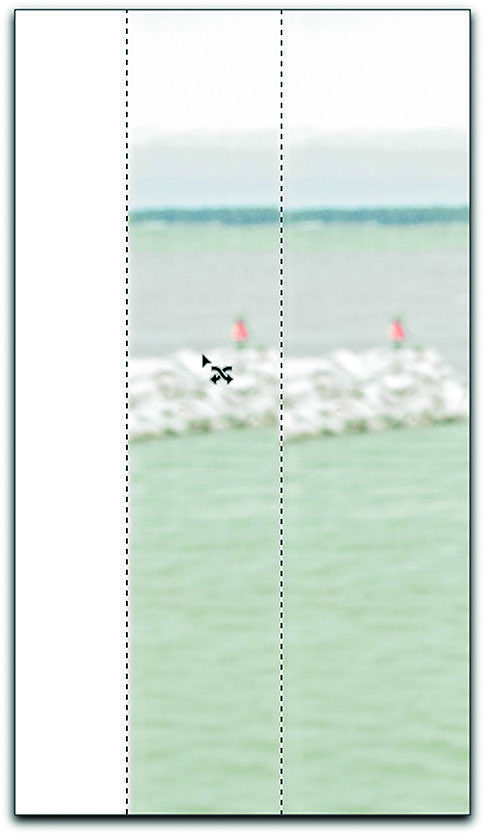
In Extend mode, the Content Aware Move tool creates a copy of the selection and blends it with the surroundings.
Open a fresh copy of Girls at Lake.jpg. Type Command+J/Control+J to copy the Background layer and name it Extend. Use Canvas Size to expand the width to 15 inches, except this time, add the extra width to both sides by leaving the Anchor point in the center. Use the Rectangular Marquee tool to select the background area to the left of the girl with the pink shirt. Switch to the Content Aware Move tool, specify Extend for the Mode, and drag the selection to the left. Repeat that until you have covered the left side of the canvas. Now do the same for the right side of the canvas.
This image gives you a good insight into where the tool excels and where it has problems. The water and the skyline extended beautifully because they were uniform, but the rocks in the breakwater didn’t fare so well. Those would need to be hand-retouched to bring them up to acceptable standards. Still, the Content Aware Move tool did a lot of the busy work for us, so we have to consider it a success.
Final Thoughts
Distorting, moving, and replacing pixels are all part of the Photoshop game. And true to Photoshop’s modus operandum, there are several ways you can accomplish this. Distortion choices include simple transform commands, Liquify and Puppet Warp. Each has its own advantages and disadvantages.
Moving and replacing pixels can be accomplished using the standard Move tool, or the more sophisticated Content Aware commands. Become comfortable with all of these methods, so you will be able to choose the best solution for the task at hand.
Reprinted with permission of the publisher from Speaking Photoshop CS6 © 2012 David Bate. All rights reserved.
For further information, visit speakingphotoshop.com.
This article was last modified on September 20, 2013
This article was first published on September 20, 2013
Commenting is easier and faster when you're logged in!

Recommended for you

The Photographer’s Guide to Copyright
PhotoShelter offers several free, informative guides for photographers on a wide...

Scanning Around with Gene: Getting That New Bike Down the Chimney
Vintage images and memories from when a shiny new bike was the ultimate Christma...
Top 5 Lightroom 5 Resources
It has been a week since Adobe announced the availability of the Lightroom 5 bet...