



For years we’ve been saying: Data Merge is terrible for creating directories. The reason is that InDesign’s Data Merge feature takes a “prototype” example and repeats it (either once per page, or in a grid on your pages) — that is, it duplicates the text and graphic frames themselves over and over. That makes it great for things like a yearbook or contact sheet, or business cards or anything that requires variable data within a particular layout.
But it’s terrible for directories where you just need a one long list or table of information. Until now.
Loic Aigon wrote this wonderful little free script called CSVtoTables that lets you use Data Merge with a table! Normally, Data Merge would simply duplicate the whole text frame that contains the table, which is useless. This script lets you duplicate the rows themselves, all in the same table. Here’s how it works.
Here’s the data we’re working with, in Excel:
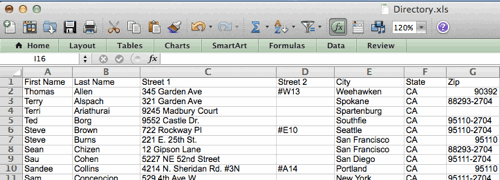
Now I save this as a CSV (comma-delimited) or TXT (tab-delimited) data file, switch to InDesign and choose Select Data Source from the Data Merge panel menu. This loads my table into the Data Merge panel. (Notice that it uses the column header row in the spreadsheet above as the name of the data tags.)

I create a table in an InDesign text frame, then place the Type tool into the frame and click on each Data Merge tag I want to include. (You don’t have to include all of them.) In the example above, I’m using a two-column table with a header row. I’ve also created and applied paragraph styles to the tags inside the table. I strongly recommend you save your document/template now, so that you can revert to it later if you need to.
Now comes the magic. Select the row you want to repeat (in this case, the second row, with the data merge tags in it). You have to have the whole row selected of you’ll get a javascript error! Now run the script from the Script panel by double-clicking on it.
The result:

Note that many of the “Street 2” cells were empty in the original data? that’s okay, the script strips those lines out so that they don’t appear in the final table. Yay! Because I had set the original row’s height to “At Least 3 mm” each row is only as tall as it needs to be. (Of course, if you prefer each row be exactly the same height, you can do that, too.)
By the way, the script changes the table in your current document. (That’s different than the way Data Merge normally works, which is to create a duplicate of your document.) So when you’re done, choose File > Save As, so that you don’t overwrite your original template/prototype table accidentally (you might need it again later!).
Of course, there are many other commercial plug-ins (such as Em Software’s InData) that let you create far more complex and fancy directories based on spreadsheet or database data. But for a simple directory, where you just need a long multi-page table, this free script is awesome.
[[Editor’s note: This free script seems to cause errors if you try to import images from the data source.]]
You can download the script here; if you need help installing the script, read this.
This article was last modified on September 20, 2023
This article was first published on September 29, 2012
Commenting is easier and faster when you're logged in!

Recommended for you

Add Calendar Dates to Each Page in an InDesign Document
How to quickly add all the days and dates on a calendar you're making in InDesig...

Flipping Frames to Make Front and Back of Page Align
Okay, so you’re making two-sided name tags (or anything else that has a fr...

Switching Rows and Columns in an InDesign Table
Sometimes you have a table in InDesign that looks like this: A B C D E F G H I B...