




Driving with Gimp Onboard
Enough with the historical background discussion. Here’s my own experience with the technology:
After installing the Gimp-Print and Ghostscript packages, I looked for a printer to test. My ancient Epson Stylus Color 740 inkjet printer seemed to fit the bill.
First, I connected the printer via USB to my Mac — the 740 has both serial and USB ports, but I decided to forego the testing of serial-to-USB conversion for another day.
Opening the Print Center utility, I tried to add the printer. As you can see in Figure 4, this effort yielded little result. Print Center recognized my printer but it reported that there wasn’t a driver. (I understand that there may well be a native driver for the printer, no matter, my goal is to use the Gimp-Print driver.)
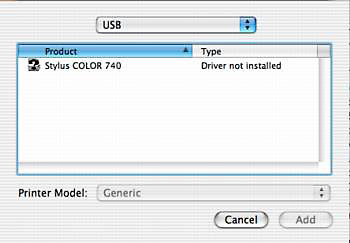
Figure 4: The Print Center found my printer but there wasn’t a driver. While that’s useful, user-friendly information, I still couldn’t print.
Following the step-by-step directions in the Gimp-Print manual, I was able to Option-click into the Advanced settings, where I found the correct printer driver and successfully add the settings. Gimp-Print fills in some of the more intimidating fields, such as the printer’s logical address (see figure 5).
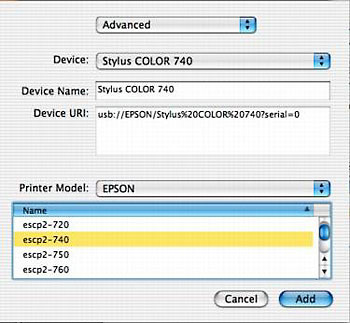
Figure 5: The Gimp-Print drivers are available under the Advanced settings in the Print Center. If some of it looks repetitious, you’re right. Some of the fields are entered by the user and others are filled in by the software. I was glad not to have to enter the long string of characters comprising the logical address of the printer in the Device URI: field.
The printer worked fine.
Next, I checked the functioning of the Ghostscript interpreter by using the CUPS management software. With all the support for Internet printing built into CUPS, it’s not so strange that it uses a Web page for configuration (see figure 6).
By entering a local URL for the CUPS service, I was presented with a set of buttons that can check the settings for each installed printer, manage its default settings, and control the print spooler, by stopping the printer or even rejecting jobs.
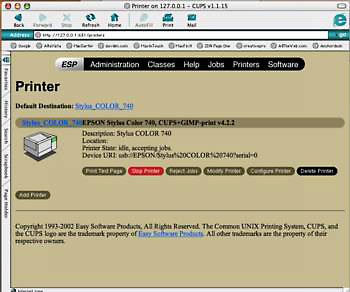
Figure 6: Users can manage CUPS through a Web browser page. One look shows its businesslike ur-Unix origins — there’s not a hint of the Aqua interface about it.
One of the buttons prints a PostScript test page, in this case, using the Ghostscript interpreter. The page both outlined and listed the specs of the page’s imageable area; painted a color wheel and a black-and-white circle filled with one-degree radial lines; and detailed other pertinent information.
Everything worked as advertised. And I can even print.
For graphic pros looking to take advantage of OS X’s stability and graphics engine, the combo of CUPS, Gimp-Print, and Ghostscript is essential — it’s your printer support. While this third-party open approach may at times lack the elegance and polish of the native software, it works, and particularly for the printers that count.
At the same time, this CUPS solution shows the strength of the Open Source movement. Without CUPS support, how long would owners of professional-grade printers have to wait for drivers? Apple and printer vendors could point their fingers at each other forever — or long enough for users to grow weary of the debate and shell out the dough for a new printer with (hopefully) better compatibility.
Instead, users of OS X can rely upon Apple and to the Open Source developers for their technology. There’s a rabbinic saying: "A community is too heavy for one person to carry alone." Perhaps the same holds true for one company.
Read more by David Morgenstern.
This article was last modified on January 6, 2023
This article was first published on October 3, 2002
Commenting is easier and faster when you're logged in!

Recommended for you

Making a Die Cut Shape in InDesign
Need to cut a hole in (or apply a spot varnish to or emboss) your InDesign docum...

Damn You, Art School
It takes more than a good education to succeed in a any field. It takes real-wor...

Inside the Publishing Revolution: How the LaserWriter and Photoshop Changed the World
Excerpted from “Inside the Publishing Revolution: The Adobe Story” (...