




One of the concerns that InCopy users often have in an InCopy workflow, is the need to have the same fonts loaded for every InCopy user that the designer is using in InDesign. It’s a valid concern for sure, and one that is difficult to provide a straight answer for. Here are some of the variables that make answering this question difficult:
- Consistency – If your team works on a product that is fairly consistent form one product to the next, then you need to load the fonts needed on all of the InCopy users machines so that they’ll be able to accurately see copyfit status and the visual appearance of the job.
- Platform – In cross-platform environments (Mac and Windows), it’s imperative that OpenType fonts are used. TrueType and PostScript fonts are platform specific and therefore cannot be shared between Mac and Windows computers.
- Logistics – In some environments, users don’t have permission to load fonts onto their computers so when fonts change regularly, it involves a call to IT which can sometimes take more time than we all have. Document Fonts is an alternative solution to this problem as it doesn’t require manually installing fonts on a computer. Read this post to learn more about the document fonts feature.
What is TypeKit?
TypeKit is a collection of more than 1,000 fonts that are available to anyone with a Creative Cloud subscription or a single app plan which would include users who only subscribe to InCopy. Read more about TypeKit fonts that are included with single app plans on the TypeKit blog. TypeKit fonts use the OpenType format which makes them cross-platform and the fonts are available to sync to your desktop via an internet connection. No manual installation is required.
How does TypeKit Work?
TypeKit fonts are activated using the Creative Cloud desktop application. You can find this in the menu bar in the upper-right corner of your screen on the Mac platform or in the lower-right corner of your screen in the Taskbar on the Windows platform. In a typical workflow, the designer would activate and use the fonts that they need for a project.
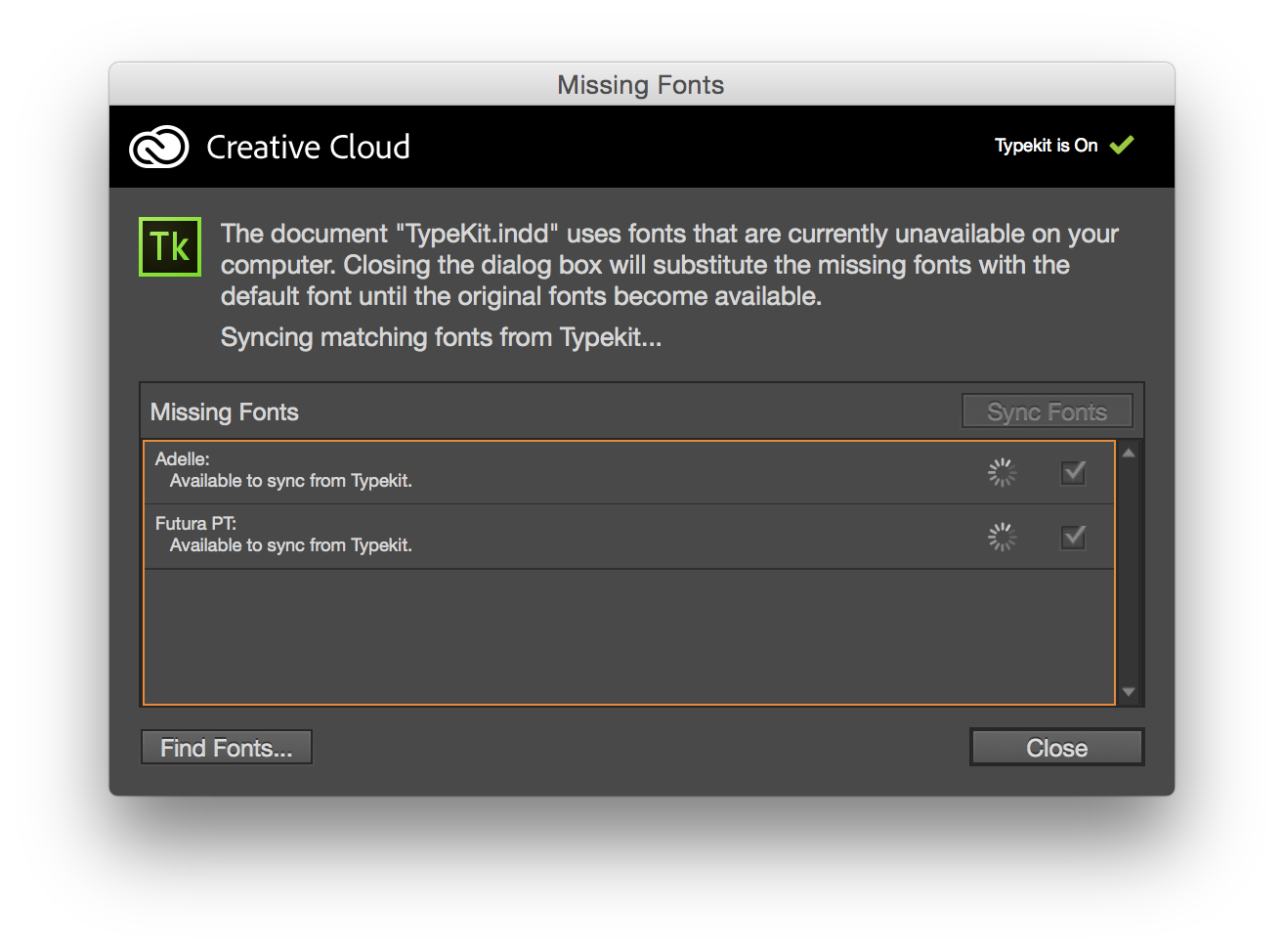
When an InCopy user opens the InDesign file or the Assignment (depending on your workflow), they’ll receive the Missing Fonts dialog box listing the missing fonts. InCopy checks to see if the missing fonts are available in the TypeKit library and if they are, you’ll see a checkbox to the right of the font in the Sync column. To sync (load) the fonts, simply click the Sync button.

You’ll see a status wheel appear for a few seconds while the fonts are syncing to your computer.
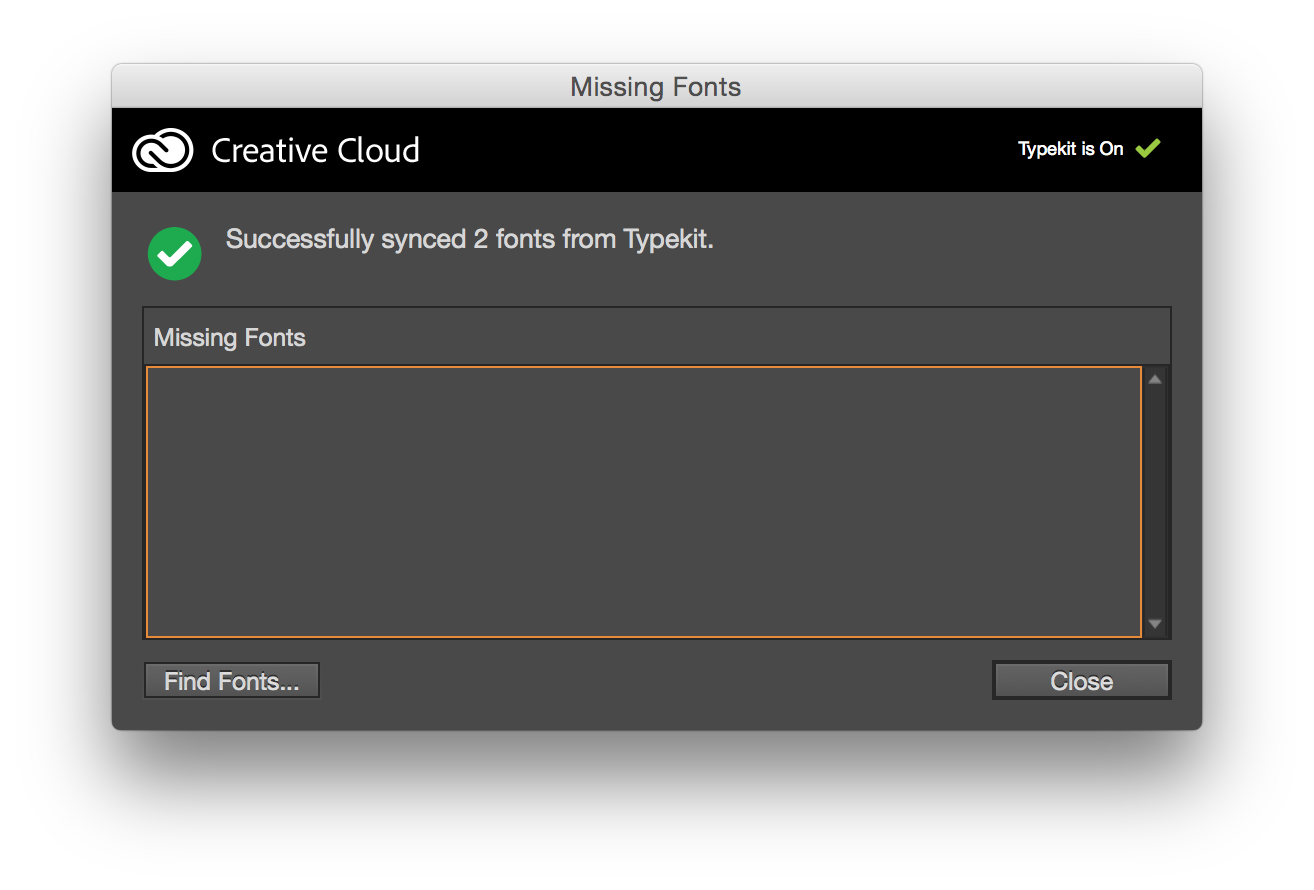
When all of the fonts have been synced, you’ll see a final dialog box letting you know that the synchronization has been completed and you can now work as normal on your file.
Considerations
TypeKit isn’t perfect. After all, if your organization uses a specific font for their products that isn’t available from TypeKit, it won’t do you much good. However, if you load the standard fonts on your computer that are used for the majority of your work, but then the designer utilizes TypeKit for features and unique elements, it will streamline and simplify the workflow for everyone involved. Give TypeKit fonts a try!
We’d love to know how you’re using TypeKit fonts as well as any hurdles you’ve encountered. Let us know in the comments below!
This article was last modified on July 10, 2020
This article was first published on October 14, 2015
Commenting is easier and faster when you're logged in!

Recommended for you

How to Make a Timeline Quickly and Easily in InDesign
Learn how to make a quick timeline in InDesign by combining the power of anchore...

Multilingual Publishing with InDesign
Learn the tools, scripts, and methods that make multilingual publishing possible...

How to Create Number Callouts in Illustrator
Learn how to create and quickly apply number callouts in Illustrator through the...