



Robbi wrote,
I was wondering if there is a way to have a group of objects in one document mirror in another document. For example, I have a layout that needs to print across a horizontal binding (calendar style), and it’s 8hx10w. Because i can’t have “facing pages” sit on top of one another, I lay it out in one document that is double-height (16hx10w), with images splitting across the middle. Then I copy all the images/text/etc from the top half of the page over into another document that is set up as single pages, 8×10, and then do the same with the bottom half onto the next page.
The problem comes when I have to change something – then I have to recopy all the changes into the new document again. I thought that snippets might be useful but can’t figure out how to edit them (and if I could, would the changes apply to all the snippets I’ve already placed, or would they only apply to future placments?). If you have any ideas on how to solve this problem, I would really appreciate it.
Until Adobe adds a Vertical Spread option, there is a workaround that solves this problem. (Snippets wouldn’t work, they’re like library items … placed instances aren’t linked to the source.) Let me summarize the workaround first, then I’ll show you some screen shots of a sample calendar project.
The answer is to first create and design the source document using a page size that is equal to one vertical spread — double the height of your actual page size — as Robin explained above. Save this file in a safe place.
Then, if you’re using CS2, you export the .indd layout to PDF, and place the PDF into a new document with your actual page size. This is the document you’ll send to the printer. Each page of the PDF needs to be placed twice; on one page cropped so only the top half of the PDF page is showing, and one more time on the next page, cropping it so only the bottom half shows.
(During this email exchange, David reminded us that if you’re using CS3, you can skip the export to PDF step and just place the native InDesign layout file, the double-height one, into the target .indd file instead.)
Now whenever you need to update your target file, you edit its source instead. Save the changes to the layout file, re-exporting to PDF if you needed that step, replacing the older PDF. Since your “real” target document is linked to the double-height source, its Links panel will show a bunch of out-of-date icons. Select them all and choose Update Links, and the target document is good to go.
Make a Calendar with Vertical Spreads that Bleed
Here’s an example. I’m using CS3 so I’m placing the actual .indd source file; if you’re on CS2 you can replicate what I’m doing with a PDF.
First, I created the source document. It’s tabloid (102p tall by 66p wide). I added a p9 bleed all around, and a 6p slug guide left and right so I can include my “fold” marks on the left and right pasteboard for these screen shots. I also added a p9 slug guide to the top and bottom, which helps me to retain the bleeds when I place it into the target document. (More on that in a bit.)
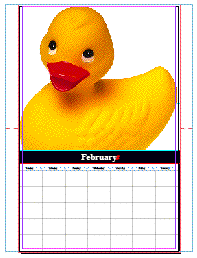
Using the ever-so-lovely images from the Samples folder in the Photoshop application folder, I created pages for January and February. Note how each image extends down into the bottom half of the double-height page. You can see my magenta fold marks in the slug area, left and right of each page:

Then I created my target document, the one I’ll send to the printer. This document is letter-size, landscape orientation (51p tall by 66p wide), with facing pages turned off. I added the same bleed and slug guides as in the double-height file.
With the target document active, and an empty page 1, I went to File > Place and chose my source .indd file. When you import an .indd, PDF or .ai file, it’s important to turn on Show Options in the Place dialog box so you can choose which internal bounding boxes InDesign should crop the file to. When you’re placing an .indd file into InDesign CS3, your choices are Page, Bleed, or Slug:
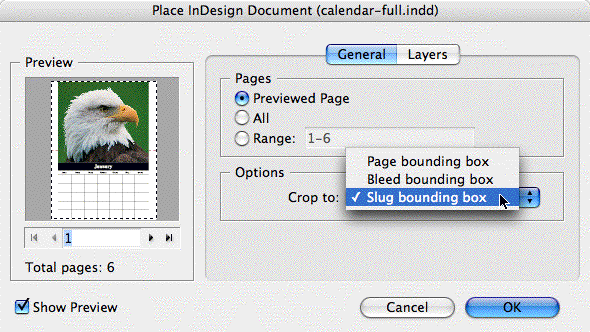
If I choose Bleed, then InDesign won’t include my slug area, which contains the fold marks. (It’s not necessary to have a slug area, of course. I just wanted to get those fold marks in there.) So I chose the Slug bounding box option. Note that there’s no “Bleed and Slug” option. That’s why earlier, in my source document, I added a slug guide equal to my bleed guides on the top and bottom. If I hadn’t, InDesign would have cropped off the top and bottom bleed when I placed the file.
Oh, sometimes I’m so clever I can’t stand myself.
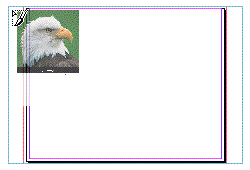
Since my target document has the same bleed and slug guides, I can position my loaded place cursor over the top-left corner of page 1’s slug guides (screen shot on left) before I click, so InDesign creates a perfectly-positioned image (screen shot on right). As you can see from this zoomed-out view, the placed image frame extends down into the second page, since it’s so big:

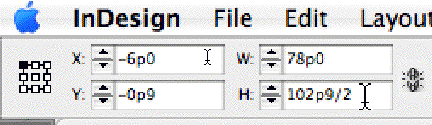
That’s a simple matter to fix. After making sure that one of the top reference points (in the reference point grid to the left of the Control panel) is selected, I add “/2” after the current measure for the selection’s Height field and hit the Return/Enter key. That tells InDesign to bring up the bottom of the cropping frame to half its current measure:
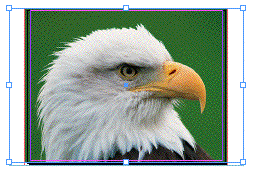
So, page one — the top half — is done, bleeds and all. To do the bottom half, copy this image, move to page two, and choose Edit > Paste in Place. Then use the Direct Selection tool to select just the image on page two, and not its frame. We’ll use the same sort of arithmetic to have InDesign precisely move the bottom half of the image into position.
In CS3, when you select the contents of an image frame, the X and Y transform fields get a plus symbol, indicating that they’re showing the current image offset measure (how much the image is offset from its frame, not the page). I want the image’s Y measure — its vertical offset — to be negative, meaning it moves “up” within the frame. How much of a negative? Precisely one-half of the image’s size. Which I happened to copy from the H field in the previous step, after InDesign did the “/2” math. So in the Y+ field, I paste in “-51p4.5” after the 0p0:

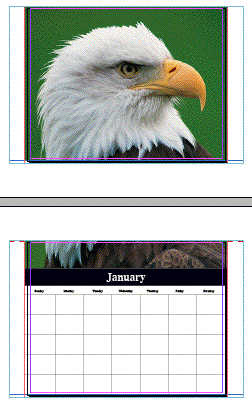
…which moved my image exactly as I want for page two. Here’s what the first two pages in my target document look like now:
You Only Have to Do this Once
It actually goes kind of fast, once you get into the rhythm. You place one page at a time from the source document (the .indd file or the PDF file), do the math, copy and paste in place, do the math again, then go back to File > Place for the next page.
Once it’s done, save the document. Now whenever you need to update it, open the source document (the double-height one) and make your changes there. Save the .indd file, and if you had placed a PDF of it originally, re-export it to PDF with the same name and in the same location, replacing the original.
Now open your target document and look at its Links panel. You’ll see that your modified pages show out-of-date icons:

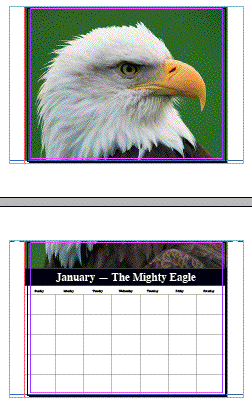
Shift-click all the out-of-date links and choose Update Links; you’ll see your document update accordingly without any images changing position:
This article was last modified on December 18, 2021
This article was first published on September 26, 2007
Commenting is easier and faster when you're logged in!

Recommended for you

Locking Objects For Easier Aligning
A quick tip on how to make any object the "key object" when aligning.
Updating Bits of Text Across Multiple Documents
Eddie wrote: I create a lot of sales literature that includes the same office ph...
Breaking Pages Apart to Bleed Off a Spine
I need to split up facing page spreads so I can bleed into the gutter (the spine...