



About a month ago I got a file from someone that showed text that was rasterized during flattening.
It didn’t take long to figure out why the text had been rasterized and I fixed the file easily. Turns out that someone had turned on the preference for Text Wrap Only Affects Text Beneath in Composition Preferences.
About three weeks ago I taught a seminar and I brought up the fact that text must be above any transparency objects in order to avoid being rasterized.
I then showed how the Composition Preference for Text Wrap Only Affects Text Beneath should be turned off.
I was astonished to find out that a very well-known InDesign trainer (no one who contributes to InDesign Secrets) had recently been in that town and told everyone to turn that preference on.
I was stunned. No wonder I saw the problem file earlier in that month!
So why would someone turn on that preference? And why do I spend valuable time explaining not to turn it on?
The reason for this is as follows:
If you want text to wrap around a transparent Photoshop file or an InDesign object with a drop shadow or glow or some other transparency effect, you don’t want that text near the object to be rasterized.
The only way to ensure that the text will not be rasterized (and get chunky, thicker, bolder, or jagged) is to make sure that the text is above the transparency object.
But there are some people who grew up using QuarkXPress. And in their world text is only affected by text wrap if the text is underneath the object.
OK, that’s fine, except, these people then don’t know what to do if they want another bit of text to not be affected by the text wrap. For instance, in the example below the word “Circle” needs to not be affected by the shadow.
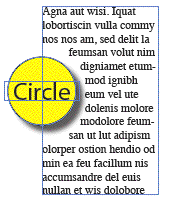 It is there that the novice looks at the preference setting and figures that if they change the preference setting so that text wrap only affects text beneath, then they can put the caption above the object and the body text below.
But that’s where the problem happens.
Because any text that is below the object will be affected during transparency flattening.
So what to do?
Well the answer is simple. Don’t turn on the preference. (In fact I begged Adobe not to add that preference several versions ago. I feel it is a preference that dumbs down InDesign to work as stupidly as QuarkXPress does.)
What you should do is select the text frame that you want to make impervious to the effects of text wrap, and open Object > Text Frame Options.
There is a little option at the bottom of the dialog box for Ignore Text Wrap.
This is the right way to handle the problem.
So why would that well-known trainer tell people to turn the Composition preference on?
I have no idea.
All I can say is if you have recently attended a seminar where someone told you to turn the preference setting on, please ignore that advice.
Or, if you have a better explanation as to why it was turned on, please comment here.
I really would like to know.
This article was last modified on December 19, 2021
This article was first published on August 19, 2008
Commenting is easier and faster when you're logged in!

Recommended for you

Top 10 InDesign Secrets of 2015
What an incredible year for InDesign it has been! No matter what flavor of InDes...
Copy Vectors from Illustrator to InDesign (or vice versa)
Why copy-and-paste of vector outlines between Illustrator and InDesign sometimes...

Change the UI Language in InDesign CS6 and CC
Changing the language of InDesign’s menus, dialog boxes, and panels has be...