



Working with the Data Merge feature of Adobe InDesign is something I do often. For those who do not use Data Merge as frequently, the help page on the Adobe website offers enough information to get started with Data Merge, and there are plenty of video tutorials online to create a basic Data Merge.
See also: New Data Merge and Database Publishing Title at lynda.com
What I have noticed is the lack of resources when things do NOT go according to plan, namely troubleshooting the error dialog boxes that can pop up and leave users bewildered. So today’s post covers the common error dialog boxes one might expect to find during a Data Merge and how to fix the faults. It’s not an exhaustive list and doesn’t go into issues that can arise when dealing across languages and alphabets, but should be enough for most users to identify the fault and prepare a solution.
The following errors can occur when selecting (or updating) a data source:
The selected data source has one or more empty field names.
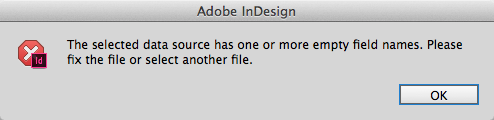
This relates to a field name in the header row being missing. When creating a database for a Data Merge, all of the fields in the header row MUST be named.
Take the following file for example:
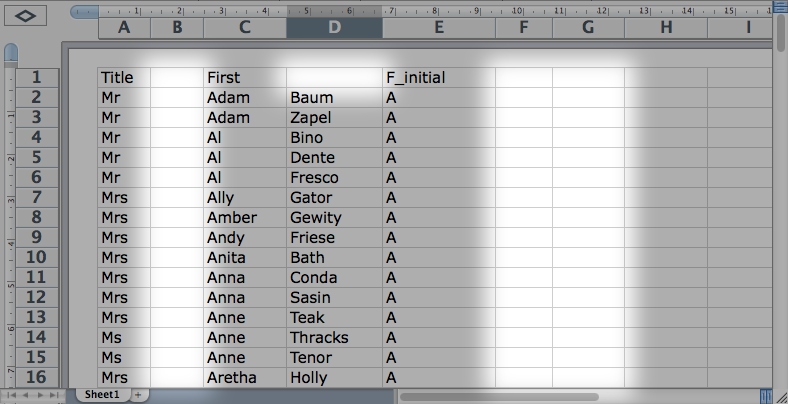
The Surname field (D1) is missing its field name. Similarly, column B is completely blank, but so far as InDesign is concerned, it is a field that has no field name, and just has blank records. In this instance, column B should be removed. Lastly, columns F and G look like they are not in use, but at one stage they did contain data but the information was removed manually. Unfortunately, when exported from Microsoft Excel as a tab delimited text file, Excel still treated the columns as if they did contain information. This is shown by opening the text file in an application such as TextWrangler (the tabs show up as triangles):
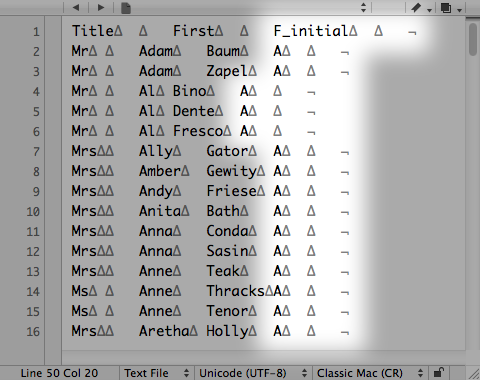
In that situation, those extra tabs at the end of the lines must be removed.
See also: Using Data Merge to Create a Table for a Directory
The data source cannot be opened.
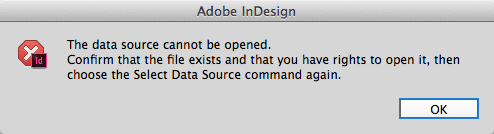
This error tends to happen if the file has been exported from Excel as a CSV or TXT file, but has not been closed from Excel. It tends to fool users as it refers to “rights” and can often have users scrambling for their IT expert or administrator asking all sorts of “permissions” questions, when the likelihood is that this isn’t the cause. Make sure that the file isn’t open in Excel, and if it is still open then close the file and try again.
There is a least one data placeholder that cannot be found in the data source.
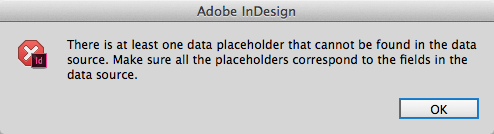
This typically appears when updating a data source, rather than starting a new data merge project from scratch. The data merge field names that are already placed in the InDesign file can’t be found in the database that has just been linked to. This may be because:
- The field headers have been renamed;
- A wrong database has been selected as a data source; or
- Can also happen through a field name becoming corrupt. An example is placing a Unicode file as an ASCII file using the “show import options” feature.
The data source file you selected either has no records or is not a supported file format.
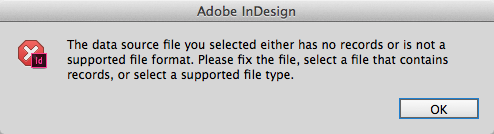
This can occur for a few reasons:
- When attempting to import an Excel file as a data source rather than the CSV or TXT file that needs to be exported first. It often happens because the suffix of the file may be TXT or CSV, but during the saving process was still saved as an Excel file – with the file extension being changed manually instead of using the format dropdown in the save dialog box.
- When attempting to import a text file that is either completely blank; or has text on the first line only.
Interestingly, the select data source dialog box does let users select any format using the dropdown field located at the bottom center of the dialog. This can lead to unusual alert dialogs appearing if you’re importing files that weren’t intended to be used as Data Merge databases, such as:
Content contains characters which cannot be encoded.
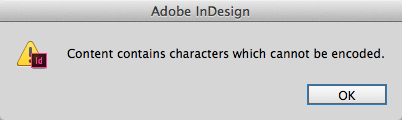
This can occur when trying to select a PDF or an AI file as a data source, or:
Generic extended parser error

This can occur when attempting to select an HTML file as a data source.
See also: Traps when Packaging Data Merge files
Other data merge oddities
Colons used in field names can have some strange behaviors. If a colon appears at the start or end (or both) of a field name, the data will import without any issues, but if a colon is within the field, the “Generic extended parser error” occurs. If there are two or more colons in the field name (neither at the start or end of a field name), a different error occurs:
Not well-formed
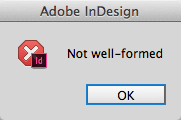
That said, to avoid these errors, do not use colons in field names when creating a database for a Data Merge file.
No error message, but no import either
There are also instances where despite no error message appearing when selecting a data source, the data does not import.
This can occur because the first line of the database is a line return only.
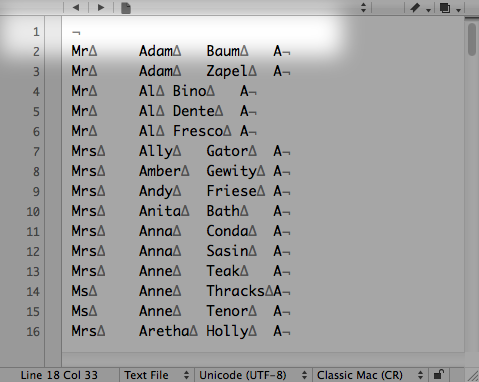
To fix this issue, simply add a header row with appropriate field names and try again.
Similarly, once data is imported via select data source, not all of the data is available from the Data Merge panel. This can happen because there are not enough fields in the header row. To demonstrate this, take the following database. It has three fields (separated by tabs) BUT the header row only shows two fields.
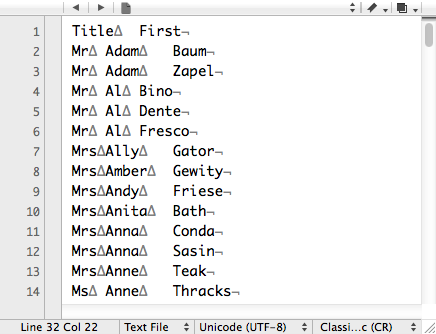
But if that text is selected as a data source and placed into InDesign, this is how it looks:
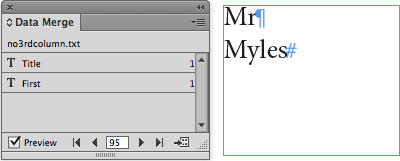
The third column of data is completely lost. To fix this issue, the correct amount of field names has to be created.
See also: Data Merge Into Inline Anchored Objects So They Flow in a Story
You can also get the following error when toggling through the preview records:
The data source references one or more missing images.
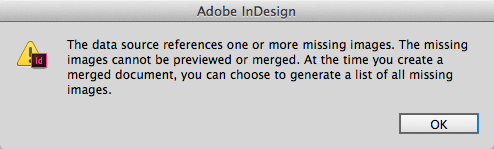
This occurs when a database used as a data source contains an image field that is referencing links that it can’t find. These links need to be fixed in the database and then the “update data source” selected from the Data Merge palette. In instances of Data Merge projects that require images, I try to keep all images referenced by the database in the same folder as the database, as the file reference in the database is now only the name of the image, not the full file path – something that can be daunting to maintain over a network.
As I said at the start of the article, this is not the complete list of every error dialog box associated with Data Merge, but hopefully it should be enough to get most users out of trouble.
This article was last modified on July 8, 2021
This article was first published on October 22, 2015
Commenting is easier and faster when you're logged in!

Recommended for you

Tip of the Week: Convert Corner Effects to Paths
With this tip to convert corner effects to paths, you can combine corner effects...

Activate Last Used Field Shortcut
So this week I’m here at The Creative Suite Conference in Nashville, Tenne...
File Naming Problems When Moving Mac to Windows
Bryan wrote: I work on a Mac and they work on a pc. I ran into a problem when I...