



When you switch to the new Interactivity workspace in InDesign CS4, one of the panels docked on the right is called Sample Buttons. Here’s what it looks like in the middle of the dock, under the new Buttons panel:
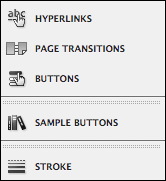
When you click the Sample Buttons tab, it opens up to reveal some of the 50+ buttons that Adobe artists have thoughtfully prepared for you ahead of time.

Just drag and drop whichever ones you like onto your page. If you select one and open the Buttons panel, you’ll see it’s already programmed with an event, action, and even a rollover version. (And all of these settings are editable.)

You could even use the sample buttons for non-interactive artwork. If you don’t want the Javascript overhead, select the button on the page and choose Object > Interactive > Convert to Object. The buttons are simply grouped frames, one or more of which have a fill color and a transparency effects, all of it editable.
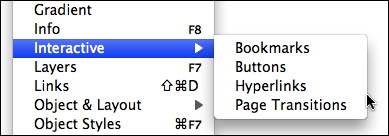
Handy, right? The problem is this: If you’re not in the default Interactivity workspace, the Sample Buttons panel disappears from the dock like a forgotten dream. It’s nowhere to be found. It doesn’t appear in the Window menu at all, not even in the Interactive submenu.
I’ve heard some users talk about the Sample Buttons panel as though it were a mythical beast … “Ay, I saw it once. It had the head of a lion and the body of a goat, and great big wings with lots of glittering jewels. But I closed it, curse me soul, and it never showed its face again.”
(Which could happen, with the new way that CS4 deals with workspaces. Choose Reset Interactivity from the Interactivity workspace menu to get it back.)
But why isn’t the Samples Buttons panel listed individually in the Window menu, like the rest of the panels, so you could open it on its own regardless of which workspace was active?
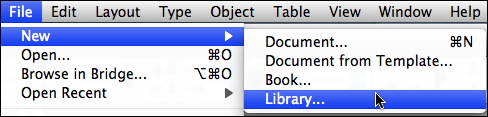
Because it isn’t a panel, it’s a library. (Note the title of this post.) I’ve been calling it a panel up till now because that’s how most people refer to it. However if you look closely at the screen shots above, you’ll note that the icon in the Sample Buttons label is a bunch of books — meaning it’s a library, like the kind you create from File > New > Library.
Also note the telltale library buttons at the bottom of the expanded panel err library. And of course the fact that you can drag things out of there and drop them on your page should give you a clue. (And yes, you can drag your own artwork into the Sample Buttons library too.
So, since the Windows panel lists panels, not libraries (curse ye soul, and why not?), the trick is to locate the actual Sample Buttons library file on your hard drive so you can open it just like any other InDesign library file.
Luckily, it’s hiding in plain sight right inside your Adobe InDesign CS4 application folder, in the Presets folder:

It’s probably not a good idea to move it out of there. But you can easily open it from within InDesign, whenever you want, regardless of which workspace is active. Choose File > Open, navigate to the ID CS4 program folder and double-click on the Sample Buttons library. Once it’s open, you can use it on the fly, or save it in a custom workspace (Window > Workspace > New Workspace) so it’s easily retrieved. Just don’t move or rename the library, otherwise the workspace won’t be able to find it.
In fact, you could save any InDesign library in a custom workspace, regardless of where it’s located on your hard drive. Purty cool.
This article was last modified on December 19, 2021
This article was first published on December 17, 2008
Commenting is easier and faster when you're logged in!

Recommended for you

InDesign Eye Candy, part 1: In Gravity’s Shadow
Why should all the Photoshop and Illustrator kids have all the fun, when you can...
Living Peacefully Without the Navigator Panel
InDesign CS4 loses one old feature but adds a new way to get around a document.
Quickly Create Yearbook-like Image Spreads
Learn the fastest ways you can quickly lay out page after page of same-sized ima...