



This tip was sent to Tip of the Week email subscribers on March 10, 2016.

Sign up now and every week you’ll get a new InDesign Tip of the Week and Keyboard Shortcut of the Week, along with roundups of new articles at InDesignSecrets, plus exclusive deals sent right to your Inbox!
Just scroll all the way down to the bottom of this page, enter your email address, and click Go! We’ll take care of the rest. Now, on with the tip!
Ever wish you could put two tables side by side in a text frame, like so?
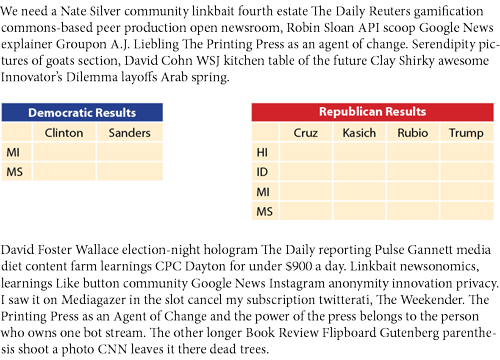
It might seem impossible because InDesign always forces the second table down below the first.

But where there’s a will, there’s a way. Or, in this case, three ways.
First, as David Blatner pointed out recently to someone struggling with this problem, there is a simple solution: Split Columns.
Put the tables in the same paragraph. Then put your cursor in the paragraph and choose Split 2 from the Span Columns menu in the Control panel.
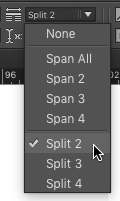
You can also choose Span Columns from the Control panel menu. That way you get a dialog box with additional spacing controls.

If the tables have an unequal number of rows, you might see the longer table break across the sub-columns.

Ick.
To fix this, select the whole table, and choose Table > Cell Options > Rows and Columns. In the dialog box, choose Keep Options: Keep with Next Row.

Also note that if your tables are not the same width, there might be more space than you’d expect (or want) between the tables. This is due to the fact that the Split Column feature always creates multiple columns of the same width inside the single column.
If this is a deal breaker, then consider anchoring the tables in the text. You’ll have to cut and paste each table into its own separate text frame, then anchor those frames where you want the tables go.
With this method, you can put any amount of horizontal space between the tables with a tab.
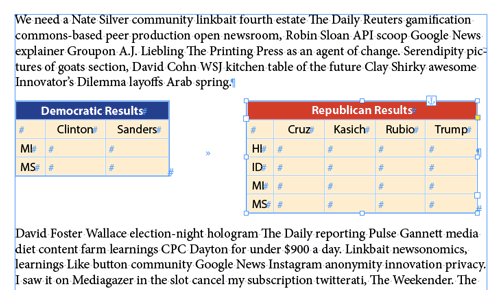
And if neither Split Columns nor anchoring will work in your situation, then try my favorite Solution of Last Resort: fake it!
Put all the data in one table and then use empty cells with no stroke and no fill to give the illusion of separate tables.
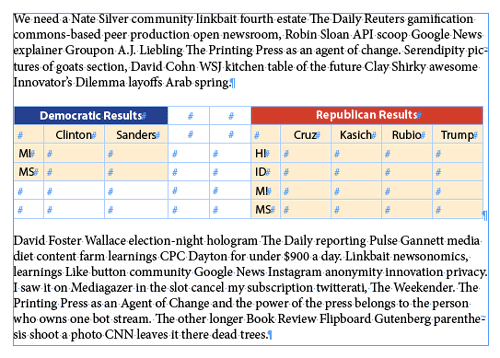
Mwahahahaha!
You can find the solutions to all kinds of other table troubles in issue 78 of InDesign Magazine!

Nonsense text via Journo Ipsum.
This article was last modified on July 25, 2019
This article was first published on March 15, 2016
Commenting is easier and faster when you're logged in!

Recommended for you

TypeTalk: The Ins and Outs of F-ligatures
F-ligatures are special characters found in just about every professional font....

Update to LinkOptimizer for InDesign
Zevrix Solutions announces the release of LinkOptimizer 3.3, an update to its wo...

InQuestion: Hanging Page Numbers on the Right Side of a Table of Contents
Sandee Cohen shows how to use an obscure bit of paragraph formatting make page n...