



This tip was sent to Tip of the Week email subscribers on May 28, 2015.

Sign up now and every week you’ll get a new InDesign Tip of the Week and Keyboard Shortcut of the Week, along with roundups of new articles at InDesignSecrets and CreativePro, plus exclusive deals sent right to your Inbox!
Just scroll all the way down to the bottom of this page, enter your email address, and click Go! We’ll take care of the rest. Now, on with the tip!
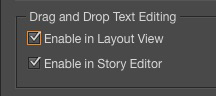
Do you often have to add pull quotes to layouts? Do you do it by creating a new text frame, copying and pasting body text, and then styling it? Here’s a better way. First, go to Type Preferences and enable Drag and Drop Text Editing in Layout View.
Then select the text for your pull quote in the layout.
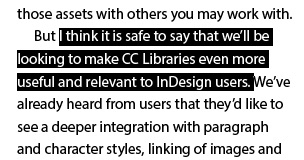
Start dragging the text, then hold Command+Option (Mac) or Ctrl+Alt (Windows), and drag and drop the text where you want the pull quote to go. InDesign copies the text and puts it in a new frame.

Now, if you want to get really slick, create an object style that applies the paragraph style for your pull quote and auto-sizes the text frame.
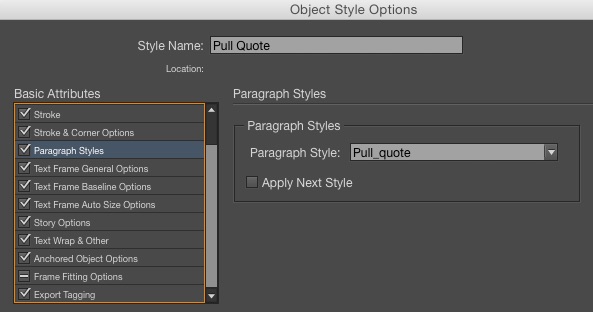
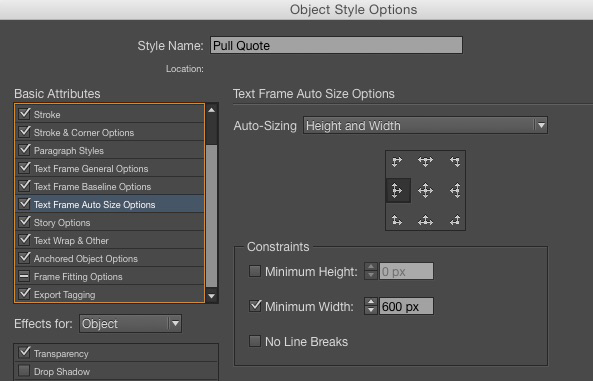
And for the icing on the cake: use Quick Apply to apply the object style to the pull quote text frame.

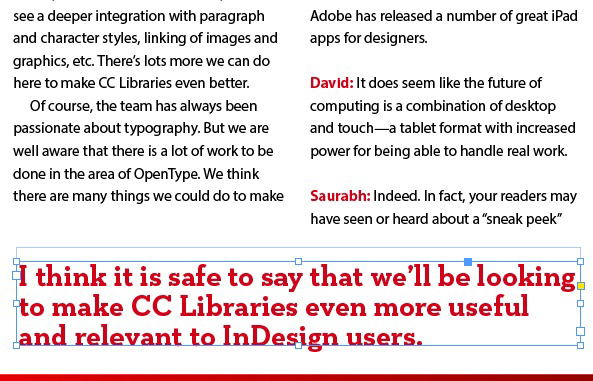
Once you’ve done the set up work of creating the object style, from then on creating a pull quote will be a 3-second job.
This article was last modified on July 25, 2019
This article was first published on June 2, 2015
Commenting is easier and faster when you're logged in!

Recommended for you

Hot Tips
Your favorite InDesign experts bring the heat with this collection of fresh tips...

Ultimate Overset Fix Contest Answer and Winners!
It’s time to reveal the solution—and the winner—for this month’s InD...
Tip of the Week: Access Grids and Guides in the Application Bar
This tip was sent to Tip of the Week email subscribers on October 15, 2015. Sign...