



This tip was sent to Tip of the Week email subscribers on August 20, 2015.

Sign up now and every week you’ll get a new InDesign Tip of the Week and Keyboard Shortcut of the Week, along with roundups of new articles at InDesignSecrets and CreativePro, plus exclusive deals sent right to your Inbox!
Just scroll all the way down to the bottom of this page, enter your email address, and click Go! We’ll take care of the rest. Now, on with the tip!
Using scripts is almost an essential part of being a productive InDesign user. And having a handy Scripts panel from which you can launch scripts is wonderful. But what if you want to get your hands on the actual file for a script that is listed in the panel so you can rename it, edit it, or send it to someone else?
InDesign keeps scripts buried pretty deeply in the Mac Finder and Windows Explorer. So instead of listing a long file path that you’ll never remember anyway, I’ll offer this tip: just right-click on the script in the panel and choose Reveal in Finder/Reveal in Explorer.
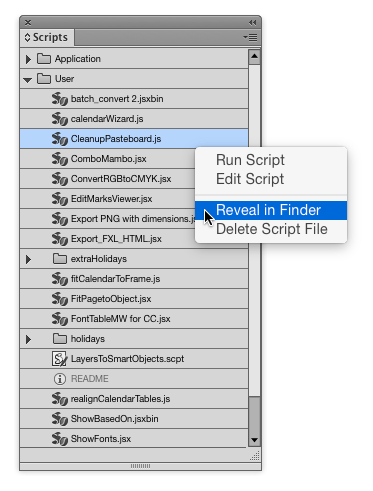
The folder containing the script will open, giving you access to that script and any others in the same folder.
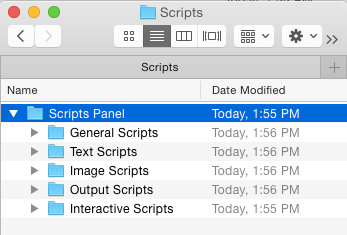
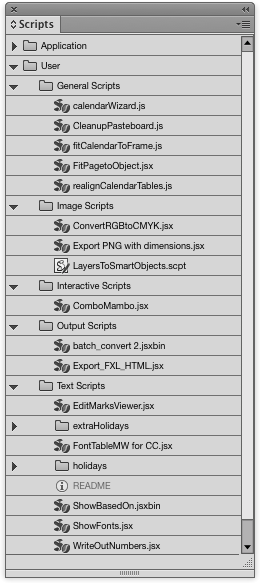
By the way, did you know that you can organize your scripts in the Scripts panel by creating new folders in the Finder/Explorer inside the Scripts Panel folder? It can be very helpful if you’ve got a large collection of scripts.
This article was last modified on July 25, 2019
This article was first published on August 25, 2015
Commenting is easier and faster when you're logged in!

Recommended for you

InDesign Magazine Issue 97: Find/Change
We’re happy to announce that InDesign Magazine Issue 97 (May 2017) is now availa...
Tip of the Week: Get the Gray Out of Your Gradients
This tip was sent to Tip of the Week email subscribers on July 10, 2014. Sign up...

Photoshop Tip: Quickly Resize the Photoshop Canvas with Reveal All and Trim
If you’ve ever designed with type in Photoshop, you’ve probably enco...