


Tip of the Week: Fast Text Formatting With the Eyedropper Tool


With the Eyedropper tool you can quickly sample and apply all kinds of formatting for objects. Just select an object whose formatting you want to change and press the keyboard shortcut I to switch to the Eyedropper (if you get the Color Theme tool by mistake, just press I again to get the Eyedropper). Then to click the object whose formatting you want to copy.
But what if you want to do the same thing with text? In that case, you have to first change the keyboard shortcut and add a modifier key (otherwise you’d replace your selected text with the letter i). To change the shortcut for the Eyedropper tool, choose Edit > Keyboard Shortcuts. Choose Product Area: Tools, and then scroll down the Commands list until you see Toggle Eyedropper and Color Theme Tools. Put your cursor in the New Shortcut field and type the shortcut you want to use and click Assign. I like Ctrl+Shift+I for this use.
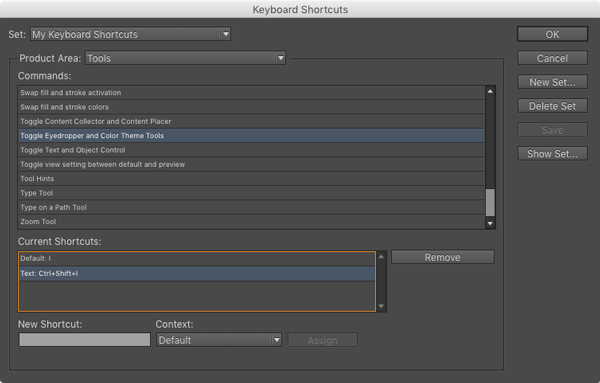
Now when the Eyedropper tool is showing in the Tools panel, you can press Ctrl+Shift+I and click on any text to copy its formatting (including styles) and apply that formatting to selected text.
This article was last modified on May 12, 2021
This article was first published on October 13, 2015
Commenting is easier and faster when you're logged in!

Recommended for you

InDesign Magazine Issue 130: Accessible PDF
We’re happy to announce that InDesign Magazine Issue #130 (February 2020) i...

Limiting Matches with GREP in InDesign
Peter Kahrel shares a technique for targeting a specific instance in a repeating...

The Case of the Ever-present End of Story Markers Contest Answer and Winner
Solve this InDesign mystery for a chance at winning a great prize.