



This tip was sent to Tip of the Week email subscribers on August 7, 2014.

Sign up now and every week you’ll get a new InDesign Tip of the Week and Keyboard Shortcut of the Week, along with roundups of new articles at InDesignSecrets and CreativePro, plus exclusive deals sent right to your Inbox!
Just scroll all the way down to the bottom of this page, enter your email address, and click Go! We’ll take care of the rest. Now, on with the tip!
Did you know that you can use InDesign’s Find/Change to delete text?
Say you want to delete all the text set in a particular paragraph or character style. You are using styles to format your text, right? That’s necessary for this trick to work.
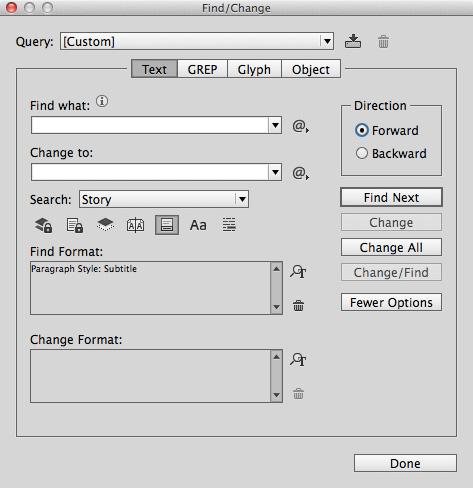
Open the Find/Change window and leave both the Find What and Change To fields empty. Click in the Find Format field, and use Style Options to choose a style. Leave Change Format blank. By doing this, you’ve told InDesign find anything set in that style and replace it with nothing. Run the Find/Change and voila, all text set in that style (including inline and anchored items) is gone.
This article was last modified on July 25, 2019
This article was first published on August 11, 2014
Commenting is easier and faster when you're logged in!

Recommended for you

CreativePro Conference Speaker Spotlight: Jesús Ramirez, the YouTube Photoshop King
Welcome to our new series of posts called Speaker Spotlight, designed to highlig...

Tip of the Week: Finding Overset Text With Preflight
This tip was sent to Tip of the Week email subscribers on June 4, 2015. Sign up...

Swap Names Around with GREP and Find/Change
Joe needs to convert all his captions in the form LastName_FirstName.jpg into "F...