




This tip was sent to Tip of the Week email subscribers on July 3, 2014.

Sign up now and every week you’ll get a new InDesign Tip of the Week and Keyboard Shortcut of the Week, along with roundups of new articles at InDesignSecrets and CreativePro, plus exclusive deals sent right to your Inbox!
Just scroll all the way down to the bottom of this page, enter your email address, and click Go! We’ll take care of the rest. Now, on with the tip!
You probably already know that when you place text into an InDesign document, you can click on an existing frame to place the text into it, or click and drag to draw a new frame for the text. But you can also create a series of linked frames to hold the text.
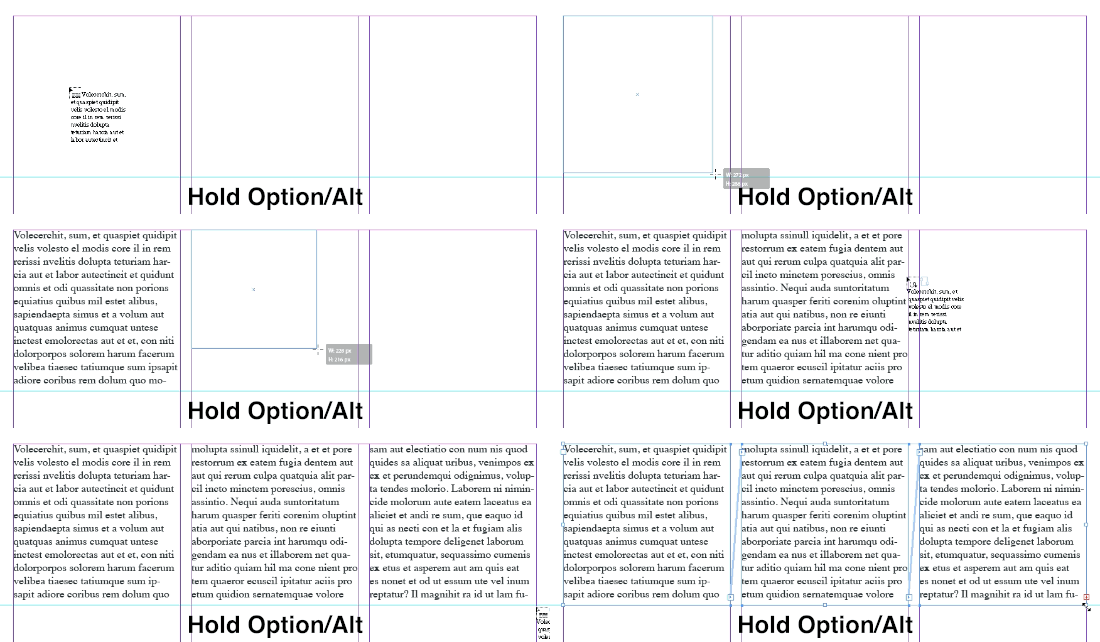
With a loaded text cursor, just hold Option/Alt, then drag to create a series of new linked frames.
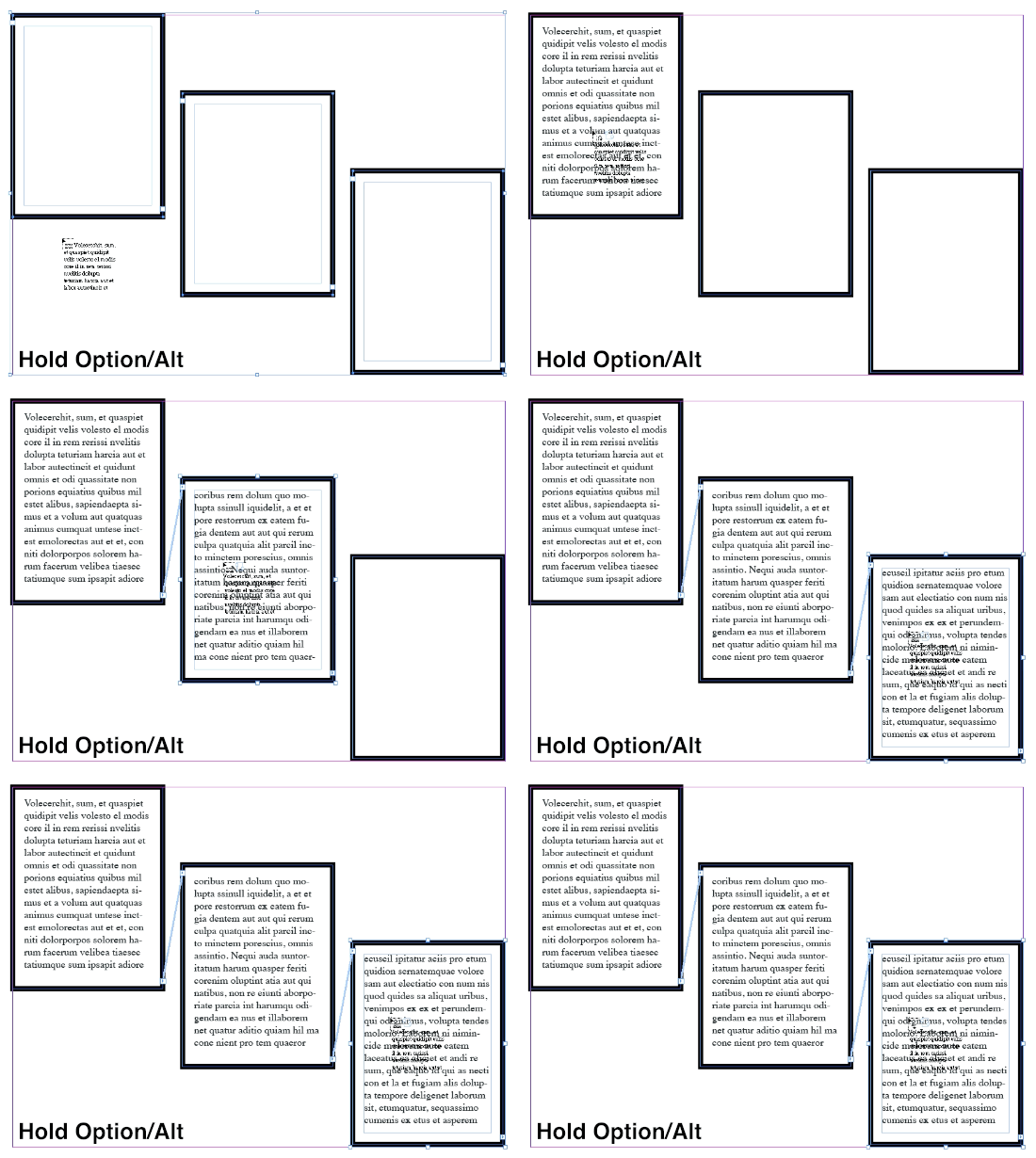
Or hold Option/Alt and click on any existing empty text frames to link them and place the text into them at the same time.
This article was last modified on December 30, 2021
This article was first published on July 7, 2014
Commenting is easier and faster when you're logged in!

Recommended for you

Create Parallax Transitions in PowerPoint
Create dramatic 3D scenes with Stephy Hogan using Morph.

Tips to Control Photoshop Layers
Khara Plicanic shares smart Photoshop Layers panel tips to help you find and man...