



This tip was sent to Tip of the Week email subscribers on May 7, 2015.

Sign up now and every week you’ll get a new InDesign Tip of the Week and Keyboard Shortcut of the Week, along with roundups of new articles at InDesignSecrets and CreativePro, plus exclusive deals sent right to your Inbox!
Just scroll all the way down to the bottom of this page, enter your email address, and click Go! We’ll take care of the rest. Now, on with the tip!
You probably know that when you have a missing placed graphic, or one that you want to replace with a different graphic, you can use the Relink feature, by clicking the small chain button in the Links panel.
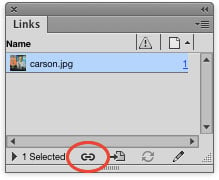
You can also relink a file by right-clicking on it the Links panel.

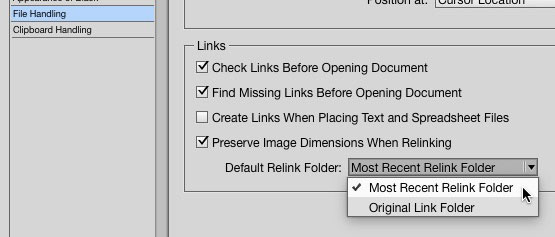
But you might not know that when you use Relink, you actually have a choice of which folder InDesign takes you to. It can either go to the folder you went to the last time you relinked a file, or to the original location of the file you’re currently relinking. Having this option can really save you a lot of wasted time clicking around to find the file you want.
To choose the behavior you want, go to Preferences > File Handling, and select either Most Recent Relink Folder or Original Link Folder from the Default Relink Folder menu.
This article was last modified on July 25, 2019
This article was first published on May 12, 2015
Commenting is easier and faster when you're logged in!

Recommended for you

CreativePro Tip of the Week: Using the HUD (Heads-Up-Display) Color Picker in Photoshop
This CreativePro Tip of the Week on using the HUD (Heads Up Display) Color Picke...

Tip of the Week: Get a Better Look at FX
This tip was sent to Tip of the Week email subscribers on October 22, 2015. Sign...

Tip of the Week: Super Fast Table Editing
This tip was sent to Tip of the Week email subscribers on June 23, 2014. Sign up...