



This tip was sent to Tip of the Week email subscribers on October 16, 2014.

Sign up now and every week you’ll get a new InDesign Tip of the Week and Keyboard Shortcut of the Week, along with roundups of new articles at InDesignSecrets and CreativePro, plus exclusive deals sent right to your Inbox!
Just scroll all the way down to the bottom of this page, enter your email address, and click Go! We’ll take care of the rest. Now, on with the tip!
Ever have trouble finding a particular item in one of InDesign’s menus? Maybe you know the item is there somewhere, but can’t quickly locate it. Or maybe you just think it was there, but you’re not really sure. In either case, you can track down the item faster by displaying menu items in alphabetical order.
To do that, just hold Command+Shift+Option/Ctrl+
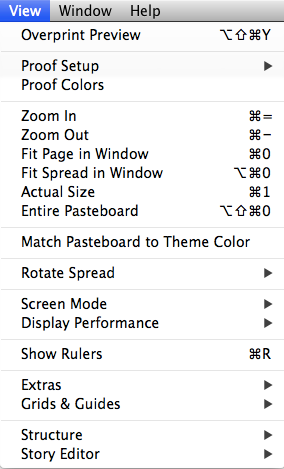
View Menu normal order
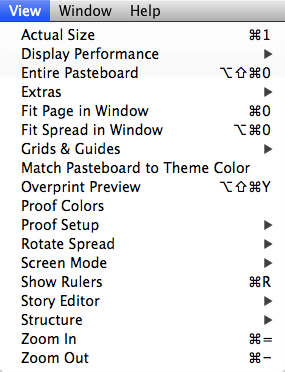
View Menu alphabetized
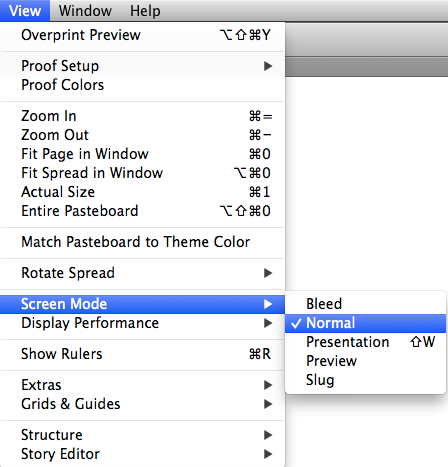
Or you can just view a submenu in alphabetical order by pressing Command+Shift+Option/
This article was last modified on July 25, 2019
This article was first published on October 21, 2014
Commenting is easier and faster when you're logged in!

Recommended for you

Tip of the Week: Using the Color Theme Tool
This tip was sent to Tip of the Week email subscribers on December 31, 2014. Sig...
Converting InDesign Notes to PDF Comments
Notes are a great tool for saving comments and questions alongside the co...

CreativePro Conference Speaker Spotlight: Colin Smith, the Drone Master
Welcome to our series of posts called Speaker Spotlight, designed to highlight e...