



This tip was sent to Tip of the Week email subscribers on January 28, 2016.

Sign up now and every week you’ll get a new InDesign Tip of the Week and Keyboard Shortcut of the Week, along with roundups of new articles at InDesignSecrets, plus exclusive deals sent right to your Inbox!
Just scroll all the way down to the bottom of this page, enter your email address, and click Go! We’ll take care of the rest. Now, on with the tip!
Did you know that you can add a style to an InDesign document via Find/Change?
Here’s how. Start in a document that contains the style. Open Find/Change and specify the style in the Change Format section of the dialog box. (You also have to specify something in the Find what and/or Find Format sections.)
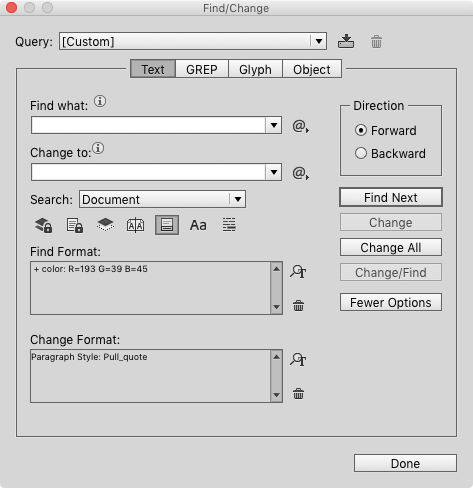
Switch to the document that doesn’t have the style.
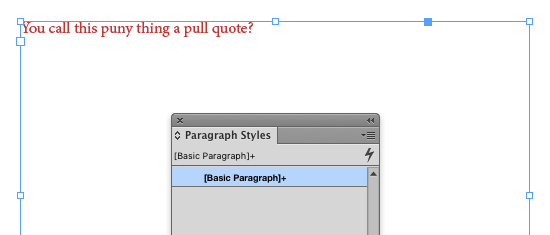
Then run the Find/Change. When you click either Change or Change All, the style is added to the document.
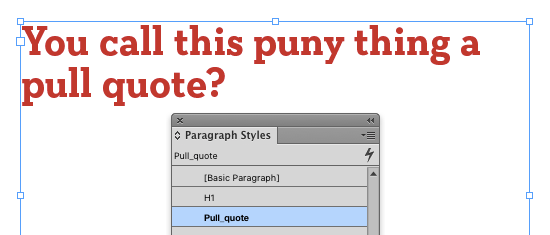
With this trick, you don’t have perform the extra step of creating or loading the style into the second document before running the Find/Change. InDesign rightly assumes that if you’re asking to apply the style, you must want to add it.
This article was last modified on July 8, 2021
This article was first published on February 2, 2016
Commenting is easier and faster when you're logged in!

Recommended for you

New Solid Converter PDF v3.1 Makes PDF Conversion Easier than Ever
Solid Documents, a leading provider of document utility products, today announce...

IHOF New Releases for April 2006
P22 and the International House of Fonts (IHOF) announce the release of 3 new fo...
Leading as a Character Attribute? I’m a Believer!
Ever since I started working with the first beta of InDesign (K2), I’ve be...