




This tip was sent to Tip of the Week email subscribers on February 11, 2016.

Sign up now and every week you’ll get a new InDesign Tip of the Week and Keyboard Shortcut of the Week, along with roundups of new articles at InDesignSecrets, plus exclusive deals sent right to your Inbox!
Just scroll all the way down to the bottom of this page, enter your email address, and click Go! We’ll take care of the rest. Now, on with the tip!
Got bloated InDesign files taking up too much space on your hard drive? Do your files take forever to move across your local network or download from the Cloud?
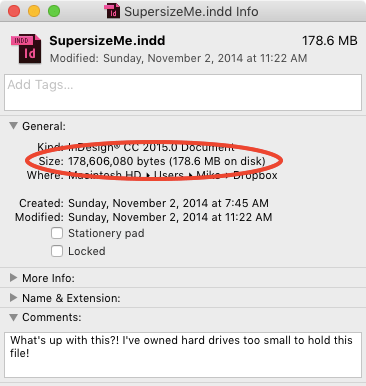
Here are five ways to slim down the size of your InDesign files and I promise none of them involves drinking kale smoothies or planking.
- Don’t copy and paste image content from Photoshop or a web browser.
- Don’t leave unused page items in your files (stuff on pasteboards, extra master pages, styles, and so on).
- Do choose File > Save As to create a fresh copy of your document.
- Do resize images and set their resolution in Photoshop before you place them in InDesign.
- Do export as IDML to clear out corruption and unneeded gunk.
This article was last modified on July 25, 2019
This article was first published on February 16, 2016
Commenting is easier and faster when you're logged in!

Recommended for you

Digital Camera How-To: Shooting Snowy Scenes
Winter is a great time to get out and take some pictures with your digital camer...
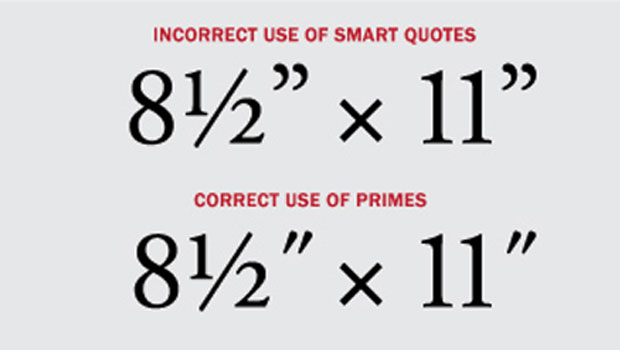
TypeTalk: Five Typographic No-Nos
TypeTalk is a regular blog on typography. Post your questions and comments by cl...

Xerox Opens Multinational Contest to Recognize Most Innovative Documents Created with Xerox Digital Printing
Xerox Corporation (NYSE: XRX) is calling for entries for its 2006 Printing Innov...