



This InDesign tip on using Power Zoom in InDesign was sent to Tip of the Week email subscribers on December 15, 2016.

Sign up now and every week you’ll get a new tip, keyboard shortcut, and roundups of new articles, plus exclusive deals sent right to your Inbox!
Just scroll down to the bottom of this page, enter your email address, and click Go! We’ll take care of the rest. Now, on with the tip!
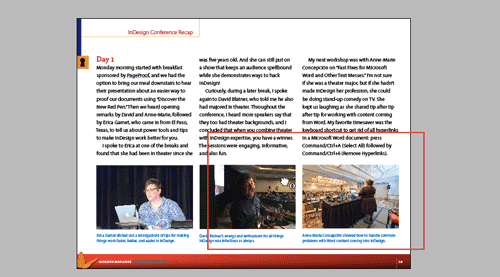
Power zoom is an obscure but useful feature for navigating through an InDesign document. It allows users of CS4 and later to find the exact spot they want quickly by zooming out temporarily while moving a red box that represents their view of the document.
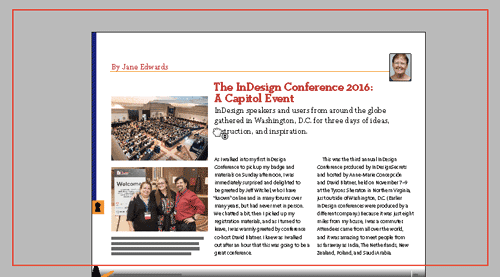
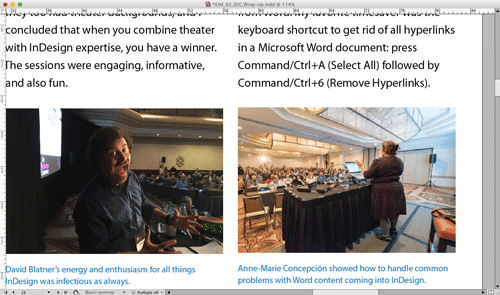
To use Power Zoom, click the Hand tool or hold down the spacebar (if you’re currently editing text, hold Option/Alt). Then click and hold your mouse button or trackpad. The view zooms out and you’ll see a red box that you can drag to a different spot in your document. To change the size of the red box (to increase or decrease your final magnification), use your arrow keys, mouse scroll wheel, or two fingers on a trackpad.
This article was last modified on July 25, 2019
This article was first published on December 20, 2016
Commenting is easier and faster when you're logged in!

Recommended for you

Tip of the Week: Where the Heck Are My Scripts?
This tip was sent to Tip of the Week email subscribers on August 20, 2015. Sign...
A Script to Apply Cell Styles Based on Content
In a recent browse through the InDesign Scripting Forum, I came across another l...

Adjusting Word Spacing From the Keyboard
As much as I love the Paragraph Composer in InDesign, its omnipotent control ove...