




This tip was sent to Tip of the Week email subscribers on April 21, 2016.

Sign up now and every week you’ll get a new InDesign Tip of the Week and Keyboard Shortcut of the Week, along with roundups of new articles at InDesignSecrets, plus exclusive deals sent right to your Inbox!
Just scroll all the way down to the bottom of this page, enter your email address, and click Go! We’ll take care of the rest. Now, on with the tip!
Ch-ch-ch-ch-changes.
OK, so David Bowie wasn’t singing about editorial workflows. That doesn’t make InDesign’s Track Changes features any less cool. They allow you to share an InDesign document with your co-workers and maintain a record of who changed what text and when they did it. And at any point you can accept changes making them permanent (i.e. wiping out the record of the old text), or reject them.
To turn on Track Changes, choose Window > Editorial > Track Changes.
With your cursor in a text frame, click the button in the panel to Enable Track Changes in Current Story.
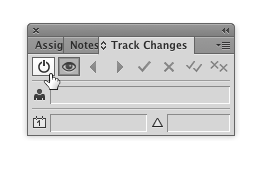
You and your co-workers will also have to fill in your user info by choosing File > User and entering a name and choosing a color.

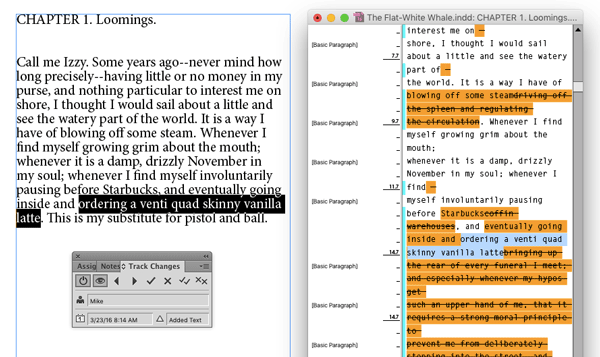
Then, whenever a change is made in the text of the story, it will be tracked. You can see changes by opening the Story Editor (Command+Y/Ctrl+Y) and clicking Show Changes (the eye button) in the Track Changes panel. Then use the other buttons in the panel to navigate through the changes, and accept or reject them.
This article was last modified on July 25, 2019
This article was first published on April 26, 2016
Commenting is easier and faster when you're logged in!

Recommended for you

Adding and Styling Text in Premiere
Myra Ferguson covers text formatting and safe margins in Premiere.

Convert to Outlines in InDesign and Keep Your Editable Text
Khara Plicanic creates text outlines and keeps an editable copy with one click!

What’s New in Photoshop 27.10
The August 2026 release brings a range of new tools and techniques—plus a comple...