




InDesign’s Dynamic Spelling feature flags misspelled words as you type. It’s useful and convenient for on-the-fly corrections, but I find that it can be distracting, especially when I’m trying to concentrate on something other than spelling. For the best of both worlds, assign a keyboard shortcut to Dynamic Spelling with Edit > Keyboard Shortcuts.
In the Keyboard Shortcuts dialog box, you’ll find Dynamic Spelling in Product Area: Edit Menu.

Keep the feature turned off (it’s off by default), but when you’re curious if a certain word is spelled correctly, use the keyboard shortcut to briefly toggle it on. If the word is misspelled, it’ll sprout a (non-printing) red underline. Right-click on the word to choose the correct spelling or add it to the dictionary from the contextual menu.

If the word is spelled correctly, nothing changes—no underline appears. Press the shortcut again to toggle Dynamic Spelling off and continue with your work.
Bonus tip: Wanna truly understand and control InDesign’s spell check feature? Check out Sandee Cohen’s feature article on User Dictionaries, from InDesign Magazine issue 102 (subscription required).
This article was last modified on April 24, 2023
This article was first published on October 17, 2017
Commenting is easier and faster when you're logged in!

Recommended for you
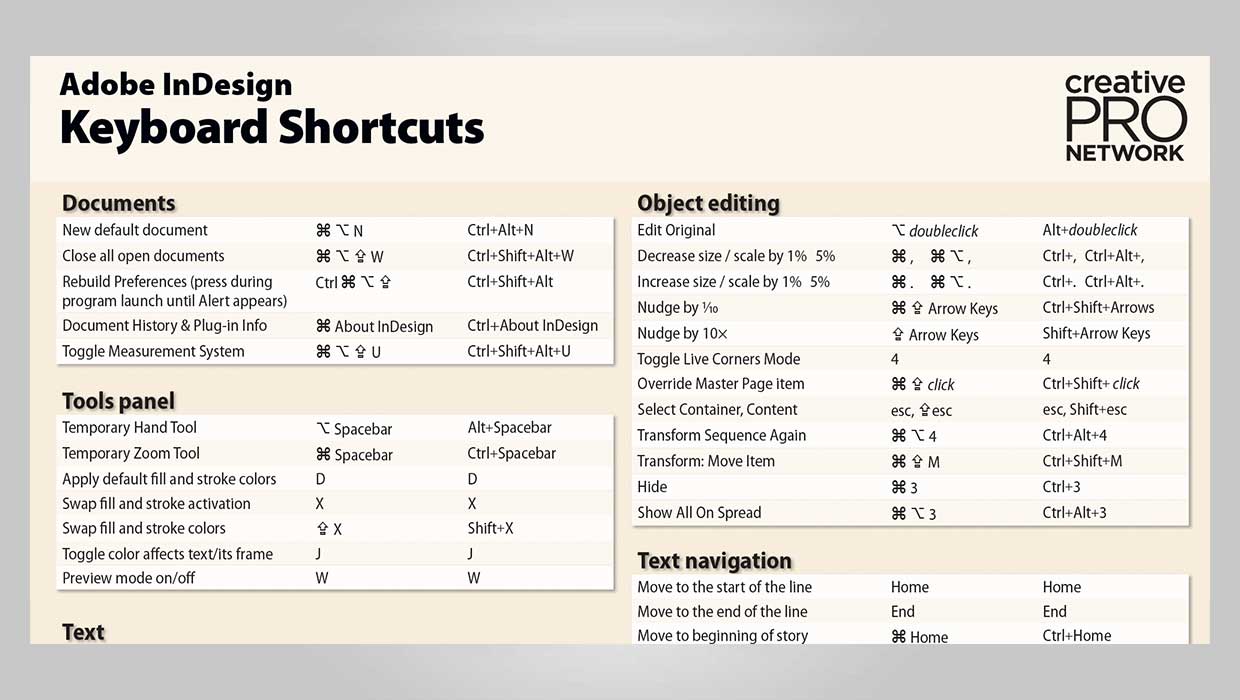
InDesign Downloadable: Keyboard Shortcut Poster
A PDF guide to essential keyboard shortcuts in Adobe InDesign

Fixing the Keyboard Shortcut for Typographer’s Quotes on the Mac
When the InDesign keyboard shortcut for curly quotes stops working on your Mac,...

6 ways to type the Pi symbol in InDesign
My youngest son informed me today that we are 10 days from Pi day (in the US). 3...