




This InDesign tip on controlling the position of a new layer was sent to Tip of the Week email subscribers on November 9, 2017.

Sign up now and every week you’ll get a new tip, keyboard shortcut, and roundups of new articles, plus exclusive deals sent right to your Inbox!
Just scroll down to the bottom of this page, enter your email address, and click Go! We’ll take care of the rest. Now, on with the tip!
By default, if you click the button to create a new layer in the Layers panel, the new layer will be created directly above the current drawing layer (indicated by the pen icon).


But with a few keyboard shortcuts, you can make the new layer appear elsewhere in the stacking order.
Hold the Command key on Mac or Ctrl on Windows while you click the button to make the new layer appear beneath the current layer.

Hold Command+Shift on Mac or Ctrl+Shift on Windows while you click the button to make the new layer appear at the top of the layer stack.

This article was last modified on July 20, 2021
This article was first published on November 14, 2017
Commenting is easier and faster when you're logged in!

Recommended for you

How to Add Layer Sets to InDesign Files with Snippets
How to add pre-existing layer sets to any InDesign document quickly and easily.

Create your own layer comps in InDesign
Frustrated that there are no layer comps in InDesign? Well, why not create your...
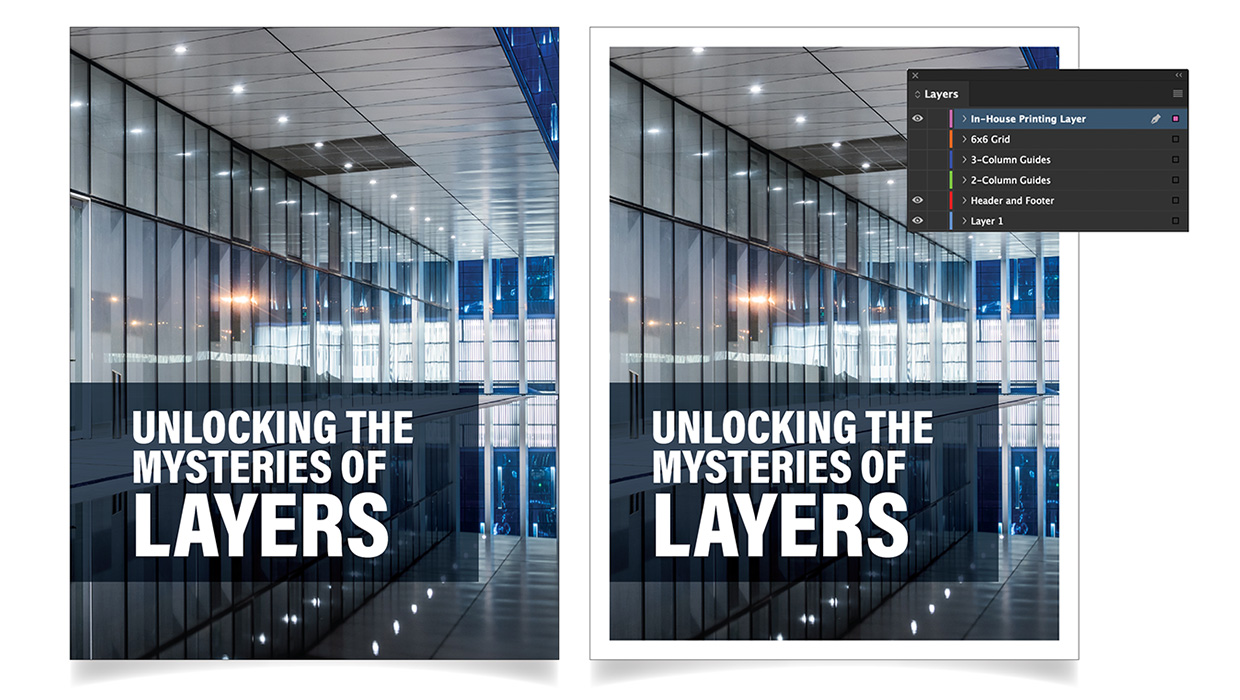
Using Layers in InDesign
Use layers in InDesign to unlock creative and time-saving ways to improve your d...