



InDesign’s table cells are odd little things. They look like empty spaces surrounded by enclosing frame edges, which are what empty text frames look like, right? And you can click inside then with the Type tool and add text, just like text frames.
But, unlike normal text frames, you can’t click on table cells with the Selection tool and get resize handles, and more to the point, you can’t make an individual cell show a “normal” text frame’s inport and outport boxes (those little guys upper left and lower right that you use to thread one frame to another). In fact you can’t select a table cell with the Selection tool at all – you always use the Type tool, that’s InDesign 101. (Or maybe 201).
So if you need to text to automatically flow from one cell to another, but you can’t thread the cells together, what should you do?
I see two choices here:
- Switch to QuarkXPress, which does allow threading of table cells; or
- Fake it in InDesign.
I’ll assume you’ve chosen #2. ;-)
To fake it in InDesign, just paste a multi-columned text frame into a table cell as an anchored graphic. That is, create the multi-columned text frame outside of the table, sized to fit the area of the cell (or more likely, the merged cells) you’ll be pasting it into. Then, select it with the Selection tool, Cut or Copy it to the clipboard, switch to the Type tool, click inside the cell area, and Paste.
Here’s a visual example. Let’s start with a normal InDesign table:
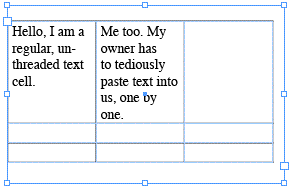
To “thread” those first two cells in the first row, we’re going to paste a two-columned text frame in their place. First, though, we clear out the text and merge the two cells to make room for the text frame. To merge cells, select them with the Type tool (just drag over them so they’re completely highlighted)…

… and choose Merge Cells from the Table menu or Table palette menu. I’m a right-click fan, so I chose Merge Cells from the contextual menu.
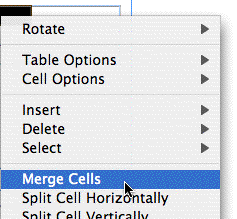
Ta-da! The two cells are merged into one.
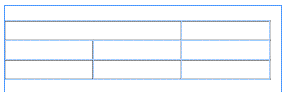
Now, outside of the table, create a two-columned text frame, roughly the size of the merged cell area. (You can always edit it after you’ve pasted it into the table.)
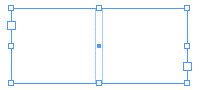
Use the Selection tool to select the text frame, as shown above, and Cut or Copy it to the clipboard (Edit > Copy or Edit > Cut). Then switch to the Type tool, click inside the merged cell, and Paste (Edit > Paste).

Since the 2-column text frame is an anchored object (aka inline graphic), you can use the Selection tool to select it and resize it, change the number of columns, change the gutter width, and so on.
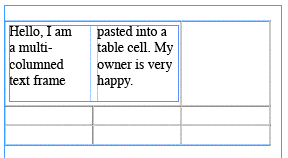
Nothing to do now but paste your text into the first column of the anchored text frame, and watch fondly as it flows into the second “cell”!
This article was last modified on December 18, 2021
This article was first published on September 22, 2006

Recommended for you

Making Numbered Tickets
Gail wrote: I want to make 300 numbered tickets for an event. The number on one...

Get Your Own DAM Solution: Manage Digital Assets with Extensis Portfolio Server 11
When they hear the name Extensis, most creatives probably think of fonts, since...

Multi-colored Strokes in an InDesign Table
Learn how to apply not one but two strokes to the same cell inside of an InDesig...
Comments are closed.