


The Web Wizard: Creating Quick and Easy JavaScript Animations

[Editor’s note: This story has been revised since its original posting.]
The animated GIF format makes it incredibly easy to add simple animations to Web sites, and my previous Web Wizard column covered several techniques to help you get the most of out of this admittedly-older format. But if you want your animations to do something more than play, you’ll have to find different ways to add motion to your Web pages. JavaScript is a stop well worth making on your way to the Flash or LiveMotion authoring environments.
JavaScript is a fairly straightforward scripting language supported by a large percentage of the installed base of Web browsers in use today. In fact, if visitors to your Web site use Internet Explorer 4.0 or later or Netscape Navigator 3.0 or later, you can be confident that your animations will play.
Viva Java
JavaScript is superior to GIF animation in several ways. First, a JavaScript animation is simply a series of display commands, so it will work with any graphics format supported by the Web browser, including GIF, JPEG, PNG, SVG, and others. Choosing the JPEG file format, for example, allows you to build an animation using highly compressed, photographic-quality images. This is an easy way to fake a video clip without requiring your visitors to download additional plug-ins (such as RealPlayer).
JavaScript animation can help you avoid some of the real-world playback problems associated with animated GIF files. For example, when animated GIFs are used for rollovers (where a static picture is replaced by an animated sequence), some browsers display only the first frame or ignore transparency settings. Generating the rollover effects entirely with JavaScript guarantees proper playback.
JavaScript code also allows you, the developer, to manipulate the images at playback time. As an example, you might change the image sequence in response to a pre-defined event. This contrasts very sharply with the frames in a GIF animation, which always play in strict sequential order.
Finally, JavaScript animation allows you to give the viewer control over the animation. For example, you can provide Back and Next buttons, as I do in the second of the sample animations below.
JavaScript Redux
This tutorial starts off with the most basic of JavaScript animations — a flipbook — and leaves you with code you’ll be able to use for your own flipbook animations. On the off chance that you have never seen a flipbook, here’s a brief description: A flipbook is a printed booklet, with one static image on each page. The images on each page differ from one another only slightly. When you leaf through the pages of the book and view them quickly in sequence, the animation comes to life. That is exactly what our JavaScript animation will do — display a series of images in sequence, creating a motion effect. To take a peek at what I’m building, click here.
As a designer myself, I wrote this tutorial for other designers, not programmers. However, it does require you to understand — and even modify — some simple code. I encourage you to look at the source code, provided here. If you follow along as I build the script, you’ll understand the truly minimal changes you’ll need to make in order to have the code work for you.
If you are looking for an even simpler way to do a flipbook animation, check out the sidebar on using a common HTML tag, META REFRESH, to create a simple animation.
Before we begin, I must give credit to Dori Smith, a JavaScript programmer who has critiqued the code presented in this article. I’m not too proud to admit that my original code failed to do something I promised — namely to preload (or cache) the JPEG images for smooth playback. Ms. Smith, who along with Tom Negrino wrote the book “JavaScript for the World Wide Web: Visual QuickStart Guide” (Peachpit Press) pointed out the error and generously provided the fix. She also offered more elegant alternatives to a few of my more complex statements.
If you’d like more information about Dori Smith’s work or a general introduction to JavaScript, check out Ask the JavaScript Pro, A Gentle Introduction to JavaScript, or JavaScript Made Easy.
In the meantime, here are a few basic concepts that will help to demystify JavaScript code.

A Four-Step Dance
For the purposes of this demonstration, we’re going to build our flipbook using only four images, of a dancer. Keep in mind, however, that there is no technical limit on the number of images you can use.
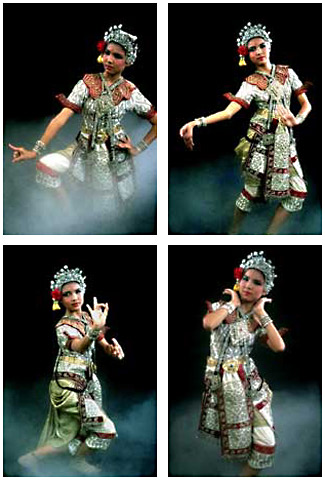
Coincidentally, there are only four steps involved in creating this animation.
- Create the object — called an array — that collects the images and places them in a specific order.
- Create a mechanism to determine which image is on screen and which image to display next.
- Create an object to display the image.
- Create a trigger to playback the animation.
Create the Image Array
You can easily create an array by providing an array name, and listing the images to be included in the array. The code looks like this:
danceSeries = new Array(“dance00.jpg “, “dance01.jpg”, “dance02.jpg”, “dance03.jpg”);
Translated into English this bit of code would read, “Create a new array, called danceSeries, and include the following image file names in the array.” Also note that we have surrounded the array with parenthesis, surrounded each file name with quotes, and separated each name with a comma. We have only included four files in our array, but you can include as many files as you want. The only caveat is that all of the images must be exactly the same size (in pixels).
In order to have the animation play back smoothly, you’ll have to preload (or cache) the images on the viewer’s disk. You could use the following simple (but tedious) technique to create a new image object for each picture in the array:
{
image1=new Image ()
image1.src = “dance00.jpg”
image2=new Image ()
image2.src = “dance01.jpg”
image3=new Image ()
image3.src = “dance02.jpg”
image4=new Image ()
image4.src = “dance03.jpg”
}
This method works, but the code would become very lengthy if you included a large number of images in your array. A more elegant method, shown below, lets you write a few lines of code to cache all of the images you’ll need for the animation. It begins by creating a new image array specifically designed to cache the images. A straightforward “for” loop sets an initial value called “i” to zero, then states that if “i” is less than the length of the danceSeries array, increase the value of “i” by one. The first of the next two statements adds a new image object to the imagesCache array, and the next line caches the actual JPEG files by identifying the danceSeries array as the source for the imagesCache array.
imagesCache = new Array ()
for (i=0;i<danceSeries.length;i++) {
imagesCache[i] = new Image
imagesCache[i].src = danceSeries[i]
}
The Animation Mechanism
To create the animation itself, we’ll first define a variable to keep track of the currently displayed image. The first image in the array is always identified as slot zero (0). So this following statement sets the initial value to the first image in the array.
theCount = 0;
To increment the count, we’ll create a simple function — called turnPage. This code states that if theCount is equal to a particular number (more on that later), theCount should be set back to its initial value, or zero. If, on the other hand, theCount is not equal to the specified number, it should be increased by one. Here’s the code:
function turnPage() {
if(theCount == imagesCache.length-1)
{
theCount = 0
} else {
theCount++
}
The first line of this code helps us loop the animation, by giving us a way to return to frame 0. We could have written a simple function that would reset the value of theCount to 0 when it rises to 3, but this would be valid only for our sample, four-image animation. To allow broad use of this function, we instead compute the number of the last frame of the animation by subtracting one from the total number of images in the array, which is determined by the property “imagesCache.length.” When theCount reaches this value, we reset theCount to 0, beginning the animation again.
At this point in the script we have created a function that will advance from one frame to the next. But, it will only advance once. To play the animation all the way through (or loop it continuously), we’ll have to repeat the “turnPage” function itself. At the very end of the script, we’ll insert a command to do just that:
setTimeout(“turnPage()”, 300);
This command waits 300 milliseconds, and then executes the turnPage function again.
Display a Frame of the Animation
As another step towards completing our animation, we must create one more object that will allow us to access the images loaded in this page. In the following statement, we specify a value for the images property of a document object. Take a look at the code:
document.dance.src = imagesCache[theCount].src
We insert this line into the script just above the timeout command. The end result: As the script is executed, the one frame of the animation will be displayed, there will be a 300 millisecond pause, and then the next frame of the animation will be displayed.
Every line of code we have entered so far has been part of the JavaScript code in the <HEAD> area of the document. If we want our animation to show up on the Web page, we must insert the following line of code into the <BODY> section of the page.
<img name=”dance” src=”dance00.jpg” width=”150″ height=”233″ border=”0″ alt=”dance images” >
Automate the Event
At this point the first frame of our animation will appear on the Web page, but the animation still won’t play. That’s because JavaScript animations require an event to trigger them. Events can either be controlled by the end user or occur automatically. In this case, we want to play our animation automatically, so we will insert the onLoad event handler into the <BODY> tag of our HTML page. This command invokes the script as soon as the page loads.
<body bgcolor=”#FFFFFF”onload=”turnPage()”>
At last, our animation is complete. Just in case you resisted peeking earlier, take a look.
Make It Your Own
You really can’t understand why JavaScript animation is so exciting until you understand that you can add or modify a few lines of code to make the script your own.
If you want to use the script “as is,” you merely have to substitute new image file names for the existing file names in the image array list, located in the <SCRIPT>. You should also modify the width and height values for the <IMG NAME> tag in the body of the page to match the actual dimensions of your images. In case you missed it above, the full source code for our sample animation is available here.
If you want to make an extremely simple modification, locate the setTimeout function in the script and change the value to increase or decrease the speed of the animation.
For those of you who are more adventurous, try making the following modifications to transform the automatic flipbook animation into a user-controlled slide show.
First, in the script, delete the code that creates the animation loop. (Hint: It’s the setTimeout statement.) Then move down to the <BODY> tag and delete the onLoad event. At this point, you have successfully broken the animation. It won’t run automatically and it won’t repeat. You remedy this by adding a few lines of code. In the <SCRIPT> add a new function — called “returnPage” — that returns to the previous frame of the animation. Here’s the code:
function returnPage() {
if(theCount == 0){
theCount = (imagesCache.length-1)
} else {
theCount–
}
document. dance.src = imagesCache[theCount].src
}
Take a moment to compare the returnPage function to the original turnPage function. You’ll see that we’ve made very minor changes. In plain English, this code states that if theCount variable is equal to zero, reset theCount to the last image in the array (determined by the imagesCache.length-1 statement). But if theCount is not equal to zero, subtract one from theCount. In essence this function is a mirror image of the turnPage function, and it will allow us to move through the animation in reverse.
Now, move down to the <BODY> section of the HTML page, and create two button objects. Again, here’s a peek at the code:
<Form>
<Input Type=”button”
Value=”Back”
onClick=”if(document.images)returnPage()”
>
<Input Type=”button”
Value=”Next”
onClick=”if(document.images)turnPage()”
>
</Form>
If you’ve been practicing reading JavaScript, you will understand that when the user clicks on one of these button objects the JavaScript code will move to either the next or previous frame in the slideshow.
It is exactly this ability to extend a piece of code’s functionality, with so little fuss and bother, that makes JavaScript so appealing to so many developers.
This article was last modified on January 8, 2023
This article was first published on November 2, 2000
Commenting is easier and faster when you're logged in!

Recommended for you

Create Accessible PDF Files
Accessible PDF files (which devices used by people with visual disabilities can...

How to Set Up Parent Pages in InDesign
Learn how to set up and use InDesign’s parent pages for consistency across multi...
The Paper That Changed Type Design
John Baskerville is known best as the man who, in the mid-18th century, created...