



What is This “Hover?”
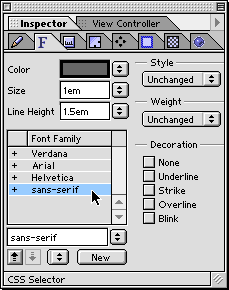
One of the easiest ways to dramatically change the look and feel of a site is by swapping the {u}underlined{/u} links on your page with links that change when a viewer’s mouse hovers over them. Although it may seem complicated, GoLive makes the process fairly straightforward. A hyperlink can be modified by creating a corresponding selector style to its associated tag, the anchor (<a>) element. To remove the underlines from all links simply check the “None” option in the decoration property found in the Font tab of the CSS Inspector. Use great restraint with this control, since most surfers are accustomed to underlines as links. My suggestion is to omit them only if your have an obvious color scheme or hover set handling this job.
Here’s a straightforward step-by-step to creating a selector style for the anchor element in order to change its appearance:
- Open up the CSS Interface by clicking the stair step icon that appears in the upper-right corner of your page.
- To add a <a> selector, Control-click (Mac) or Right-click (Windows) within the CSS window and choose Add Selector > a from the contextual-menu.
- Define what properties you wish to apply to the appearance of your links.
- To remove the underline from your links, check the None box that appears under the Decoration options.
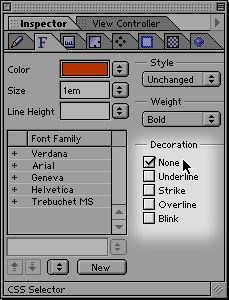
You can omit the underline in your links by checking the None box in the Decoration options area. Use your discretion when choosing this option though.
Hovering is a Microsoft-developed pseudo-class that allows for links to change appearance when the mouse hovers over them. Netscape 4 just ignores the code that describes the desired hovering behavior, but Netscape 6 appears to support this new behavior. The hover pseudo-class is defined just as you would any other class style but it offers built-in functionality without the need of any JavaScript coding.
The simplest way to add a hover set to your style sheet is to do the following:
- Create an <a> selector style as noted above.
- To add a hover style, Control-click (Mac) or Right-click (Windows) within the CSS window where all your styles show up (not the CSS Inspector). In the menu choose Add Selector > a:hover.
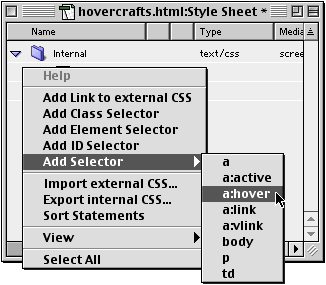
GoLive is nice enough to offer up the commonly used selectors via a contextual menu.
- Now define your hover style. Remember this is what your links will look like when the user’s mouse hovers over a link. Hovers are usually styled to complement their <a> cousin. Usually changing the text color or having the underline appear adds just the right amount of feedback.
- If you wish to add the other pseudo-classes related to the <a> element: active, link and vlink, repeat the second and third steps choosing the desired selector class instead. These work like their HTML head tag counterparts.
Style Is In the Details
One of the most mind-blowing capabilities style sheets offer is the ability to apply a selector to just about any old HTML tag. A clever use of this ability is creating a style selector for the table detail tag (<td>). Since just about everything you create on a Web page is contained in a table detail, assigning a style selector to this tag places a tremendous amount of control at your command. You can assign padding, borders, fill and more to table details.
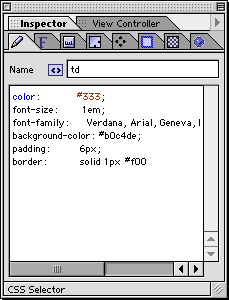
The basic tab displays the property details for a selected style. Here I have set up the <td> selector with a filled background and a 1 pixel border.
To create a style selector for <td>’s do the following:
- Open up the CSS Interface by clicking the stair step icon that appears in the upper-right corner of your page.
- To add a <td> selector, Control-click (Mac) or Right-click (Windows) within the CSS window and choose Add Selector > td from the contextual-menu.
- Go through the CSS Inspector tabs assigning type, padding, borders, background (which can contain color fills or images) and other properties.
- Once a <td> selector is created you can define classes based off of this selector. For example td.red and td.blue could be classes that change the background fill and border of specific elements.
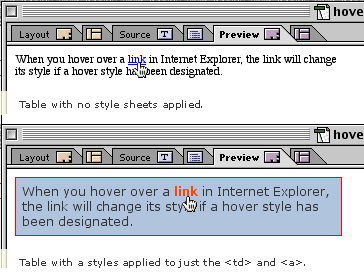
Here is an example of what a difference styles can make. The top shows a table with no styles where as the bottom has a set of basic styles (red border, blue fill, highlighted link) applied to the <td> and <a> selector.
Most of the style options are pretty self-explanatory. Colors can be dragged from the color palette to any of the color wells found in the CSS Inspector. Play with them and see what sort of results you end up with, as there are just far too many options available to attempt to detail them in any helpful manner. Be sure to consult the Master Compatibility Chart offered above to check what style properties your target browsers support.
To Infinity and Beyond
The world of cascading style sheets offers numerous opportunities that finally get us much closer than ever possible to the level of control Web designers demand. While some compromise is still necessary when dealing with HTML, the alternative for true control freaks — Flash — isn’t appropriate for all sites. Style sheets have been steadily integrated into various browsers in recent years, and hopefully with more familiarity you’ll become comfortable using them, even if in a limited capacity at first. As you experiment with style sheets, you’ll begin to realize how much style sheets bring to the table (har har).
This article was last modified on January 18, 2023
This article was first published on June 5, 2001
Commenting is easier and faster when you're logged in!

Recommended for you

Using Illustrator to Create Patterns for Craft Projects
This article will teach you how to use Illustrator’s Create Object Mosaic comman...

dot-font: Language Culture Type
A Taxonomy of Written Language The other leadoff essay is a thoughtful look at...
New Epson GT-2500 and GT-2500 Plus Document Imaging Scanners Give Small Business Workgroups Fast, Affordable Tools for Quality C
Epson America, Inc. today announced two fast, affordable document imaging scanne...