Scripting Unbound
For better or worse, the initial release of LiveMotion included a rather limited set of behaviors to work from. The upside was that practically anyone could script animations without having to know ActionScript or Flash. But unfortunately, once you reached the application’s limit, you found yourself performing creative workarounds to accomplish the animation interactions Flash 5 was capable of making. Sophisticated animations with velocity, gravity, drag-and-drop interactions, and variables were close or impossible to create in LiveMotion 1.0, leaving many LiveMotioners wishing for more in the lines of scripting. Well, be careful for what you wish for: LiveMotion 2.0 includes ActionScript (Flash 5) and JavaScript support, as well as the ability to automate LiveMotion itself. I can’t help imagining Adobe saying, “You want scripting? You got scripting.”
So where does that leave existing LiveMotioners who were satisfied with the limited but simple behavior set included in LiveMotion 1.0? The original set can be found at the top of the LiveMotion’s script editor list. The script editor provides a centralized location for building and navigating through your scripts (see figure 4). It also includes a syntax helper pane, which explains a select method or property and explains how to use it. Double-clicking an object in the browser pane populates the detail pane with either the path that properly points to a movie clip or a method’s script ready for you to insert your particular properties. Although LiveMotion’s script editor is better than Flash 5 ActionScript editor, the recently released Flash MX tops both by providing more comprehensive details such as literal examples and pop-up code help.
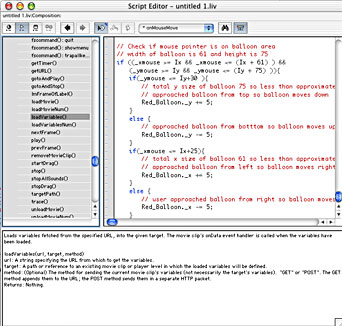
Figure 4: The script editor consists of three panes: the browser/syntax helper, the code content, and the detail information on a selected function or property in the syntax helper.
Don’t discount the script editor in LiveMotion 2.0, though. It still holds its own as an organized, helpful command center for your scripting needs. It’s rather telling the importance Adobe places on learning scripting in LiveMotion. The printed scripting guide that comes with the product is three times as large as the user manual. Along with the syntax helper the script editor it includes other helpful code writing features you’d come to expect: color syntax highlighting, find-and-replace functionality and a full-featured debugger that includes breakpoints and code stepping (see figure 5). One feature missing is the ability to display line numbers, which is odd since this is quite helpful when debugging code.
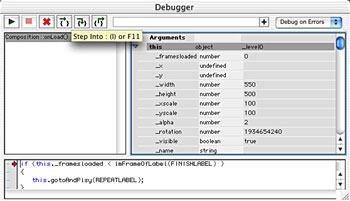
Figure 5: The full-featured debugger aides in hunting down typos and more serious problems with your code.
Most of the scripting features and capabilities found in LiveMotion 2.0 put it on par with features found in Flash 5 and even with Flash MX, but what sets LiveMotion 2.0 apart from Flash is the ability to write scripts to control the application itself. Known as Automation Scripts, these can be used to automate repetitive or complex tasks (see figure 6). Extensions to automation scripts are LiveMotion’s LiveTabs (see figure 7). Developers and ambitious users can create native LiveMotion (.liv) files that include controls and scripts to extend LiveMotion’s capabilities. These LiveTabs can then be brought up just like any other floating palette in the application. LiveMotion 2.0 ships with a handful of powerful, useful LiveTabs and Automation Scripts with promise of many more being available at Adobe’s Exchange site.
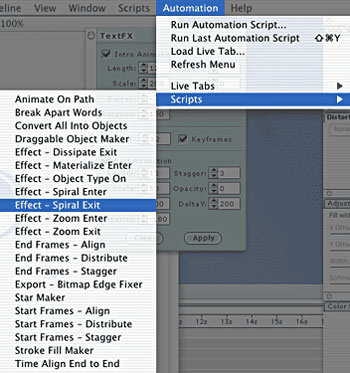
Figure 6: The Automation menu comes with a bunch of handy scripts and Live Tabs installed. Ambitious designers can make their own automated scripts and add them to a library.
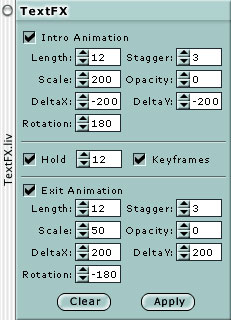
Figure 7: Live Tabs allow developers to challenge the limits of what LiveMotion is capable of. Text on a path, grid making, and an improved color swatch palette are just some of the LiveTabs that come with the product.
This article was last modified on January 18, 2023
This article was first published on May 14, 2002
Commenting is easier and faster when you're logged in!