



Q. I’ve got an image grouped with a caption. The text on the page is jumping to the next column around the group. But I can’t find anything with a text wrap applied.
It’s not applied to the group; it’s not applied to the image frame; it’s not applied to the caption frame.
It’s got to be coming from a text wrap somewhere, because when I choose Ignore Text Wrap in the Text Frame Options dialog box, all the text flies behind the group. But where could it be?
A. Congratulations, you knew enough to recognize that a group can have a text wrap or the individual elements in a group can have their own text wrap settings.
What you didn’t look for is text wrap applied to the graphic inside the frame. That’s what’s happened here.
Click with the Selection tool on the Content Grabber (donut hole) for the image. That selects the graphic that is inside the frame (Figure 1). Now look at the Text Wrap panel. Ta-dah! You’ve found the source of the text wrap. You’ll also see the path that defines the text wrap.
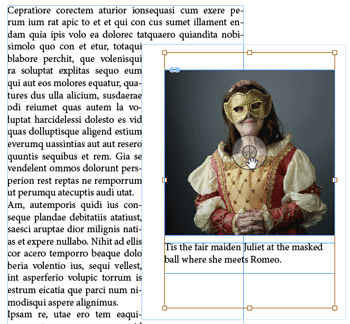
Figure 1: Use the Content Grabber to select a placed image to change the text wrap that has been applied to the image, not the frame.
What can be very confusing about this type of text wrap is if the image has been cropped by the frame. In that case, the text wrap will extend way beyond the boundaries of the image frame.
How did this happen? Most likely you didn’t realize you had selected the image when you applied the text wrap.
Commenting is easier and faster when you're logged in!

Recommended for you

InDesigner: Make: Magazine
Pam Pfiffner profiles Make:,the essential publication for the maker movement.

InQuestion: Making Colors Match Between Photoshop and InDesign
Q. My company is printing promotional brochures for an upcoming trade show. Beca...
Women in Design
A look at eight designers who have helped shape the world of layout and typograp...