



One of the most obvious new features of InDesign CS5 is the content grabber. After using CS5 for the first time, I immediately noticed this big donut circle thing that appeared as I moved over my images. At first I wasn’t sure what to make of it, but I quickly realized that it was there to help me change the position of images inside the frame. In fact, the content grabber was a replacement for the position tool that was removed from CS5.

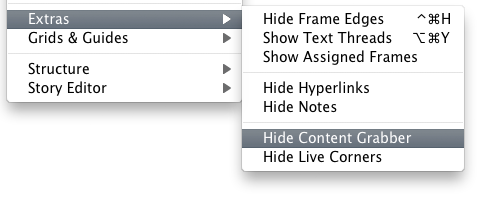
Although I didn’t really have a need for this feature, I thought that it could be useful to new users. If you are just starting out with InDesign, working with frames can be quite confusing. Learning to double-click or use the direct selection tool to move images inside frames isn’t always that intuitive, but the content grabber makes the reposition of images much more obvious. It also saves time since you can click and drag to quickly reposition images without having to select a frame. However, despite an attempt to use the content grabber for a week, I quickly found it to be annoying and I turned it off (View > Extras > Hide Content Grabber).
Look a Hidden Feature!
After turning off the content grabber, I didn’t give it much thought other than the occasional question about what it was and how to turn it off. However, last week I was teaching a CS5 upgrade and someone shared an aspect of the content grabber that I didn’t know.
A student pointed out that the content grabber displays a line if an image had been rotated. I was surprised because I never noticed that feature, mostly due to the fact that I keep it turned off all the time. After thanking him for sharing a new feature with me (I love learning something new when I teach), I spent some quality time to find out if the content grabber had any other secrets.
After experimenting, I discovered that the content grabber displays a horizontal line across its center circle if the content or frame has been rotated or flipped horizontal. However, this line will ONLY show up with a rotation or flip horizontal. Surprisingly, it doesn’t work with flip vertical, shearing or any other transformation.

Despite these limitations, the content grabber does provide feedback to a user by letting them know that the frame has been altered rotated or flipped horizontal. Although, I honestly would prefer a preflight rule that warn you if a frame has been rotated, skewed or flipped.
Update – AnneMarie just pointed out to me that the inner circle is filled with 50% black background (grey), 50% opacity and the blend mode is set to multiply. The outer circle is set to the screen blend mode.
This article was last modified on July 11, 2023
This article was first published on April 20, 2011
Commenting is easier and faster when you're logged in!

Recommended for you


Get Your InDesign Content into Photoshop
David Blatner and Conrad Chavez share tips for using InDesign content in your Ph...
Missing the InDesign Contact Sheet Script? Bridge to the Rescue!
When CS4 was released, like several other users, I was very dismayed to see that...