




Removing keywords from files
At some point you’ll inevitably want to remove keywords from files. They won’t be as descriptive as another similar word, or so seldom-used that they’re just cluttering your list. Most often you’ll use the Keywords panel. Select the files you think have the keyword you want to remove, and look at the checkbox next to the keyword in the list. If you see a check mark, simply click on the box to remove the keyword from the files. If you see a dash instead, that means only some of your selected files actually have that keyword. Option/Alt-click on the box to remove the keyword from those files that do have it. Option/Alt-Shift-click to remove that keyword and any parents to it.
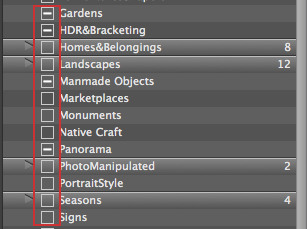
A dash before a keyword indicates only some of the selected files have the word applied to them. Clicking on the box adds the keyword to all the other files; Option/Alt-clicking removes them from just those files they’ve been applied to.
Because you don’t have to worry about selected files having multiple values when you use the Keywords panel, you can select as many as you want and remove only some keywords, without first having to sort the files. And of course, if you really want to wipe out most of the metadata in a group of files, including their keywords, you can use the File Info dialog to replace an existing template with a new one, and/or manually add or delete keywords for all the selected files.
Looking for an image of grapevines, or an article written about grapevines, is easier if you can search for the keyword “grapevines,” and not need to know the filename, its path, or when or where it was created. The next step is learning how to effectively search for files in Bridge using metadata—there’s more than one way.
This article was last modified on December 14, 2022
This article was first published on October 30, 2013
Commenting is easier and faster when you're logged in!

Recommended for you
Using InDesign, Illustrator, and Photoshop Together: Moving Vectors
Moving vectors between InDesign and Illustrator Why might you need to move vecto...

Frequency Separation Retouching in Photoshop
“Dammit, Jim, I’m a designer, not a rocket scientist!” I hear you cry. Well, bef...

Out of Gamut: Photoshop, Previsualization, and Print Prediction
Printing from Photoshop Photoshop also offers the ability to make conversions on...