



Just when you get a comfort level with InDesign, because it works so well, something jumps out and surprises you. Case in point: Switching color swatches.
The project I was working on that brought this problem to light was a template that is built using a swatch palette of about 16 colors, all in the orange family. This template is going to be used over and over, but they may want the swatch palette to switch, at any point in production, from shades of orange to blue or green or maybe puce. (They won’t really use puce… Blatner bet me $5 I couldn’t work the word puce into this post.)
How do we achieve such a feat? Anyone who has swapped paragraph or character styles using the Load Styles feature would logically think that InDesign would handle swapping out colors the same way. With this train of thought, you would be able to name your color swatches as Color 1, Color 2, Color 3, etc. Then, when you want to change the orange swatches to the blue values (or puce… that’s $10, David!) you would just load a Blue.ase file (that’s an Adobe Swatch Exchange file, for the uninitiated) with the same swatch names (but blue color values). You’d think InDesign would then alert you that there are conflicts with same color names and ask you whether you want to keep existing, overwrite or rename.
It doesn’t.
Instead, it appends the new swatches, automatically renaming them by adding the word “copy” after the imported swatch name. Hmmm?
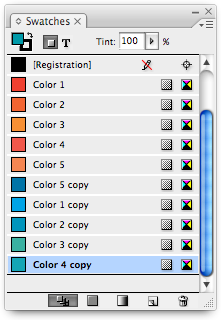
Important Side Note: Swatch names are case-sensitive, so if you have an existing swatch named Color 1 and you import a swatch named color 1, it will not add the “copy” at the end… it just shows up as a different swatch.
Now you have imported your Blue.ase file and you have “Color 1” and “Color 1 copy” in the panel. If you delete “Color 1,” you may be asked which existing swatch you want to substitute it for, at which time you can select “Color 1 copy.”
Be aware that if the swatch hasn’t been used in the document yet (which could easily happen if you are changing the color on a template before production) the swatch will be deleted without InDesign first asking you.
Now, if you’re paid by the hour, this manual-deletion method is a valid solution to the problem — just make sure all color swatches are used (I put a bunch of frames filled with all swatches on the pasteboard of Master A) then manually delete and replace. But it’s a hassle if you need to be efficient.
So I asked my good buddy David Blatner, who now owes me $10, if he knew of a script that would do this automatically so it would be a cinch to change these colors from orange to blue or puce ($15). He said no, but…
With his vast network of friends and smart people (not to imply that his friends aren’t smart people) he had a script created, and it is here for you to test yourself. It was created by Steve Wareham, and you can download a zipped version here at this link (if you need unzipped, use this link). To learn more about Steve and his scripts, check out his Web site.
The script simply looks at your color panel and if it sees any with the name “copy” after it, replaces the original with the copy. That’s it, you’re done. So, in seconds, all of your Color 1, Color 2, etc. that are orange are replaced with the blues. You still need to manually load the .ase file with the colors of the same name, then run the script.
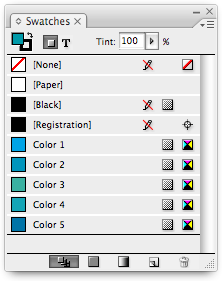
The script also solves another flaw of InDesign: If you use gradients that are defined using swatches to assign color to the stops, and you use those gradients in the document, but you don’t use those swatches in the document also (as a solid, non-gradient stroke or fill), the swatch won’t be recognized when deleting it.
What does that mean? Say you have a gradient made of Color 1 and Color 9, and that gradient is the only use of those two swatches in the document, when you delete the swatches manually they just disappear–InDesign doesn’t offer you the option of swapping for Color 1 copy and Color 9 copy. This is another reason to have a swatch placed on the Master A, or wherever, so InDesign knows to swap the color for you.
But with Steve’s rockin’ script, you no longer need to have the swatches on the Master A because it switches the swatches in a way that recognizes unused colors and that, in turn, fixes the gradient problem.
Brilliant.
Thanks Steve for coming up with the beauty — and thanks, David, for the $15.
This article was last modified on December 19, 2021
This article was first published on May 28, 2008
Commenting is easier and faster when you're logged in!

Recommended for you
Pantone Color Libraries Are Leaving the Adobe Apps
The process and cost of accessing Pantone spot colors in Creative Cloud applicat...

The Digital Art Studio: Quick Fixes #1 (Square Art)
This is the first in a series of articles on quick fixes you can apply to photos...

Put a Guide Where You Want It
A recent post on CreativeTechs reminded me that we hadn’t talked about gui...