



InDesign CS3 has a wonderful docking system for panels, but it does have some room for improvement. One frustration is how to get a panel or a group of panels to dock along the left side of the window. The problem is that the pesky Tool panel gets in the way! Here’s the trick:
Pull the Tool panel out by its top handle so that it comes out of its dock and floats loose on screen.

Now you can drag other panels over against the left side of the screen so that they dock there.
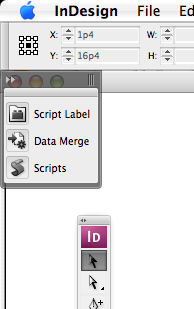
Finally, you can drag the Tool panel back to the left, but don’t let it dock… that is, snap it to the left edge of the screen, but don’t let go of the mouse button if you see a bright blue line appear. (The blue line means “dock here.”)
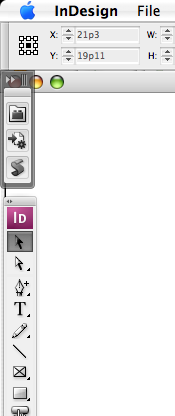
Stashing your panels in clever and easy-to-find ways is a key to being efficient in this panel-laden program. So being able to dock your panels on both sides of the screen is a great help.
Before someone jumps in and asks, I have to add: No, you cannot dock panels on a second monitor. You can put floating panels on a second monitor, but you cannot dock them on the sides (put them in little docks that pop open/close).
This article was last modified on December 18, 2021
This article was first published on February 11, 2008
Commenting is easier and faster when you're logged in!

Recommended for you

Decimal Align Numbered Lists
Abbe wrote: I like to use InDesign's auto-numbering feature, but don't see a way...
GREP Solution to Flawed Title Case Feature
Many people don’t realize that InDesign has a Change Case feature in the T...
Perfecting the Triple Outline with Editable Text
Last week I posted a tip on how to create double outlines on text, while maintai...