



Here’s an obscure InDesign fun fact related to spell checking: sometimes you can see words flagged as errors that aren’t visible on the page in your layout.
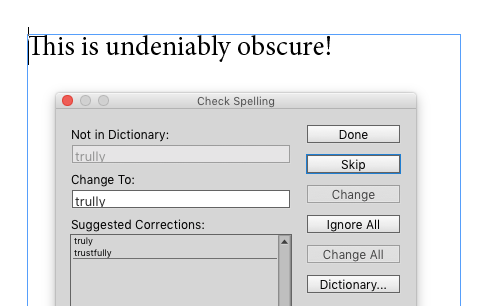
And no, it’s not because they’re in overset text—it’s because they were deleted.
This might sound like a bug, but it is a feature, and a potentially handy one in some editorial workflows. The feature is spell checking of deleted text, and while it is turned on by default, you might never notice it because it only takes effect when the following conditions are met.
1. Changes have been tracked in the document (or in a Word document before it was placed into InDesign).
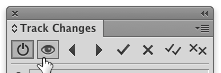
2. The Story Editor is open and visible, and Show Changes is enabled in the Track Changes panel (so you can see tracked changes).
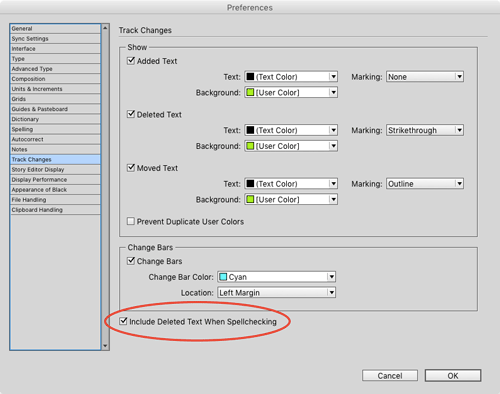
3. The preference to Include Deleted Text When Spellchecking is enabled. You might think this would be found in Spelling preferences, or Story Editor preferences, but actually it is in Track Changes.
Then as you do a spell check, errors in deleted text are flagged.
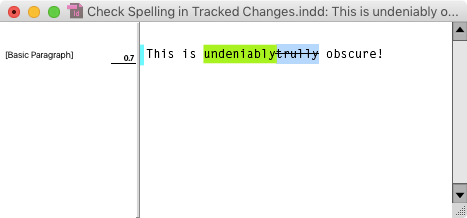
Unfortunately, it can be a bit tricky to make use of the feature, because if you use the Check Spelling controls to fix the error, the fix is treated like added text, and immediately entered into the story.

I suppose it has to work this way, but it means you have to correct spelling only on changes you want to reject (i.e. deleted text that you now want to restore). And you may also have to take an extra step of rejecting other changes, before moving on with your spell check. In this case, I’d need to reject the change of the added word “undeniably.”
So in practice, it might be simpler to go through the process of accepting/rejecting changes, and then do the spell check on your final text. Otherwise you may find yourself constantly jumping back and forth between the Check Spelling and Track Changes panels. Still, it is an interesting option to have.
Have you ever used this feature? If so, what did you think of it? Let me know in the comments!
This article was last modified on July 25, 2019
This article was first published on November 9, 2015
Commenting is easier and faster when you're logged in!

Recommended for you

InDesign How-to: Use the Story Editor
See how to use InDesign's Story Editor to view the content of text frames withou...

Customizing InDesign’s Story Editor
Recently, I posted a tip about how InDesign’s Story Editor can help when y...
User Dictionaries
Sandee Cohen takes you on a deep dive into InDesign’s obscure but important User...