


SmartDraw Photo 2: Windows Image Wizard

It’s hard to resist digital cameras these days, given that the prices seem to drop weekly. As folks swap their old point-and-shoots for the electronic equivalent, they quickly discover the need for software that can organize and edit their pictures without having to master inscrutable terminology and esoteric controls. Aimed squarely at home and business users who want a quick and easy way to retouch, sort, and share photos, SmartDraw Photo offers Windows users a flat learning curve, thousands of stock images, and a reasonable, if not terribly sophisticated, set of editing tools. Although the program is designed for beginners — with ubiquitous hints, tips, and Wizards — experts can turn off the cheery pop-ups and use a less-conspicuous interface.
Instant Gratification
When you load SmartDraw Photo for the first time, the program asks you if you want it to scan your drives for photographs. If you wish, you may specify the types of files and folders it will ignore, for example, folders containing .EXE files or those containing fewer than a certain number of pictures. After you’ve cataloged or cancelled, you’ll be presented with a panel of buttons asking what task you want to do — view the tutorial, open a photo, capture images from a camera, and so on (see Figure 1).
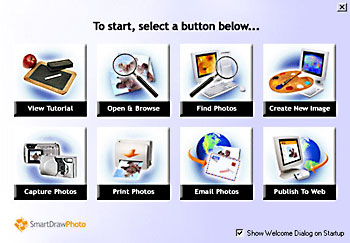 Figure 1: Pick a task from the start-up list and you’re on your way.
The desktop is nicely arranged, with a hierarchical set of folders called albums on the left side of the main display area and a panel of retouching tools on the right. Clicking on an album displays a set of thumbnails (see Figure 2). Double-clicking opens an album window that may be parked on the desktop. You can wander around the albums, drag and drop images among them, create and delete them, search for specific images, print them, publish them to the Web, and view the album as a slide show, all without leaving the Explorer Tree pane. Even if you never bother with SmartDraw’s other features, the Explorer Tree, which displays album thumbnails almost faster than you can click the mouse, is terrific.
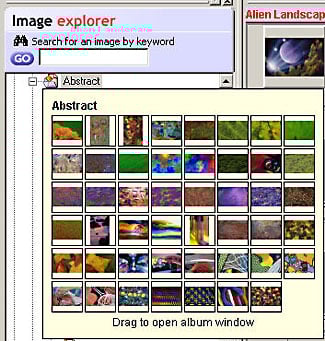 Figure 2: Viewing the contents of folders doesn’t even require a mouse click. Just hover the cursor over an album to see the contents.
The panel on the right side of the display contains two tabs — one for setting colors and one for selecting a Wizard-based task, for example, fix red eye or crop. (see Figure 3). SmartDraw Photo’s Wizards make adjusting photos a complete no-brainer.
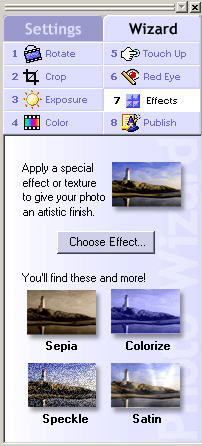 Figure 3: Almost everything you need to adjust your photo is available from this panel.
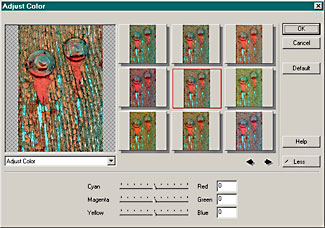
SmartDraw Photo tries to simplify every task, but it also gives you the tools you’ll need for more complex decisions. For example. if you select the Adjust Color Wizard, instead of fiddling with inscrutable sliders, you can select a desired alternative from a series of alternative thumbnails. Just keep choosing a preferred adjustment until the larger image on the left side is to your liking. (If you’d rather work with sliders, you can do that as well by choosing the More button.) The same visual approach is used for most image editing tasks, thus relieving the user of having to do anything more than click on a thumbnail (see Figure 4).
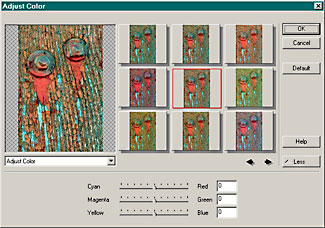 Figure 4: You don’t need to master esoteric commands to adjust the appearance of an image-just select a thumbnail.
Share and Share Alike
Sharing photographs over the Internet is merely a matter of uploading them to the SmartDraw Web site via a Wizard-driven command in the File menu. Once the images have been transferred, your browser opens and displays the contents of your account. As you can see from the screen shot, you can invite friends or customers to view the pictures — a neat and simple way to quickly sharing information (see Figure 5).
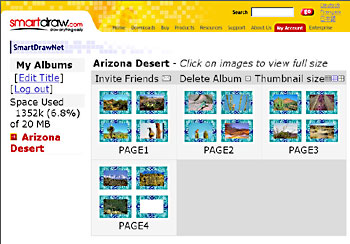 Figure 5: To share photos with friends or colleagues, upload albums to SmartDraw’s Web site and use the Invite Friends command to enter names and email addresses.
Conclusion
Despite SmartDraw Photo’s ease of use and extensive clip art collection, we think its price tag is a bit high. For example, Xequte’s MegaView, while not flush with Wizards, is a slick little image viewer/editor available for $29.50. Bundled with an album manager, the price is only $48.50 — well below SmartDraw Photo’s $69. Adobe’s Photoshop Album, at $49, combines photo organization with excellent editing and sharing features and can save photos in a variety of formats such as calendar, greeting card, or DVD video CD. Even leaner in cost is IrfanView, a freeware program with most of the image acquisition, editing and viewing features that novice and intermediate users might need.
Beginners who want to jump right in will find SmartDraw Photo a smooth, simple, and effective choice for managing and editing image collections, but the same features are available for slightly less cost elsewhere. More advanced users will find some useful features in SmartDraw Photo, but you’ll probably just stick with Photoshop and its image-browser feature.
This article was last modified on January 3, 2023
This article was first published on April 9, 2003
Commenting is easier and faster when you're logged in!

Recommended for you
Big Discount on Topaz DeNoise
Topaz Labs is currently offering a deal where you can get their photo noise redu...

Scanning Around With Gene: Profile of An Early Clip Art Character
The term “clip art” has become a generic description of any art, ill...

Crafting Chromatically Rich and Luminous Images
“If all the world’s a stage, I want better lighting.” I couldn’t agree more with...