If you work with long documents in InDesign you may need to continue an auto-numbered list across unthreaded frames — frame to frame, page to page, even document to document, if you collect them all in a Book. This kind of thing is ideal for auto-numbering captions, for example (“Figure 17: Blah blah blah;” then three pages later, under another chart, “Figure 18: Blah blah.”).
Here’s what we want, in its most basic state:

So, how do we get it?
First, Create a Custom List
If you apply auto-numbering to a paragraph as described in the intro, and then look at the Bullets and Numbering dialog box, you’ll see that the List is called “[Default]”:
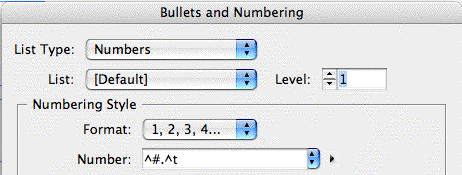
But to get numbering to work across unthreaded frames, you can’t use the [Default] list. You have to create a new, named list, and apply that specific list to the paragraphs you want to sequentially number.
It’s simple to do, and there are two places to do it. The first place is that Bullets and Numbering dialog box. Press on the dropdown menu next to “List:” and choose New. Or, go to the Type menu, and from the Bulleted & Numbered Lists fly-out menu, choose Define Lists, and click the New button there. From either of these locations you’ll end up with the same New List dialog box, mercifully simple:
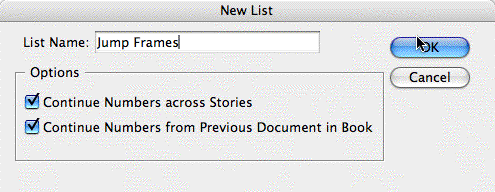
You can see that the two checkboxes that allow numbering to continue across frames or documents are here — in fact, this New List dialog box is the only place you’ll find them — and they’re turned on by default. Enter a name for the list, then click the OK button. From now on that list will be one of the options in the “List:” dropdown menu.
Now it’s just a matter of applying that named list to paragraphs you want to auto-number across frames. Open the Bullets and Numbering dialog box, choose Numbers from the List Type menu, choose your named list from the List menu, and click OK.
Pro Tip: Use a Style
Your best bet, though, is to create a distinct paragraph style for these auto-numbered paragraphs. You can specify a particular named list within a style, or create a new one on the fly:
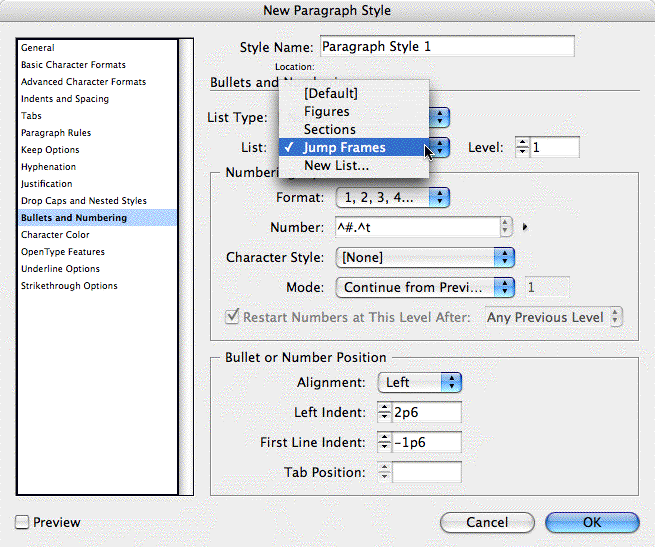
Applying that paragraph style to text automatically formats the paragraph(s) with your “jump across frames” auto numbering.
If you make a mistake and want to delete a custom list, or even just rename it, the only place you can do so is from Type > Bulleted & Numbered Lists > Define Lists > Edit.
It drives me bonkers, though, that if you want to actually edit a named list’s options or settings (like the number alignment), you can’t do so from Define Lists > Edit. Instead, you have to open the Bullets and Numbering dialog box, or the Bullets and Numbering panel of the paragraph style’s options.
And neither of these locations, of course, allows you to delete or rename a list — you have to go back to the Type menu’s Bulleted & Numbered Lists > Define Lists > Edit dialog box. Geez.
More Tips and Gotchas
To keep things manageable I’m going to continue this topic in an upcoming post sometime this week. There’s more to write about, such as changing how the auto-numbers appear, and how to force InDesign to number the text within multiple frames in a particular order. (Oy, do we need a “Tab Order” feature!)
This article was last modified on April 29, 2026
This article was first published on July 10, 2007
Commenting is easier and faster when you're logged in!

Recommended for you
A Script to Display InDesign Documents at Actual Size
Script makes Actual Size on screen match actual size in the real world, even if...

Resizing InDesign Layouts with AI
Most designers don’t create a single deliverable anymore. They create campaigns....