




O.G. wrote:
You can move an anchored object vertically by clicking on it with the Selection tool and dragging it up or down, but nothing indicates by how many points it’s been moved from the baseline. Is that info shown somewhere? And is there a way to cancel the move later, i.e. to bring the object back to its original position on the baseline, without having to reimport it?
This problem has affected InDesign users for decades! (Well, maybe not that long.) Fortunately, you can see and adjust the value of an inline object’s vertical offset (how far up or down it’s been moved). You need to open Object > Anchored Objects > Options.
Here’s a text frame with an inline object that was dragged up a little:
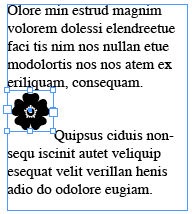
Here’s what you see when you open Anchored Object Options:
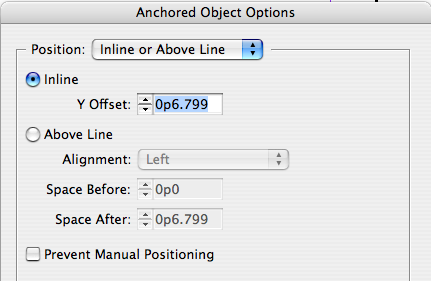
To reset the position, you can change the Y Offset value back to zero. In fact, I strongly encourage people to create object styles for their anchored and inline objects. That way you can actually build the zero Y offset into the object style if you want. That way, if the object gets moved accidentally later, you can always click Clear Overrides in the Object Styles panel.
This article was last modified on December 18, 2021
This article was first published on April 18, 2008
Commenting is easier and faster when you're logged in!

Recommended for you

Don’t Ask Your AI to Identify a Font
When it comes to identifying typefaces in images, artificial intelligence isn't...

Sort and Combine Cross References
Unlike subtopics, which InDesign sorts, cross-references are printed in the orde...
Illustrator’s Two Kinds of Type
Khara Plicanic explains the two kinds of type in Illustrator.