



One of my very favorite features in InDesign CS4 is the ability to extensively customize what the Links panel shows. The problem is that unless you remember to save your changes in a new workspace, you’ll have to re-do them from scratch every time you clean up (reset) the workspace you were in.
For example, you might tweak your Links panel as I did mine so that instead of just the barebones minimum of filename, status, and page number, its shows you a bunch of useful file attributes and metadata:

Now, just looking at the Links panel I can immediately see the scaling percentage applied to every image in my layout by glancing at the third column. (How cool is that!) The fourth column shows Effective Resolution?can you see the problem children whose resolution is less than 225? I can also tell which images, if any, I accidentally scaled disproportionately because their scaling and effective resolution numbers each show two values, one for width and one for height. I can see that I did that to the chocolate_chunky.jpg file above.
To get this kind of readout in your Links panel, you just need to spend a bit of time with its Panel Options dialog box, which you open from the Links panel menu.

Checking off checkboxes in the Show Column area makes those attributes appear in the main Links panel as above. Checking them off in the Show in Link Info area makes them appear in the new peek-a-boo Link Info section at the bottom of the panel. (Link Info is great, but it can only show one linked file’s info at a time.)
After you add new columns of info to the main Links panel, you can resize the columns and even re-order them (note how I made the Page number appear first, before the filename) by dragging and dropping in the column header area.
The problem is that all this customization work is only semi-permanent. It feels like you’re permanently changing the panel because if you switch to some of the other built-in workspaces, like Advanced or Essentials, the extra columns appear in the Links panel there too. Even if you quit the program and restart, your Links panel custom settings remain. But this is only because CS4 keeps a record of each built-in workspaces’ “current state,” that is, what the workspaces look like after your changes. They’re saved in little XML files in your user account’s InDesign CS4 Preferences folder:
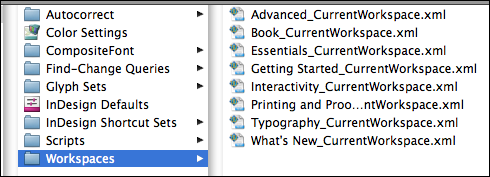
But as soon as you choose Window > Workspace > Reset Workspace (to put everything back in the panel dock nice and neat, for example, after you’ve torn it apart during a grueling project), your custom settings are wiped out. Choosing Reset Workspace tells InDesign to synch the CurrentWorkspace settings to the original workspace specs. These virgin workspaces, by the way, are stored in your Adobe InDesign CS4 application folder, in Presets > InDesign Workspaces:

So the only way to make your Links panel custom settings “permanent” is to save your tricked-out Links panel in a custom workspace. With your Links panel just the way you want it, choose Window > Workspace > New Workspace (or choose New Workspace from the Workplace Switcher drop-down menu in the Application Bar), name the workspace and save it. Your custom workspaces are saved in the same Preferences folder as your “CurrentWorkspaces” versions of the default workspaces.
Now, whenever you want to see the Links panel your way, just choose the name of your custom workspace from the list of workspaces. If you mess around in your workspace and reset it to clean it up, you won’t lose your Link panel customizations because they’re part of the original settings.
I’ve created a few different of custom workspaces, but I named one Links just to remind myself that it has my custom Links settings:
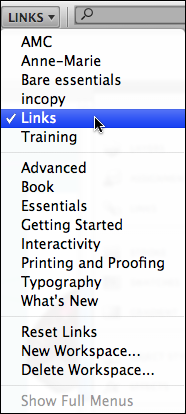
In practice, I’ve found that I almost always use either the Advanced workspace, or (when I’m working with InCopy) my custom InCopy workspace; but when I want to see my full-bore Links panel, I just quickly choose the Links workspace. In other words I use it more like an alternative Links panel rather than a workspace, which suits me perfectly.
This article was last modified on December 19, 2021
This article was first published on April 16, 2009
Commenting is easier and faster when you're logged in!

Recommended for you

Synchronize Text in More Than One Place in an InDesign Document
Need to synchronize a bit of text from one place to another in a document? It's...
Jump to a Master Page
While it's not obvious, you can use the Go to Page dialog to go directly to a ma...
PDF Button Tips, Tricks and Problem Solving
Some issues in creating buttons for PDF are easy to overlook, so here are some t...