



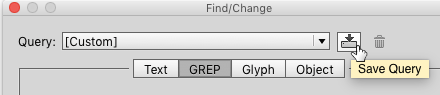
 GREP is what I call a “write-only” language: it’s easy enough to create a GREP expression, but sometimes very difficult to look at an expression and work out exactly what it does, especially if it’s been more than a few days since you created it. So whenever I find a useful bit of GREPness here at InDesignSecrets, in InDesign Magazine, or elsewhere, I save it. Here’s how. I start by typing the expression in the fields of the Find/Change dialog, and then clicking the “Save Query” button at the top right of the dialog box (just to the left of the trashcan icon). I give it a memorable name (i.e. not something like “Chuck’s GREP #42”).
  For example, I enjoyed Peter Kahrel’s “GREP of the Month” in InDesign Magazine issue #79 (November 2015), where he explained how to add section heads to an existing index. I copied his find and change strings from the article, and saved them to a query I called “Add Section Heads.” Now, whenever I need to do that, I can just pick that particular GREP query from the popup at the top of the Find/Change dialog box. Simple, efficient, and environmentally friendly.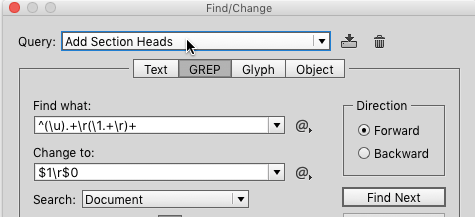
Saving GREP Queries to Use on Multiple Computers
I have a couple of different computers that I use for InDesign, and I also work with a number of colleagues with whom I’d like to share the GREPs that I’ve collected. Unfortunately, there’s no obvious way do that. There are no Load GREP and Save GREP features like there are for swatches, styles, and other InDesign settings. But with a little bit
of sleuthing, it turns to be easy: InDesign saves each GREP query that you create as a separate XML file.
Finding Saved GREP Queries in Mac OS
For Mac users, these XML files are stored in an Adobe InDesign subfolder of your Preferences folder; for exmple, Peter’s query is saved here inside the Preferences folder: ~/Library/Preferences/Adobe InDesign/Version 10.0/en_US/Find-Change Queries/GREP/Add Section Heads.xml Your version of OS X may hide your Library folder, in which case you can get to it by holding down the Option key and choosing Go > Library in the Finder.  The Version 10.0 part of the file path will vary depending on what version of InDesign you’re using. Check the About InDesign dialog box to see for sure. In this case, 10.0 is InDesign CC2014.
  The en_US part of the file path will vary depending upon the language you’re using – the magic phrase for different languages can be found in a number of places, but in particular here: https://creativepro.com/change-ui-language-indesign-cs6-cc.php.
Finding Saved GREP Queries in Windows
For Windows users, it’s a bit harder. Microsoft makes it difficult to directly navigate to the folder where these types of settings are stored, but you can do it easily by pasting a path into a Windows Explorer window: C:Documents and SettingscwegerApplication DataAdobeInDesignVersion 8.0en_USFind-Change QueriesGREP The cweger part of the file path should be replaced with whatever your Windows login is, and (as on the Mac) the Version 8.0 part refers to the version of InDesign you’re running – in this case, CS6 (what can I say; I still have clients I need to support who are running CS6).
Sharing Saved GREP Queries
These GREP XML files are just plain text files, so once you find them you can just copy them to another machine, or put them on a shared volume and let other users pick them up from there, or upload them to the Cloud or any other type of weather system.
Adding Comments to GREP Query Files
But wait – there’s more! If you’re feeling particularly geeky, you can add one or more comments to the XML file to remind you of what the GREP expression does. An XML comment starts with <!-- and ends with --> so you can open up your particular XML file with most text editors (TextWrangler works great on Mac, Notepad++ on Window, but there are dozens of other editors that will work – just don’t use InDesign or Microsoft Word, because we want a plain text file) and add a comment. For example, I edited my “Add Section Heads.XML” file so it now looks like this (the lines in red are the ones I added): <?xml version="1.0" encoding="utf-8" standalone="yes"?> <!-- This expression adds section headers to an existing index. It was originated by Peter Kahrel on page 60 of IDM issue 79 --> <Query> <Header> As always, please make sure your life insurance policies are up to date whenever you edit structured files like XML, because one tiny mistake could make that XML file not work. It won’t crash InDesign or your machine or anything, but the GREP query probably won’t work.
Commenting is easier and faster when you're logged in!

Recommended for you

Printable Technologies Takes Bold Step to Drive Rapid Adoption of Variable Data Printing
Today, Printable Technologies®, Inc., the world leader in Variable Data Pri...

CreativePro Video: Add Grunge to Vector Artwork
See how to create grunge effects in Illustrator by converting bitmapped artwork...

CreativePro Magazine Issue 11 Now Available
CreativePro Magazine Issue 11 has articles on accessible PDF, alt text, accessib...