



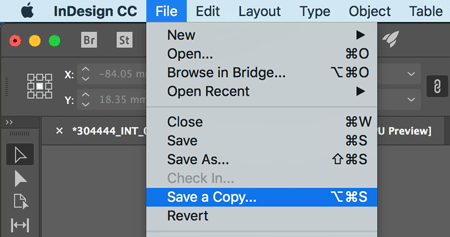
In a recent InDesign Secrets podcast David and Anne-Marie discussed the fact that renaming InDesign files breaks all the cross reference hyperlinks in an ebook. After listening, I posted in the comments that a simple fix for this is to not rename the file, and to use the Save a Copy feature instead. That way you can avoid breaking links and/or confusing the InDesign book panel.
Any time you need to send a copy of a file to coworkers or clients, or create a backup, choose Save a Copy rather than Save or Save As. Then rename the copy you are saving with the date or version number rather than altering the name of the original document.
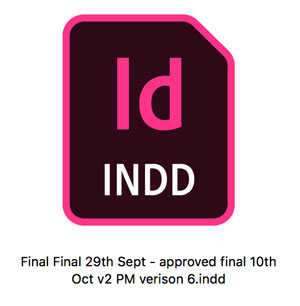
Standardizing file naming may not be the most scintillating topic but if we can agree a logical system of what to call our files and where to put them then everyone always knows where the latest version is. As soon as you put a version number or a date into the file name you begin to bring in doubt or potential error.
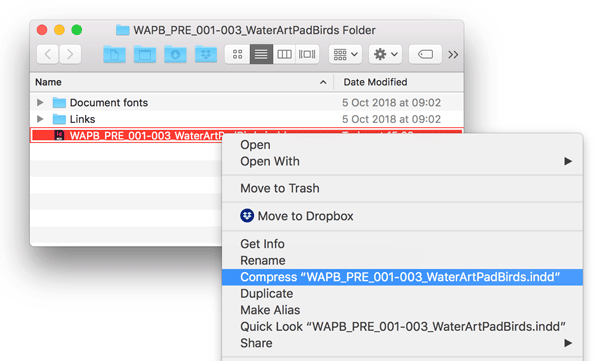
Alternatively, whenever I receive client files (usually for production troubleshooting) I ZIP the original file. You can do this on a Mac by selecting the file in the Finder and either Ctrl-click or go to the File menu and choose Compress…
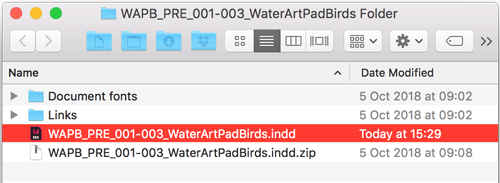
This locks the file down so there is no chance of accidentally opening and working on the copy, it also saves you a little bit of space and means you can keep them together without the need for moving or relinking.
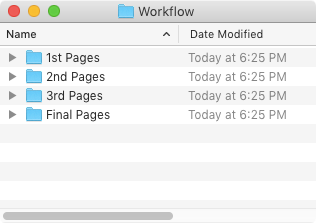
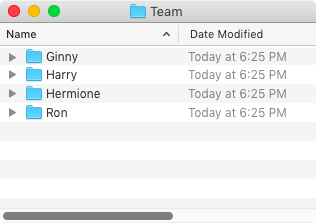
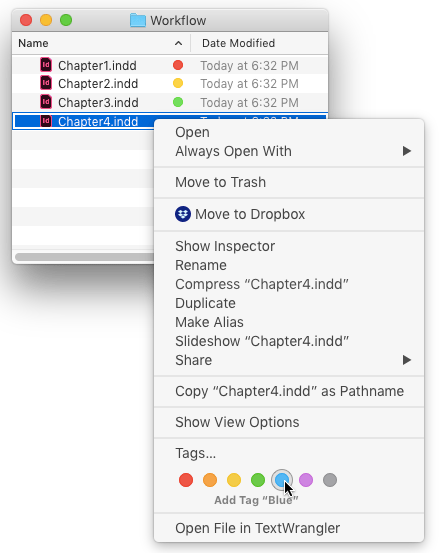
If you are working in a group, you can apply colored labels and/or move files to different folders to indicate ownership or workflow stage.
This article was last modified on July 7, 2021
This article was first published on October 22, 2018
Commenting is easier and faster when you're logged in!

Recommended for you

InDesign 101: Saving Your Work
Sandee Cohen covers all the the basics of creating and saving InDesign documents...

CreativePro Conversations: Streamlining Your Marketing Collateral Workflow with BrandingUI
Hear an overview of Santa Cruz Software's Branding UI—a collaborative workflow p...

InReview: MasterPlan WORK
Keith Gilbert reviews an impressive solution offering a birds-eye view of the st...