



To jump to specific sections in this review, click any of the following links:
1. Multiple Page Sizes; Span, Split, and Balance Columns
2. Simplified Transformations and Selections
3. The Gap Tool; Gridified Frames and Super Step-and-Repeat; Layers Rebuilt
4. Metadata Captions; Mini Bridge
5. Interactive Documents
6. Workflow and Collaboration; (Not Quite) All The Little Things
7. Buying Advice
Interactive Documents
If you believe what you hear, the end is nigh for print design. We’ve been hearing this for more than a decade, of course, but many print designers who managed to survive the recession only to face the dawn of the electronic tablet may be reevaluating their skill sets and thinking very differently about the future. With InDesign CS5, Adobe may have built a narrow, but traversable, bridge toward the company’s vision of that future.
Adobe lauds Flash Catalyst as its “interactivity without code” standard-bearer, but the true cross-media hub of the Creative Suite is InDesign. From InDesign CS5, you can:
• create complete Flash animations and interactive documents
• export interactive layouts as SWF files, or in native Flash format for further development and Actionscripting in Flash Professional
• export a rich media PDF with sound, video, buttons, and navigation
• produce a document you can print at high resolution.
Find me another application in the Creative Suite with that kind of reach.
The new cross-media direction is evident as soon as you create a document. A new “intent” option offers a Print or Web choice. The Web option changes the measurement system to pixels, the default page orientation to landscape, and the document’s swatches and transparency blend space to RGB.
Animation. Unlike Flash Professional, InDesign’s animation and interactivity options are not timeline-based. The related tasks are distributed across six separate panels (Figure 11), five of which — Animation, Timing, Preview, Media, and Object States — are completely new. The sixth is the updated Button panel that debuted in CS4.
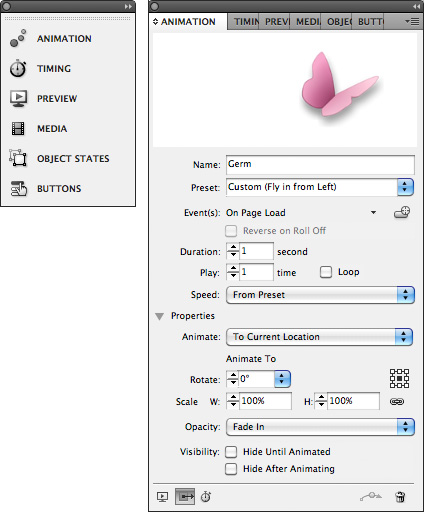
Figure 11. The Animation panel comes pre-loaded with many of the same motion presets in Flash Professional. You can load motion presets created in Flash directly into InDesign, and vice-versa. A butterfly proxy image at the top of the panel gives you a rough preview of the preset you choose, and any motion paths used can be modified using InDesign’s existing path editing tools.
An object can have only one animation attached to it, but if you group that animated object with any other object, the group can be animated on top of that. This grouping and re-animating trick, combined with the sequencing options in the Timing panel, can produce surprisingly complex animations without Flash (Figures 12, 13, and 14).

Figure 12. In the layout above — originally designed for print — the illustration, headline, deck, and by-line were animated directly on the InDesign spread. I applied multiple animations to certain objects by grouping already-animated frames. The results can be seen in Figure 13 below. Click this image to see a larger version.
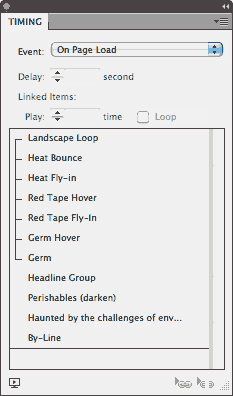
Figure 13. You establish the sequence of multiple animations in the Timing panel by dragging one named animation above or below another. Animations play from top to bottom. The lines next to the first seven animations indicate that they’re linked to play together.
Figure 14. Using the Animation and Timing panels, I generated this animated SWF from the same high-resolution artwork and type in the same file that produced the print layout in Figure 12. You’ll need the Flash Player 10 to view this Flash movie properly.
CS5 eliminates the step of fully exporting to SWF, then loading that SWF file in a browser just to test your results. Animations render in the background, then play within the new Preview panel. You can preview an entire document or, for better performance, preview just the current spread or current selection.
Multi-state Objects. Also part of this arsenal of interactive tools is a States panel for creating multi-state objects. Any object can be made into a multi-state object allowing, for example, a single graphic frame to contain different images in each of its states, or have a different appearance. InDesign buttons can call on a specific state of the multi-state object, or just to its next or previous state for fast, easy slide shows (Figure 15). Ideally, these multi-state objects could be exported to and supported in a PDF, but they’re not. Multi-state object functionality is tied exclusively to the SWF or FLA format.
Figure 15. Except for the buttons, I created this SWF slide show with a single graphic frame and a single text frame, each of which was set up as a Multi-state Object. I placed different images in each state of the graphic frame, and keyed different text into each state of the text frame. The buttons call upon the next (or previous) state of each frame simultaneously. You’ll need the Flash Player 10 to view this Flash movie properly.
Improved Flash Export. InDesign’s SWF and Flash Professional (FLA) export options are also greatly expanded from CS4. You can export a SWF or FLA of just the current selection, a specific spread, or the entire document. SWF export now includes options for image resolution and preferred image format, frame rate, background color, and page transitions from the INDD file. FLA export includes new type handling capabilities that preserve much more of the good-looking type we demand from InDesign without needing to rasterize it.
In-document Rich Media. InDesign CS5 supports more rich media file formats than prior versions, including SWF, MP3, FLV and F4V. You can preview these file types in the new Media panel, eliminating the need to export the layout to its destination format (FLA, SWF or PDF) to see its rich media content. You can also use the Media panel to add navigation points to placed video files that can be referred to by button actions.
A major flaw. Together, these new features should position InDesign as the ultimate next-generation document creation tool, able to easily produce both the old and new media content that makes up what we now consider a “document.” Ideally, we should be able to create interactivity and animations in InDesign, export them to SWF, then re-import them into an InDesign layout and export that to PDF (which has the Flash player built in). This would make PDF the ultimate rich media document platform and InDesign the application from which those PDFs are produced.
But Adobe fell short of making this a reality. InDesign’s export options don’t allow for scalable SWFs. Any SWF you export from — then place back into — InDesign will not re-size when the document is exported to PDF. As you zoom in or out on the PDF page, the animation’s size remains fixed. It’s either cropped by its smaller container, or it floats within a larger one while page items around it get smaller or larger. To work around this requires exporting to Flash Professional, where you can publish a scalable SWF. However, while InDesign’s animations are preserved in Flash, their timing needs to be re-established via Actionscript. At that point, you’re dealing with Flash in exactly the way that these features were intended to avoid.
The scaling limitation does not apply to placed FLV or other video files, but this is a profound gap in functionality that I hope gets fixed by an update within CS5’s lifespan. With interactive document technology racing forward and new platforms for displaying them coming to market, Adobe would be doing a great disservice to its customers by waiting until CS6.
Limitations aside, these features still represent a huge step toward helping print designers move into new media from the application with which they have the highest comfort level. The good news is that this new functionality begins in InDesign. The bad news is that all roads lead to either Flash or the Flash Player. As I write this review, Apple’s very public anti-Flash position has many people wondering how they’ll publish to the company’s established iPhone and emerging iPad platforms. With CS5, Adobe’s telling a Flash-centric story (Illustrator- and Photoshop-to-Flash Catalyst workflows, Flash Builder, and major InDesign-to-SWF/FLA features), but that story begs questions about the Apple/Adobe rift, and Flash vs. HTML5. No one can say for sure how this will all shake out or which way the market will push Apple or Adobe.
This article was last modified on January 18, 2023
This article was first published on May 6, 2010
Commenting is easier and faster when you're logged in!

Recommended for you

Scanning Around With Gene: Fair Use Goes to the Movies
Third on the list of fair use factors is the “amount and substantiality...

Women Type Designers
How women emerged from the shadows of the past and left their mark in the world...

Gutenberg The Musical?
If you’re as out of touch with the off-Broadway scene as I am, you too will be s...