
Reply To: Image text layers?

#85550
Matt Isaac
Participant

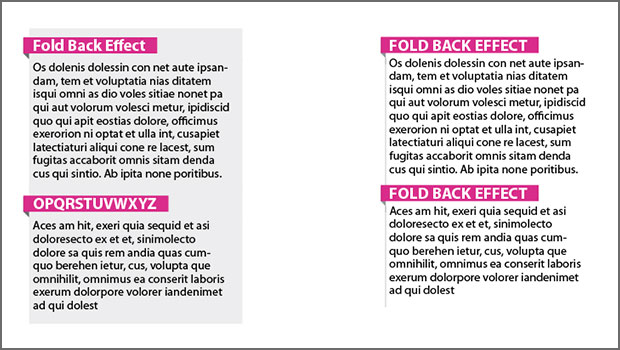
I was thinking “Set the blending mode to multiply and the text to white.” but that let darker colors of the underlying image show through the solid color. If you don’t have dark colors in the background image this may work for you. What i would suggest would be to cut the text out of the colored rectangle. This will make the text a bit harder to edit but would give you the result you’re looking for.

  1. Create a colored rectangle. (not a text box.)
  2. Create a text box with the text styled and positioned as you want it to be over the colored rectangle. (You can change the color of the text to help position the text if you need to.)
  3. With the text selected click Type>>Create Outlines
    • For whatever reason I have found that if you do this with multi-line text then creating outlines will group each line together, Thus making the final step not work properly. If you have multiple lines of text to be cut, after you create the outlines, you will want to switch to the direct selection tool and then back to the regular selection tool. (I’m not sure why this happens but it does.) Though if you only have a single line of text you can skip this tool switch.
  4. with the outlines still selected Shift+click the colored rectangle to select both objects.
  5. Use the pathfinders option “Subtract”

After following these steps you will have your colored rectanlge with the text cut out and you can then set the opacity of the box to let as much of the background image through as you want.

I hope this helped without causing too much confusion for you.

This article was last modified on June 8, 2016

Comments (0)

Loading comments...