



Metadata is a term that we’re hearing more and more these days. So what is it and why is it important. In the most simplistic terms possible, metadata is just data about data. As for why it’s important, keep reading.
Digital photos get much of their metadata automatically from the camera that’s used to take them but for the most part InDesign files require that metadata be entered manually. The place to do that is in the File Information dialog box which can be launched using the File > File Info command.
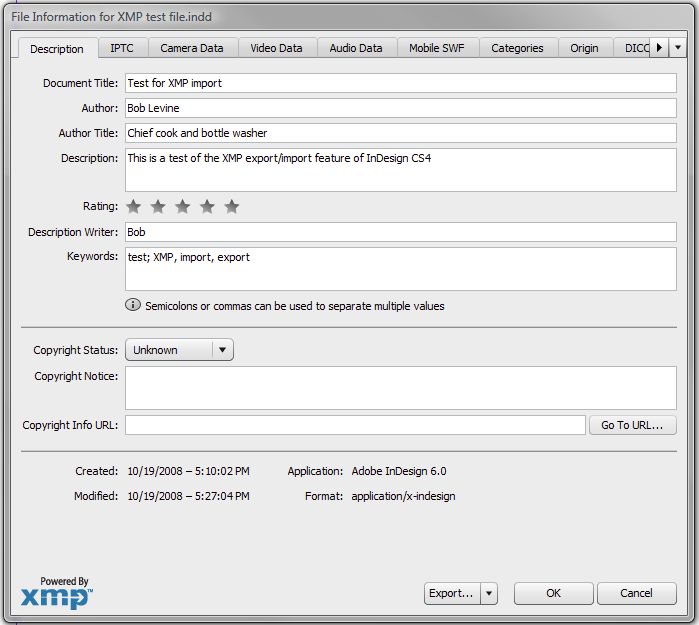
In the example above, I’ve add an author, title and some key words. I could have even added copyright info. Pretty easy stuff, but what if you’re doing a series of documents that all use the same metadata?
InDesign CS4’s File Information dialog now has a new easy to find button to enable the user to export the XMP data and then import it into a new document. To export, just click export and save the xmp file. To import into a new file, click the small arrow next to the export button and choose import.
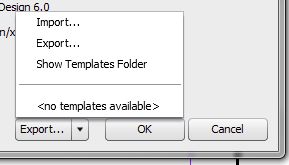
You can even elect to append any data already in the file.

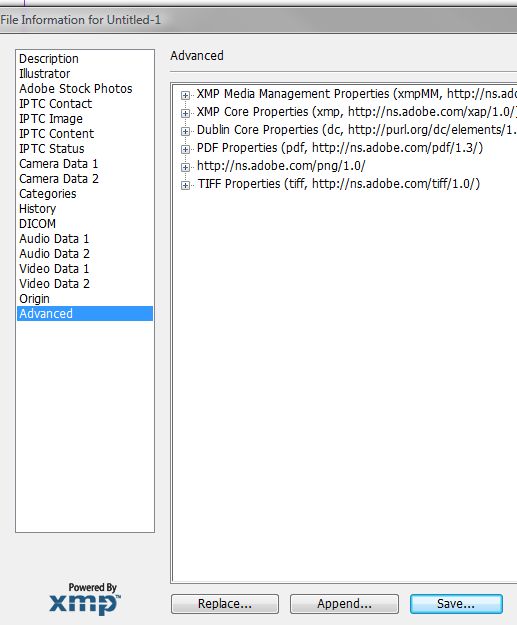
This is also possible in CS3 by opening the File Information dialog box and choosing the Advanced pane. From there you can choose to either replace or append any metadata already in the document or to save it for use in a different document.
So back the original question, why is this important?
For starters when you export a PDF out of InDesign all of that metadata goes along for the ride so you kill two birds with one stone by creating it all in InDesign. You can confirm that by opening the document properties pane in Acrobat and if the PDF needs to be changed, you don’t have to worry about re-entering or importing the metadata.

And here’s where it get’s very important. If that PDF is going to wind up on the web, that metadata is going to be searched by Google, Yahoo, MSN and any other search engines out there. Adding well worded metadata will make it that much easier for your document to be found when the search engines start crawling your site. That metadata will even be found if you’ve encrypted the document and saved it with Acrobat 6 or later compatibility.
I’ve been diving into search engine optimization over the last few months and I can tell you it’s quite a thrill to find your work on the first page of Google with some generic search terms. If you’re preparing documents for clients they’ll undoubtedly appreciate it, too and hopefully these tips will make it a bit easier.
This article was last modified on December 19, 2021
This article was first published on October 20, 2008
Commenting is easier and faster when you're logged in!

Recommended for you

How to Check Tint Shades Using the Separations Preview Panel
I recently designed a large table (900+ cells) for a client. I used cell styles,...

LiveDocs Help Pages Come to InDesign CS3
About a month ago I wrote here about some powerful new Help features in InDesign...
Stop Hyphenating Across Columns and Page Breaks
Luke wrote: I wondered if there was any way of stopping InDesign from hyphenatin...