



Layout Spaces
The most interesting new thing about XPress 6.0 is a simple idea that mimics the way many of us organize our work currently. It’s called layout spaces, and all it really means is that individual documents (which are now called “layout spaces”), are held together in a “project” which is a like a giant über folder. So, let’s say you are preparing a business card, brochure, Web site and catalog for Acme Industries. Whether they share common elements or not, you can open a project called Acme Industries and start individual “layout spaces” for each of those documents just as you created individual Quark files in the past. When you open the Acme Industries project file, you get all the documents (layouts) represented in tabs across the bottom of the XPress window (see Figure 3). This makes moving between items extremely easy, so if you make a change on one item, you can quickly update the other documents as well, though you have to do most changes manually on each document.
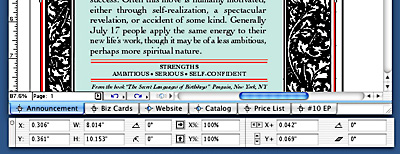
Figure 3: At the bottom of the document window, you’ll see new layout tabs — these show all the documents contained in the XPress project file. You can also see that the formatting palette has gotten bigger and taken on the Aqua look.
The most intriguing benefit of this new project orientation is that you can now link text within a project across multiple documents. So when Acme Industries changes the description of one of its products, you can update it across multiple layouts. I’ll talk more about text synchronization in a minute.
A project can contain as many as 25 document layout spaces, and each document can contain up to 2,000 pages. But since you cannot build indexes or table of contents across layouts, this feature has limited use in building individual book chapters.
Since output or printing is done on a layout-by-layout basis, each document in a project file can have different output specs depending on where it’s being printed, or in the case of a Web layout space, where it is being posted. You cannot print Web layouts directly from XPress, however, they are exported as HTML and printed from the browser, which has distinct limitations.
The implementation of these multiple layouts within one document is extremely basic, and you can’t help but wish there was more you could do with them. You cannot view layouts in multiple windows or in side-by-side thumbnails — only by clicking on the tab can you bring that document window to the front. So copying and pasting things from one layout to another is through the clipboard instead of by dragging items, and you can’t display one page as a reference while working on another page. Sadly too, you cannot check spelling or use the Find/Change feature across entire projects — only within individual layouts. And not being able to share document preferences across layouts creates extra work.
While I think this new project idea is probably a good one, it would have been better to have the option of saving out individual files — every file is a project, even if it contains only one document. And if you screw up or experience a file corruption for any reason, all of the documents in the project will be lost.
Synchronizing Text
This will likely be the most appreciated new feature in XPress, and while not a complex database-driven content management system, it brings to every user the ability to link common text elements across multiple documents (and multiple media) in a simple and easy manner. By clever linking, a savvy user will be able to considerably streamline the production process and save hours of time in building repetitive documents and making revisions.
Synchronized text actually exists in a layout-independent space called the Synchronized Text palette, sort of like a well-organized clipboard of text boxes (see Figure 4). You type the text in any of the places it will appear, then click to name it and add the content of that text box to the palette. You can only copy the entire content of a text box, so I suspect people will be making more boxes with less copy in them. Drag the file name from the menu to any textbox on any document and the same text will flow to the new text box specifications. Text changes (not formatting ones) made in any of the linked boxes make the change globally in all links.
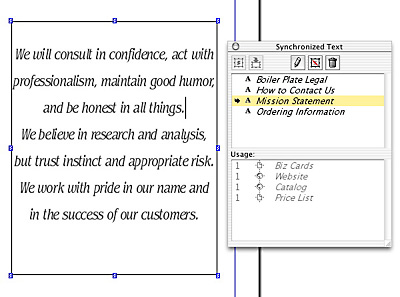
Figure 4: The Synchronized Text palette is where you store and insert text that will be synchronized throughout the document. You can see all the usages of any synchronized text box in a list, but you can’t navigate to each use through the palette. Once text boxes are synchronized, changes made in any of the boxes makes the changes in all the linked boxes.
I was able to figure out how to synchronize and de-synchronize text without having to look in the manual — the icons are pretty intuitive, if only because of the big S in the middle. This is a classic XPress implementation — you build a list and drag from it, much like the Color palette or the Style Sheet palette. Again, if Quark had allowed side-by-side viewing, then there may have been a way to implement synchronized text by visually connecting text boxes from one layout to another, bypassing the palette. If you have multiple synchronized text boxes on a single page, keeping track of what’s synchronized to what has no visual representation.
You can store any block of text you want in the synchronized text palette, even if it isn’t used in any of the individual documents (though you have to author it at some point in a normal XPress text box). So this new feature can become a good place to store text that is cut from a document when you know very well it may come back. Or if you have several versions of common text, you can name each one and store them in the synchronized text palette where they appear as a list. By storing only text, not formatting, this feature is very handy. Too bad there isn’t a way to view the contents of each item in the list without pouring the text into an actual layout — a pop-up, interactive word-processing window would have made this feature even better.
You can unlink text globally in the project or on an individual document level, and text that is linked has special markers on the text box to indicate it is linked. You can also see a list of where all instances of linked text are used, but you cannot click to them through that palette. This makes checking the global effects of any change a manual job — you’ll have to navigate to each instance of use. Text cannot be synchronized between different project files, only between layouts within a single project. You cannot synchronize pictures or text blocks that have anchored objects, an oversight.
This article was last modified on January 18, 2023
This article was first published on July 8, 2003
Commenting is easier and faster when you're logged in!

Recommended for you

Choosing a Font Manager
Nine font management solutions to tame even the largest font collection

InDesign Magazine Issue 103: Adobe Dimension CC
We’re happy to announce that InDesign Magazine Issue 103 (November 2017) is...

Jupitermedia's JupiterImages Division Announces Acquisition of Animation Factory
Jupitermedia Corporation (Nasdaq: JUPM) today announced that its Jupiterimages d...