




I find Creative Cloud Libraries to be invaluable for keeping corporate identity colors at my fingertips when working on a project that spans InDesign, Illustrator, Photoshop, and other Creative Cloud programs. However, if you work with CMYK colors, you should be aware that there’s there is a serious process color bug that could cause problems in a print job.
At the start of a long project cycle, I like to build a library that contains the correct identity or project colors as CMYK, RGB, and Spot colors. Because the Libraries panel doesn’t have any way of displaying the differences between these color models, I name my colors as shown.

So far, so good. But here’s the problem. For the process CMYK color, you may get unexpected results, depending on which application you’re using. If you create a CMYK color and specify “Process” for the Color Type in InDesign, and add the color to your Library, the color will behave as expected in InDesign and Illustrator.
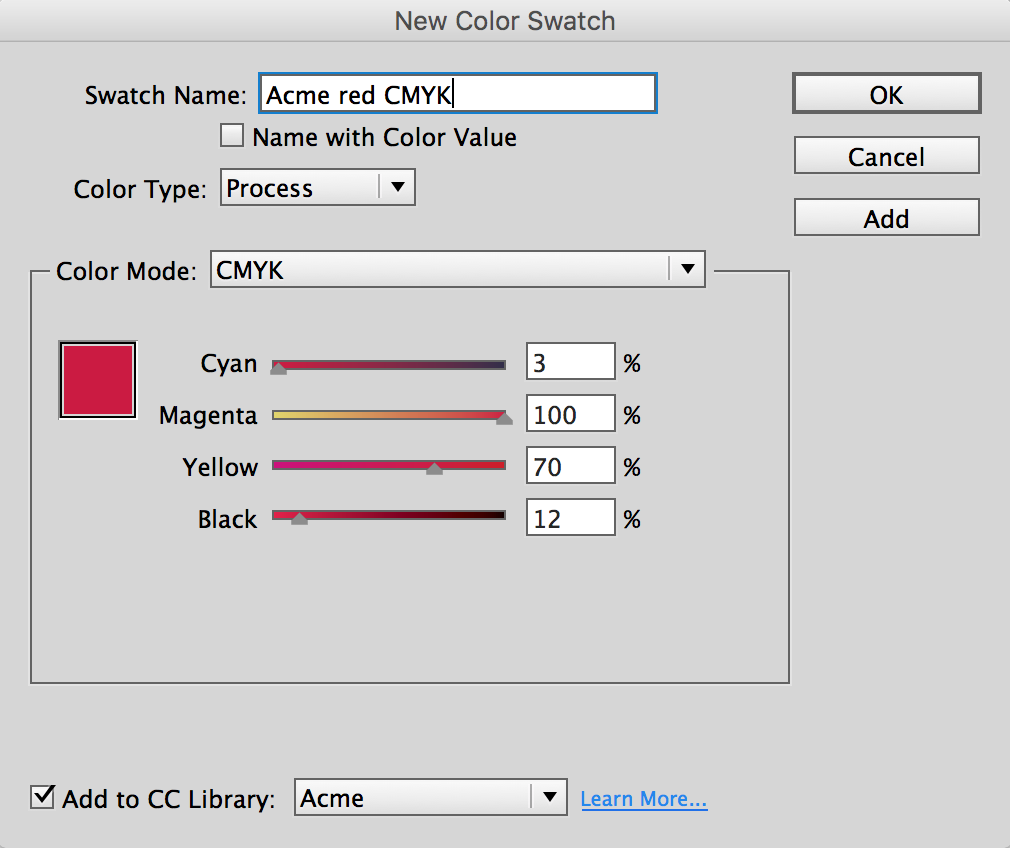
But, if you create the color in Illustrator, choose “Process Color” for the Color Type, select the “Global” option, and add the color to your Library, the color is added to the Library as a spot color, not a process color.

To observe this, create a new document in InDesign, and then select the CMYK color from Illustrator in the CC Libraries panel. You will see it added to your document’s Swatches panel as a spot color. This is bad, because it will cause the color to not color separate properly when sent out for offset printing.
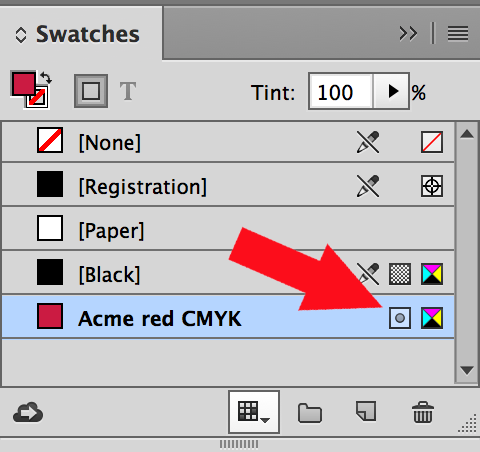
The “spot” icon in the swatches panel indicates that items that are assigned this color will appear on their own color separation. They will not separate into four process colors.
The workaround? Be sure to either create your process colors in InDesign and add them to your library from there, or don’t use the “Global” option when creating a process colors in Illustrator.
This article was last modified on July 25, 2019
This article was first published on October 5, 2016
Commenting is easier and faster when you're logged in!

Recommended for you

Easily Toggle Swatch Panel Focus Between Frame and Text
A recent post on the user to user forum was complaining about the difficulty of...
Transcribing sound files (YES!) and then getting the text into ID (How?)
I apologize for this post as I only know half of what I want to know, so I...
Eliminating the White Box Effect
One of the most common complaints of designers or print service providers when p...