



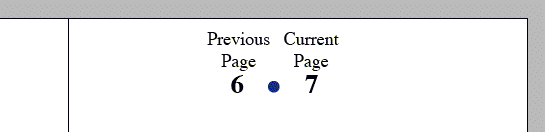
I think we’re all familiar with adding a Current Page Number marker to a text frame on a master page for automatic folios (page numbers) on document pages. But what if you wanted a page to also show a Previous or Next Page Number? For example, page 5’s header would show “4 | 5,” page 7’s header would show “6 | 7” and so on. Is there any way to get InDesign to do that automatically?
In close to two decades of page layout work I’d never encountered a project that needed this; yet for some reason, in the past couple weeks we’ve received a bunch of e-mailed requests for help with this same question.
The final straw was that at the Creative Suite conference here in Chicago (which just wrapped up yesterday, 10/17), an attendee walked up and asked me how to do the same dang thing. I thought I was on Candid Camera. She said it was the one question she was hoping to figure out during the show. (And no, she wasn’t one of the e-mailers, I asked her.)
I figured out a method and presented it during the final, fun and raucous “Tips from the Ensemble” session that David always schedules to close out the conferences. You can download the InDesign file I created to demo the solution, if you want. (It’s an .inx file, so you can open it in CS2 or CS3).
They Need a Threaded Text Frame
Unlike Previous/Next page number markers, the Current Page Number marker doesn’t need to be associated with a threaded story — it can sit by itself in an unthreaded text frame. All it reports is “What document page am I sitting on?” There’s only one answer, right?
But Previous/Next Page Number markers are reporting the page number where the previous or next text frame of a threaded story is located. The “answer” — the page number they display — could be any page number in the document, wherever the other frame is. (If you put either of these markers into their own standalone text frame, they’ll show the same as the Current Page Number — because the frame they’re sitting in is the previous and the next frame.)
I should mention for the beginners here that you insert the page number markers into text frames by choosing the appropriate entry from the Type > Insert Special Character fly-out menu. Here’s what it looks like in CS3:
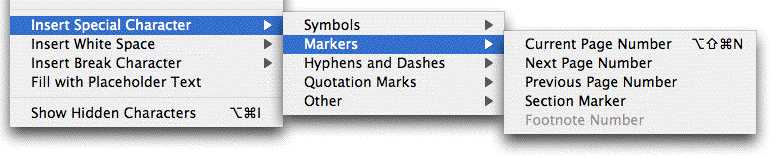
All the numbers you see in the screen shots in this post were automatically generated by InDesign by inserting one of these markers into the text frame(s).
Normally you use Previous/Next Page Numbers for jump lines. When a story jumps from page 2 to page 3, in the text on page 3 you can type “Continued from page [Previous Page Number]” and it would show “Continued from page 2.”

If you moved the previous frame (the first frame, on the left in the screen shot above) to a different page, say from page 2 to page 20, the text on page 3 would update to “Continued from page 20.”
However, the marker doesn’t have be in the same frame as the article text to work correctly. In fact it usually isn’t. As long as any part of the text frame holding the page number marker overlaps the article’s text frame, it’ll figure out which threaded story it’s supposed to be reporting page numbers for:
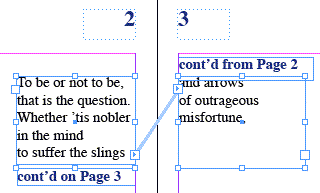
On the left in the image above, the jump line is in its own frame, overlapping the article frame, and says “cont’d on Page [Next Page Number].” InDesign enters a “3” because that’s where the next frame of the threaded story is located. The jump line frame on page 3 is actually “cont’d from Page [Previous Page Number].” (And the big “2” and “3” at the top are each “Current Page Number” markers in master page text frames.)
Solution: Make a Phantom Thread
Now that we know Previous/Next Page Numbers need to report on a threaded story, we can add a “phantom” one to the master page, and the markers will report page numbers correctly on the document pages, automatically. (With one limitation, covered in the final paragraph.)
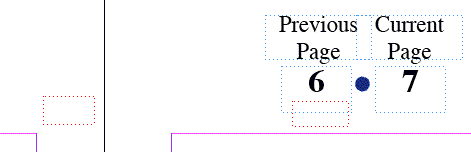
Take a look at my B-Master from the demo layout file below. I created two small text frames, one on either side of the spine, and threaded them with the Selection tool. They can be any size you want, you won’t be putting any text in them. Then on the right-hand page, I added two text frames, one for the Previous Page Number (the first “B”) — which I made sure overlapped the threaded text frame — and one for the Current Page Number (the second “B”).

I put the frames on different layers to help distinguish them, though it’s not necessary. And, you’ll have to take my word for it the “B’s” are two different markers, as InDesign doesn’t give you any visual indication which is which. On the master page, any page number marker shows up as the prefix letter of the master page name.
Now, when I move to a document spread, the right-hand pages all show the Previous and Current page numbers, automatically (see the first screen shot in this article for a Preview view):
One Limitation
Interestingly, I found that using this method, the right-hand page will not show “Next Page Number” nor can the left-hand page show “Previous Page Number.” In either case, the non-working marker reports the current page number. The only way I could work around it was by 1) filling the phantom text frames in the document pages with text; and then 2) overriding the non-working master page text frame on each document page.
This article was last modified on December 18, 2021
This article was first published on October 18, 2007

Recommended for you

Getting a History Palette in InDesign
Wish you had Photoshop's History panel inside InDeisgn? Now you can have one!
Add Custom Text at the Beginning of Each Line
When you need to add text to the beginning of each line automatically, this tric...
Removing the XML Structure from a Document
What if you want to rid your document from all those pesky XML tags? This sure-f...
Comments are closed.