



A designer recently asked me why he can’t drag a JPG image from a CC Library into an existing frame on an InDesign page. The answer is more nuanced than you might think. Read on:
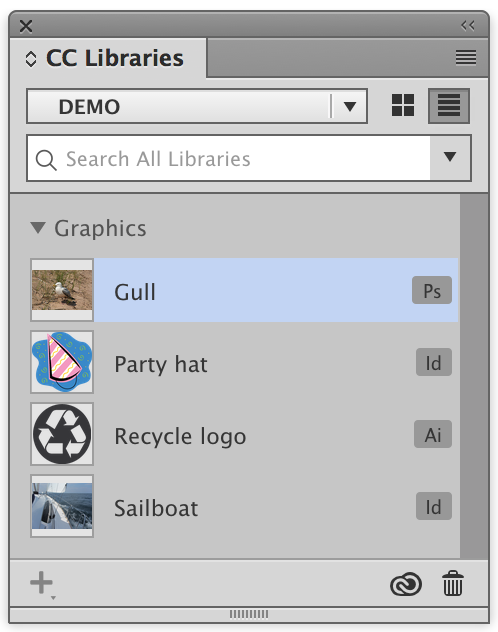
In the screenshot below, note the small “Id”, Ps”, and “Ai” icons displayed to the right of the graphic names. This icon indicates which program was used to add the graphic to the library. So “Party hat” and “Sailboat” are images that were added to the library from an InDesign page. “Gull” is a Photoshop layer that was added to the the library from Photoshop, and “Recycle logo” is artwork that was added to the library in Illustrator.
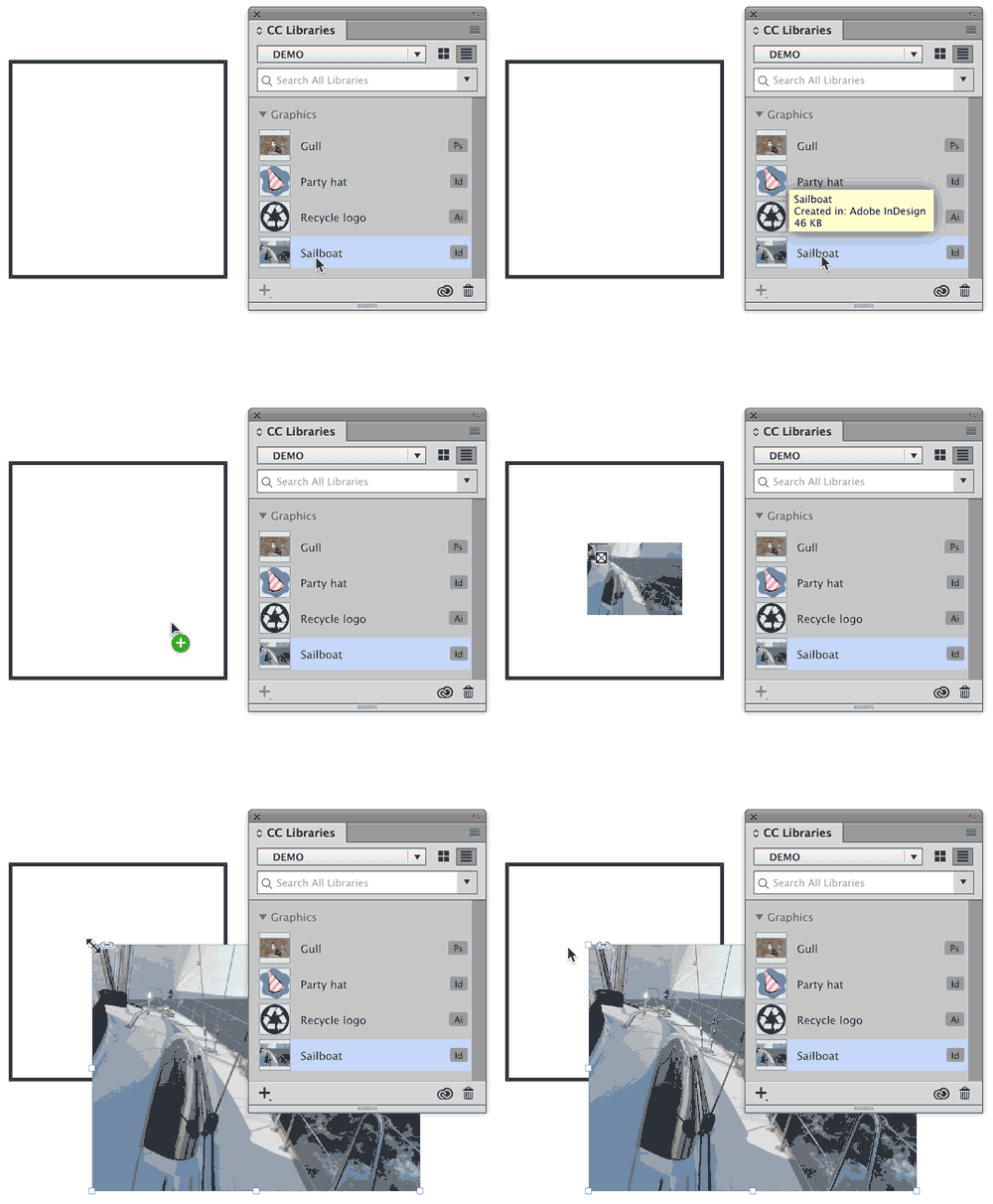
As it turns out, this indicator is vitally important for understanding how the graphic will behave in InDesign. If I drag the Sailboat image into a frame, it won’t be placed in the frame, but will instead bring along the frame that the image resided in when it was added to the CC Library from InDesign.
When I drag the Gull image into a frame, it will be placed directly into the frame, since this image was added to the CC Library in Photoshop.

Likewise with the vector graphics: The Party hat graphic is saved in the CC Library with its original InDesign frame, so it can’t be dragged into another InDesign frame. Since the Recycle logo was added to the Library directly from Illustrator, that artwork can be dragged into an InDesign frame.
CC Libraries are very powerful, but require a little understanding to use them effectively. Hopefully this article helps clear up one potential point of confusion.
This article was last modified on July 25, 2019
This article was first published on January 9, 2017
Commenting is easier and faster when you're logged in!

Recommended for you

Creating Library Assets With Adobe Capture CC
Editor’s note: Don’t miss Steve’s extensive story on CC Librar...
Announcing the InDesignSecrets Adobe Font Pack
Fonts are like voices, or like facial expressions: each one tells a story and ex...

Creative Cloud Assets New Web Interface
An important part of the infrastructure of Adobe Creative Cloud applications is...